
Nearly 70% of remote workers report new aches or distractions after shifting to home offices, a reminder that a bad setup can cost comfort and output.
This beginner guide to a productive workspace walks you through simple, practical steps for setting up workspace that supports focus and health. Start small: prioritize a supportive chair or improved lighting, then add a height-adjustable desk so you can switch between sitting and standing for better blood flow and alertness.
Good productivity workspace tips include choosing reliable tech—fast internet, a solid dock, and a quality keyboard and mouse—plus ergonomic rules: look straight ahead, keep elbows near 90 degrees, and plant your feet. Minimalist choices from IKEA shelving to monitor arms help reduce clutter and boost creativity without breaking the bank.
Key Takeaways
- Begin with one change: chair or lighting, then tackle a sit-stand desk.
- A well-planned home office setup for beginners improves comfort and focus.
- Ergonomics matter: monitor height, 90-degree arms, and good lumbar support.
- Minimalist storage and monitor arms lower distractions and increase productivity.
- Invest in reliable tech and internet to avoid avoidable workflow interruptions.
Find Your Perfect Spot for a Home Office Setup for Beginners
Start by picking a quiet area where you can focus. For a successful home office setup for beginners, a corner of the bedroom or a small table in the living room can work if you define it as a workspace. Look for a spot with a nearby outlet and a window that brings in daylight.
Choosing a dedicated corner or room
Make a dedicated work corner so your brain knows when it is time to work. If a whole room is not available, use a room divider, curtain, or a rug to mark the zone. A dedicated work corner prevents daily gear packing and helps you switch off at day’s end.
Prioritizing natural light and power access
Place your desk near a window for a natural light home office that boosts mood and cuts eye strain. Check for at least one power outlet and room for a laptop, charger, and lamp. If glare is a problem, use sheer curtains or an adjustable monitor arm to manage reflections.
Avoiding high-traffic and relaxation areas
Keep your setup away from doors, busy hallways, and the couch where you relax. Choosing workspace spot that stays clear of household traffic reduces interruptions and protects mental boundaries. Small changes like a shelf from IKEA or a vertical organizer can save space and keep your setup tidy.
Set Up Your Desk Just Right for Productivity Workspace Tips
Where you place your desk shapes how you work. For many people, desk placement facing a wall cuts distractions. Facing a window brings natural light and a view that can refresh focus. Test both options to find what keeps you productive while minimizing interruptions.
Keep frequently used items within easy reach to avoid breaking concentration. Place a notebook, pens, phone charger, and a compact wireless keyboard in arm’s reach. Use small trays or a drawer to store extras so you can quickly organize desk clutter at the end of the day.
Desk placement: facing a wall versus a window
Facing a wall reduces visual distractions from household traffic. It gives a neutral backdrop for video calls when paired with simple artwork or shelves. Facing a window offers better light and mood boosts. Use blinds or a screen bar lamp to manage glare if the sun hits your monitor.
Organizing frequently used items within reach
Adopt a reach zone system. Keep items you need every hour closest to you. Place once-a-week tools in a side drawer. Use a pegboard or small shelf to separate items by frequency. Built-in storage or desk organizers makes it easier to organize desk items without crowding the surface.
Creating an efficient desk arrangement with minimal clutter
Choose a desk surface roomy enough for essentials like a monitor, mouse, and a wireless charger. Add a monitor stand or arm to free surface space and to get the screen at eye level. Remove anything not used daily to maintain a minimal desk setup that supports clear thinking.
Cable management keeps a minimal look. Use cable trays, Velcro straps, and a cable box to hide power strips. For budget-minded setups, IKEA options and starter packs provide storage and clean lines while you refine your layout.
Try a desk pad to define a working zone and protect the surface. Pair it with a compact 60–65% mechanical keyboard for functionality and a tidy footprint. For further ideas on streamlining and personalizing while setting up workspace, visit a concise guide to minimal desk setups at minimal desk setups.
| Focus Area | Quick Action | Benefit |
|---|---|---|
| Desk placement | Test wall and window orientations | Choose light and distraction balance |
| Reach zones | Keep daily tools within arm’s reach | Reduce interruptions and boost flow |
| Surface management | Use monitor stands and pegboards | Free space and improve ergonomics |
| Cable control | Install trays and Velcro straps | Cleaner appearance and fewer tangles |
| Minimal desk setup | Remove non-daily items; add desk pad | Simpler workspace, clearer focus |
Most remote jobs go beyond a single laptop. Plan your remote work setup so you have space for extra monitors and a clear path for cables. A raised monitor stand brings screens to eye level and eases neck strain. Dual or single monitor arms from brands like VIVO free desk space and make adjustments simple.
Choosing extra monitors, stands, and monitor arms
Extra monitors boost multitasking and cut context switching. Pick sizes that match your workflow: a 27” for spreadsheets, a 34” ultrawide for design work. Samsung and Xiaomi offer strong ultrawide options for immersive layouts. Use a monitor stand or arm to set the top third of the screen at eye level. That small change improves posture and focus.
Docking stations, hubs, and cable management solutions
A docking station turns a laptop into a desktop-equivalent hub. Popular docks include Dell Universal Dock D6000 and multiport models like Mokia 18-in-1 and Falwendi 15-in-1. These docks let you connect monitors, Ethernet, and USB peripherals with one cable.
Cable management keeps the desk tidy and lowers distractions. Use clips, trays, and small boxes to route power and charging cords. A clean layout reduces the time spent untangling cables and makes switching devices faster. For a quick setup guide, read this beginner guide to a productive workspace.
Backup connectivity: hotspots and reliable internet options
Stable connections matter more than flashy gear. Choose a fast home plan from providers like AT&T or Comcast and test upload speeds for video calls. Keep a mobile hotspot or a wireless plan with hotspot data as a backup for outages.
High-quality headphones and a tested USB webcam such as the Logitech C920 help maintain professional calls when bandwidth fluctuates. Use an Ethernet connection from your router to a docking station when possible for the most reliable internet and fewer drops.
| Item | Why it helps | Recommended options |
|---|---|---|
| Extra monitors | Improves multitasking and reduces window switching | Samsung 49” Odyssey G9, Xiaomi 34” curved, 27” IPS |
| Monitor arms/stands | Saves desk space and sets ergonomic eye height | VIVO single/dual mounts, adjustable gas-spring arms |
| Docking station | Connect multiple displays and peripherals via one cable | Dell D6000, Mokia 18-in-1, Falwendi 15-in-1, Sutech 19-in-1 |
| Cable management | Keeps desk tidy and speeds device swaps | Cable trays, adhesive clips, zip boxes |
| Backup connectivity | Maintains productivity during outages | Mobile hotspots, wireless plans with hotspot data, Ethernet |
Picking the right furniture changes how you feel at work. A well-chosen ergonomic desk and chair can cut discomfort, boost focus, and make long days easier. Start with basics that support good posture and let you move without strain.
Ergonomic chair features to look for
Look for strong lumbar support that follows the curve of your lower back. Adjustable seat height and armrests let you set feet flat on the floor and keep arms at a 90-degree angle.
Choose a supportive cushion and durable casters that match your flooring. A breathable mesh back can help on warm days. High-quality chairs may reduce back pain and improve comfort over time.
Benefits of height-adjustable and standing desks
Switching between sitting and standing lowers fatigue and helps circulation. Many electric standing desks lift smoothly, making transitions quick and easy.
Standing desk benefits include higher alertness and less time cramped in one posture. A roomy desktop helps keep essentials handy during both sitting and standing phases, improving workflow in a home office setup for beginners.
Proper desk height and posture recommendations
Use a desk height calculator to set your workspace precisely. Your monitor should sit at eye level to avoid neck strain. Keep elbows close and wrists neutral with forearms parallel to the floor.
When standing, distribute weight evenly and keep knees soft. Small changes, like a footrest or anti-fatigue mat, support longer standing sessions. Follow simple posture rules: back straight, feet planted, and hands at 90 degrees.
| Item | Key Feature | Why it helps when setting up workspace |
|---|---|---|
| Herman Miller Aeron | Advanced adjustability and lumbar support | Custom fit reduces lower-back strain and fits varied body types |
| AmazonBasics Mesh Chair | Breathable back with basic height and arm adjustments | Budget-friendly comfort for new home office setup for beginners |
| Electric Standing Desk | Programmable height settings | Easy transitions that deliver standing desk benefits and consistent posture |
| Autonomous Smart Desk | Stable lift and wide desktop | Good balance of price, function, and space for organizing essentials |
Good lighting helps your eyes and your energy. Aim to sit near a window during the day to use natural light without causing screen glare. For evenings, choose a warm desk lamp to keep your workspace calm and reduce eye strain.
Maximizing natural light without screen glare
Place your desk so the window is to the side or slightly in front of you. Facing a window head-on can cause reflections, while a side position brightens the room and cuts glare. Use sheer curtains or blinds to diffuse harsh sunlight on bright afternoons.
Desk lamps, monitor light bars, and evening lighting
Choose a desk lamp with adjustable color temperature and dimming. A monitor light bar sits on top of your screen and lights the desk surface without reflecting on the monitor. Brands like BenQ and LIFX make monitor-mounted options that reduce shadows and keep your keyboard visible.
Lighting tips for looking better on video calls
Good video call lighting means even, soft front light. Position a lamp or monitor light bar behind the camera to brighten your face and eliminate heavy shadows. Raise your webcam to eye level for a flattering angle and steady eye contact during meetings.
Small changes deliver big gains in a home office setup for beginners. Use layered lighting and a monitor light bar to balance brightness across your workspace. Those choices improve video call lighting and follow basic productivity workspace tips you can apply today.
Keep Things Tidy with Smart Storage and Cable Management
A cluttered desk reduces focus and wastes time. Use small drawer units for papers, cups for pens, and boxes for extra chargers to create a tidy workspace that supports concentration. Built-in storage and vertical organizers free surface area while keeping essentials reachable.
 Pick a few reliable items and place them where you need them most. Desk organizers like Grovemade shelves or IKEA Skadis hooks lift items off the surface. Under-desk drawers and wall-mounted shelves expand storage without crowding the room.
Simple storage: drawers, boxes, and desk organizers
Start by sorting items into categories: daily tools, reference papers, and cords. Small drawer units and labeled boxes keep categories separated. Use desk organizers for pens and note pads so the top of the desk stays clear and a minimal desk setup feels natural.
Cable clips, trays, and hiding power strips
Cable management transforms a chaotic tangle into a neat ribbon of cords. Clip cables to the desk edge, run power strips inside a tray, and use zip sleeves for groups of wires. USB docks and docking stations cut the number of loose cables on the surface.
Daily tidy-up routine to maintain productivity
Take five minutes at the end of each day to return items to their spots and clear loose papers. This Effy-style routine makes tomorrow start fresh and preserves the benefits of an organized area. Regular reassessment prevents clutter from creeping back in.
For product options and storage ideas, consult this practical guide to storage solutions for office organization to match your layout and budget.
| Solution | Best for | Quick benefit |
|---|---|---|
| Small drawer units | Paper and supplies | Keeps documents sorted and accessible |
| Desk organizers | Daily tools and stationery | Maintains a minimal desk setup and neat surface |
| Under-desk trays | Power strips and surge protectors | Hides cables, improves safety and looks |
| Wall-mounted shelves | Vertical storage in small spaces | Frees desk area and supports a tidy workspace |
| Docking stations & USB hubs | Multiple devices and laptops | Reduces visible cables and speeds setup |
Start with one clear goal: reduce distractions so work feels easier. A minimal desk setup centers on a calm color palette, pared-down decor, and only the items you touch each day. Pick neutral tones like soft white, warm wood, or muted gray to calm the eye and help you focus while setting up workspace for sustained use.
Choosing a calm color palette and pared-down decor
Choose finishes that clean easily and show less visual noise. A white desk with a small plant, a compact monitor, and one notebook makes a strong, simple workspace design. Keep decor purposeful: one framed photo or a small artwork can personalize the desk without crowding it.
Decluttering tips and the “Effy” approach
Begin by removing everything that is not used daily. Use a timer for a quick declutter desk session of 10 minutes each evening. The Effy approach recommends simple storage and minimal decor so essentials stay hidden but reachable.
Digital tidy matters too. Clean your desktop, rename folders with clear labels, and archive old files. These small moves support productivity workspace tips and keep digital clutter from seeping into the physical area.
Using desk shelves and vertical space in small homes
When floor space is tight, add slim desk shelves or wall-mounted organizers to free the surface. IKEA-style shelving and compact accessories make it possible to maintain a minimal desk setup while keeping gear handy.
Use vertical organizers for notebooks, a charging dock, and a few curated items. A mechanical compact keyboard and a desk pad reduce items on the surface. This simple workspace design preserves function and keeps the room feeling open.
For ideas on intentional storage and minimalist setups, see a practical guide at minimalist desk setup tips. Try small experiments, reassess every month, and keep what helps you work best.
Use Tools That Help You Work Better: Accessories That Boost Output
Small, well-chosen items can change how you work. A few productivity accessories make planning, focus, and comfort much easier. Pick tools that match your daily rhythm and the kind of tasks you do.
Timers and visual planners keep priorities visible and timeboxed. A simple countdown or a whiteboard on the wall helps you break large projects into clear steps. Task-tracking tools, whether a paper planner or a digital app, stop small tasks from stealing attention.
Timers, whiteboards, and task-tracking tools
Use a Pomodoro timer to protect focus and prompt breaks. Mount a small whiteboard near your monitor for today’s top three tasks. Sync a task-tracking app with calendar reminders to keep deadlines in view.
Noise-canceling headphones and sound-absorbing textiles
In shared homes, noise-canceling headphones reduce distraction and speed up deep work. Pair them with rugs or heavy curtains to cut echo and soften background noise. Brands like Sony and Bose offer models that balance comfort and battery life.
Ergonomic accessories: footrests, mats, and wrist supports
An ergonomic footrest improves posture and circulation during long sits. Anti-fatigue mats make standing desks more pleasant. Wrist supports and an ergonomic mouse lower strain for typing and editing.
Desk accessories such as cable clips, a docking station, and a compact organizer tidy your workspace. A neat desk reduces friction when you switch tasks. Choose one or two high-impact pieces first, then add items as needs grow.
- Start with a timer and a task board to shape daily habits.
- Invest in noise-canceling headphones if your space is noisy.
- Add an ergonomic footrest or anti-fatigue mat to improve comfort.
This beginner guide productive workspace recommends testing accessories in short trials. Keep what helps your focus, discard what doesn’t, and build a kit that supports sustained output.
Add Personal Touches That Make You Happy Without Distracting
Small, thoughtful additions can make a home office setup for beginners feel welcoming and steady. The goal is to personalize workspace without crowding it. A few curated items boost mood and help with setting up workspace that supports focus.

Plants, photos, and minimal artwork ideas
Choose one or two desk plants to add life without extra care. Succulents and pothos suit low-maintenance routines and fit most desks. Add a single framed photo of family or a minimalist print to keep the area warm. When selecting minimal artwork, pick pieces with calm colors and simple lines so they contribute style, not distraction.
Balancing personalization with focus
Limit personal items to surfaces you see when seated. That helps maintain a visual calm while you work. Use a small shelf or a single pinboard to contain keepsakes. This approach lets you personalize workspace and still keep attention on tasks.
Small styling moves that improve mood and motivation
Swap a bulky coaster for a slim desk pad, or add a compact shelf to elevate a plant or book. Rotate a favorite print or change a plant pot seasonally to refresh the environment. These minor updates support long-term use of your setup and make setting up workspace feel manageable.
| Item | Why it Works | Quick Tip |
|---|---|---|
| Desk plants | Bring nature indoors, lower stress, require little upkeep | Pick succulents or pothos for bright or low light |
| Minimal artwork | Adds personality while preserving focus | Choose one piece with muted tones and clean lines |
| Framed photo | Provides emotional connection and motivation | Use a small frame placed to the side of your monitor |
| Desk pad | Defines workspace and protects the surface | Select a neutral color to reduce visual clutter |
| Compact shelf | Raises items, creates vertical interest, saves desk space | Limit items to two or three to avoid crowding |
Start with one change and build from there. Pick a dedicated spot for work and avoid working from the couch or bed. This simple habit supports healthy work-life boundaries and helps your brain shift into focus when you sit at your desk.
Designating work hours and a shutdown routine
Set clear start and stop times each day. Treat those hours like any office schedule and write them down. Use a shutdown routine that includes closing apps, saving files, and powering off your main device. A consistent shutdown routine signals the end of work and limits creeping hours.
Physical boundaries: room dividers and visual cues
Create a visible separation between work and living areas. Room dividers, curtains, or even a bookshelf act as barriers that mark a workspace. Close the door or place a small sign when you are working. Visual cues help family members respect your time and reduce interruptions.
Dressing for work and turning off notifications
Change into work-appropriate clothes to boost focus and professionalism. When the day ends, change back to signal the shift out of work mode. Turn off or silence work notifications after hours and consider powering down your computer. These steps protect personal time and prevent burnout.
For those setting up a home office setup for beginners, start small. Follow this beginner guide productive workspace plan: pick a zone, add room dividers if needed, set work hours, and adopt a shutdown routine. Over time these habits will strengthen your work-life boundaries and improve focus.
Optimize Ergonomics for Long-Term Comfort and Health
Good ergonomics in a home office stops pain and keeps focus. Small adjustments to monitor height, keyboard placement, and posture pay big dividends for comfort and productivity. Use this outline to set up a workspace that supports long-term health and keeps you working at your best.
Monitor distance and eye-level positioning
Place your screen so the top third sits at eye level. That monitor height reduces neck strain and makes it easier to look straight ahead. Keep the monitor about an arm’s length away; adjust slightly for higher-resolution displays to avoid pixel strain.
Monitor arms or sturdy stands make these adjustments simple. Tilt the screen back 10–20 degrees to cut glare while keeping clear visibility of text and visuals.
Proper keyboard and mouse placement for 90-degree arms
Set keyboard placement so your elbows sit at roughly 90 degrees and your forearms are parallel to the floor. Keep the mouse close to the keyboard to avoid reaching. Wrist rests can help maintain neutral wrist alignment when typing or using the mouse.
Consider a negative-tilt keyboard tray or a compact keyboard to reduce shoulder tension. Check keyboard placement after changing chair height or desk height to keep that right-angle elbow position.
Sitting and standing posture tips and regular movement
When seated, plant your feet flat and let your lower back touch the chair’s lumbar support. Keep shoulders relaxed and chin slightly tucked. Standing desks from brands like Herman Miller or Fully let you alternate positions, which boosts circulation and reduces stiffness.
Follow a schedule to switch between sitting and standing every 30–60 minutes. Take short breaks to walk, stretch, or look out a window. Hydration and fresh air help reduce fatigue and support longer periods of focused work.
Use these productivity workspace tips to build a routine. Regularly reassess your setup after equipment changes or pain signals. Good ergonomics home office choices prevent soreness and keep workdays sustainable.
Technology Picks for Different Budgets and Workstyles
Choosing the right gear shapes comfort and output. This short primer covers practical technology picks for common budgets and workflows while keeping setup simple for beginners.
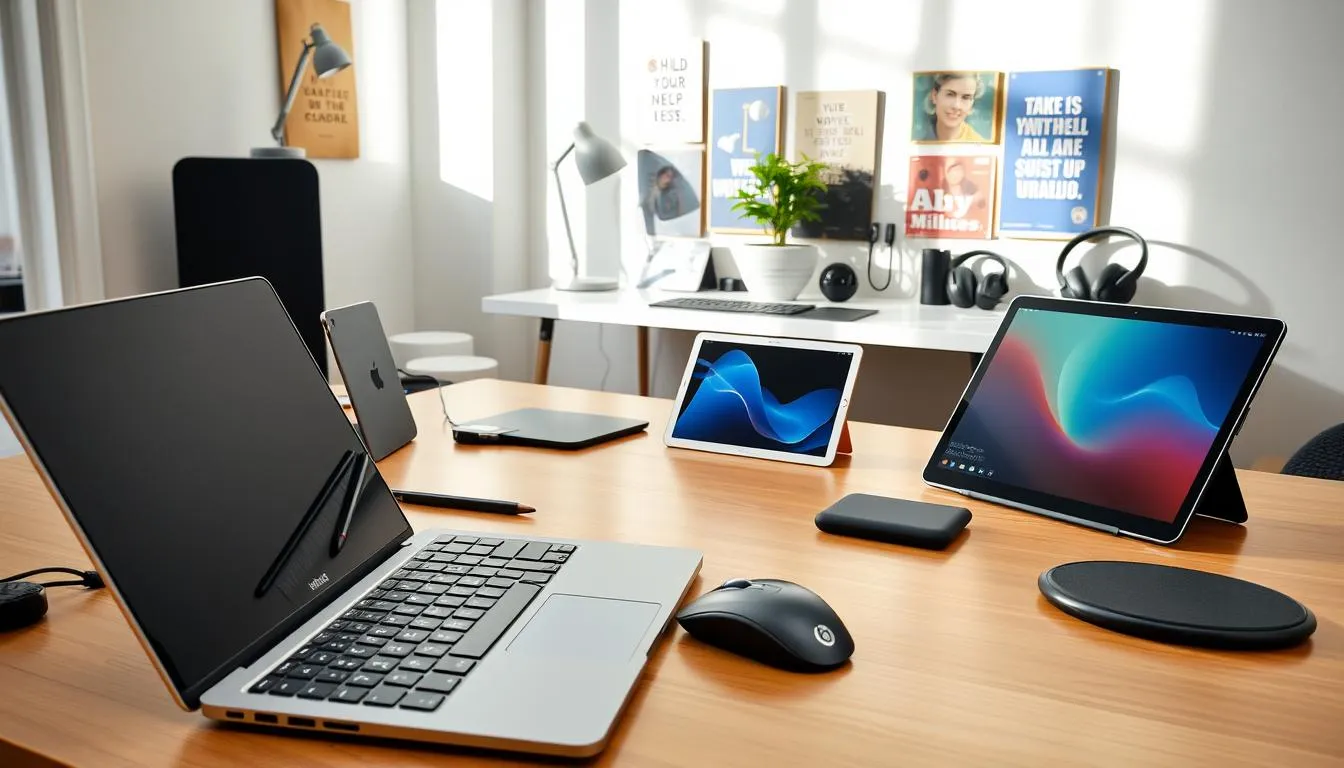
Start by weighing laptop vs desktop for your needs. Laptops like the Apple MacBook Pro (M2) or Dell XPS 13 Plus suit people who move between locations. Desktops give more raw power and easier upgrades for creative work or heavy data tasks. Many remote jobs need more than a single laptop screen, so add a second monitor or a stand for better neck posture.
Laptop vs desktop considerations
Laptop works best when portability matters. Pick a model with long battery life and a solid keyboard like Lenovo ThinkPad E14 for budget buyers.
Desktop fits users who need expandability and higher sustained performance. Pair desktops with dual mounts or monitor stands to free desk space and create ergonomic sightlines.
Recommended webcams, microphones, and headphones
Video quality and clear audio matter for calls. For webcams, the Logitech C920 is a reliable midrange pick. An Amcrest 1080p model offers a budget-friendly alternative for clear meetings.
Headphones with active noise cancellation improve focus during long calls. Popular choices include comfortable over-ear models and wired headsets for stable audio during presentations.
Monitor sizes and ultrawide options for multitasking
Most users do well with 24”–27” monitors for clarity and desk fit. If you juggle many windows, an ultrawide monitor reduces the need for multiple screens. High-end options such as the Samsung 49” Odyssey G9 deliver immersive space for editing and spreadsheets.
Budget ultrawide models like the Xiaomi Mi 34” curved give wide workspace without a huge price tag. Match monitor height and distance to ergonomic guidelines to avoid neck strain.
Common accessories lift a basic setup into a productive workspace. Docking stations simplify connections between laptop and peripherals. A quality keyboard and mouse pair such as the Logitech MX Keys with MX Master enhances comfort, while the Logitech MK270 offers a dependable budget pack.
Reliable internet and backup connectivity matter as much as devices. Consider mobile hotspots and strong home plans to avoid interruptions. For hybrid offices, desk-booking and space analytics tools help decide how much hardware you truly need; read practical comparisons of booking platforms at desk booking tools for remote teams.
| Use Case | Primary Device | Key Peripherals | Suggested Monitor |
|---|---|---|---|
| Mobile professional | MacBook Pro (M2) or Dell XPS 13 Plus | Docking station, portable webcam, noise-canceling headphones | 24”–27” external for on-desk work |
| Budget remote worker | Lenovo ThinkPad E14 | Amcrest 1080P webcam, Logitech MK270, basic dock | 24” curved or 34” budget ultrawide |
| Creative pro / data analyst | Custom desktop or high-end laptop | Logitech C920, MX Keys + MX Master, studio microphone | Samsung 49” Odyssey G9 ultrawide |
| Hybrid office user | Midrange laptop with docking | Webcam, headset, dual monitor mount | Dual 27” or single ultrawide monitor |
Creating an efficient small space home office starts with practical choices. Pick furniture that folds away, uses walls, and frees floor area. Test layouts and keep adjustments simple to find what feels right.
Foldable desks make a compact workspace possible in studios and shared rooms. A foldable desk can serve as a full workstation during the day and disappear at night. Pair it with a slim chair that tucks under the surface to save more room.
Wall-mounted shelves create storage without eating up the floor. Install wall-mounted shelves above a workspace to hold books, plants, and tech. Use hooks and small bins on those shelves to keep cables, chargers, and supplies neat.
Desk shelves and vertical organizers let you move items up instead of out. Add a monitor arm and stackable desk shelves for keyboards, notebooks, and a docking station. This clears surface area and helps maintain focus in tight quarters.
Shared apartments benefit from clear visual boundaries. Use a room divider, a tall bookshelf, or a curtain to mark a dedicated zone for work. That makes a home office setup for beginners feel intentional and easier to protect during the day.
IKEA offers starter options like narrow tables and the SKÅDIS pegboard for reachable storage. Combine compact sit-stand desks with built-in drawers when possible. Small accessories such as compact mechanical keyboards help reduce clutter without sacrificing function.
Periodically reassess your arrangement. Move a foldable desk, swap wall-mounted shelves, or change desk shelves based on how you use the space. Small experiments reveal big gains in comfort and productivity for tiny apartments and shared spaces.
Security, Connectivity, and Reliable Internet for Remote Work
A steady connection and basic security are the backbone of a productive home office. Aim for a plan that gives steady bandwidth and low latency so video calls stay smooth and cloud apps sync without delay.
Choosing a fast home internet plan and backups
Pick a provider that offers symmetric fiber when available. Symmetrical fiber gives similar upload and download speeds, which helps with large uploads and clear video feeds. Check real-world uptime, data caps, and exact upload speeds before you sign up.
Keep a tested backup ready. A dedicated mobile hotspot device or a smartphone with a generous hotspot plan can be a lifesaver during outages. Confirm your carrier’s limits and trial the connection for typical tasks. For plan comparisons and fiber options, see a reliable guide like best internet for remote work.
Using VPNs and basic data-security practices
Use a VPN for remote sessions that handle sensitive data. A VPN for remote work encrypts traffic and masks your IP, which reduces risk when you work from public Wi‑Fi or a shared building network.
Follow simple habits: strong unique passwords, two-factor authentication, and automatic updates for operating systems and apps. These steps keep most common threats at bay and support uninterrupted productivity.
Reducing connectivity interruptions with hotspots and routers
Place routers centrally and elevated to boost Wi‑Fi coverage. For your main workstation, use a wired Ethernet link to cut latency and avoid Wi‑Fi interference during calls.
Combine a reliable internet plan with a tested mobile hotspot backup. A mobile hotspot backup can handle essential video calls and email when the main line fails. Consider a dual-WAN router or a failover setup if you need higher resilience for client work.
| Option | Typical Upload/Download | Reliability | Best Use |
|---|---|---|---|
| Fiber (symmetrical) | 100 Mbps – 2 Gbps+ | Extremely high | Video calls, cloud backups, large uploads |
| Cable | 50 Mbps – 1 Gbps (asymmetrical) | Moderate to high | General remote work, streaming |
| Mobile hotspot / LTE | 12 Mbps – 300 Mbps | Variable | Mobile hotspot backup, on-the-go work |
Maintenance Habits to Keep Your Workspace Productive
Small, regular habits keep a home office comfortable and reliable. A steady focus on workspace maintenance prevents surprises and saves time. Use a simple plan that blends a clean desk routine with practical checks for gear and software.
Regular equipment checks and cable swaps
Inspect monitors, docking stations, and power strips once a month. Look for frayed cords, loose connectors, and dust buildup. Replace worn cables and tighten connections to avoid sudden failures.
Run quick hardware checks before important meetings. Confirm microphone and webcam function. These small moves reduce interruptions and support long-term reliability.
Weekly cleaning and monthly ergonomic reassessments
Adopt a clean desk routine at the end of each workweek. Wipe keyboards, mouse surfaces, and screens with appropriate cleaners. Clear papers and tidy trays to keep focus sharp on Monday.
Once a month, review chair height, monitor angle, and keyboard placement. Make small adjustments to posture and desk layout to prevent strain and boost comfort.
Updating software, backups, and device hygiene
Schedule regular software updates to keep security current and performance smooth. Back up important files to a cloud service or external drive on a consistent cadence.
Keep device hygiene in mind. Clean vents and fans to avoid overheating. Combine these steps with routine software updates for a resilient setup that supports productivity workspace tips.
Follow this outline for predictable results: weekly tidy tasks, monthly ergonomic checks, and ongoing hardware checks plus timely software updates. That mix makes workspace maintenance manageable and effective.
beginner guide productive workspace
Start with one change you can afford and test. A better chair often cuts back pain and boosts focus. Improved lighting can raise energy and reduce eye strain. Choose one, try it for two weeks, then reassess.
How to start small and prioritize changes
Prioritize furniture that supports long hours. Pick a comfortable chair and a stable desk first. Next, address lighting so screens are clear and you stay alert. Use the phrase prioritize workspace changes as your decision filter.
One-change-at-a-time roadmap: chair, lighting, then tech
Follow a simple roadmap: ergonomics first, lighting second, tech third. Swap to an ergonomic chair, then add a monitor light bar or desk lamp. Finish with practical tech: a monitor arm, docking station, or a reliable router. These start small workspace improvements that deliver noticeable gains.
Measuring progress: comfort, focus, and output improvements
Track comfort and focus with short daily notes and a weekly score from 1 to 10. Log tasks completed and time spent on deep work. Compare pain levels, concentration, and output over four weeks to see which productivity workspace tips made the biggest difference.
Conclusion
Setting up a productive workspace is about balance: ergonomics, clarity, and simple routines matter more than a full overhaul. This beginner guide productive workspace shows that a single high-impact change—an ergonomic chair, a height-adjustable desk from a trusted maker like EFFYDESK, or a reliable internet upgrade—can improve comfort and focus right away.
For home office setup for beginners, combine core furniture, basic tech, and tidy habits. Monitor arms, docking stations, and a quality webcam keep tasks smooth, while a clean desk and limited notifications reduce distractions. Follow productivity workspace tips like short daily tidies and regular movement to protect your body and sharpen attention.
Personal touches and smart organization make the space sustainable and pleasant. Use a few meaningful items, add functional decor, and structure digital files and email. For ideas on thoughtful personalization and decluttering, see this practical guide on personalizing your workspace at personalizing your workspace.
In short, this workspace summary: be intentional, invest in the essentials, and keep routines that support health and output. Small, steady improvements will make your setting up workspace effort pay off in daily comfort and long-term productivity.
FAQ
How do I choose the best spot for a beginner’s home office?
Pick a quiet, dedicated corner or room you can consistently use. Look for natural light and at least one nearby power outlet. Avoid high-traffic and relaxation areas like the couch or bed so you can switch into and out of work mode more easily. If a whole room isn’t available, define a clear work zone with a small table, curtain, or room divider.
Should my desk face a window or a wall?
Face a window when you want more daylight and a pleasant view, but avoid direct glare on your screen. Facing a wall reduces distractions and helps focus. Either way, keep frequently used items—pen, notebook, phone charger—within arm’s reach to minimize interruptions.
What desk surface and layout work best for productivity?
Choose a roomy surface that fits your main device(s) plus accessories like a monitor, charger, and a small lamp. Use monitor stands or arms, desk shelves, and vertical organizers to free up surface area. Keep clutter minimal: only items you use daily should live on the desk.
Do I need extra monitors or a docking station?
Extra monitors boost multitasking and reduce neck strain when arranged at the correct height. Docking stations and USB-C hubs simplify connecting peripherals and multiple displays. If you use a laptop as your main device, a dock plus a monitor arm are high-impact additions.
What internet setup should I have for remote work?
Use a fast, reliable home internet plan and keep a backup option like a mobile hotspot or secondary wireless plan for outages. For privacy and secure work access, use a VPN and strong passwords. High-quality routers and occasional speed checks help reduce interruptions.
What should I look for in an ergonomic chair?
Choose a chair with good lumbar support, adjustable seat height, adjustable armrests, and a supportive cushion. Quality casters suited to your floor type matter for mobility. A better chair reduces back pain and is often the single best investment for comfort.
Are height-adjustable or sit-stand desks worth it?
Yes. Height-adjustable desks let you alternate sitting and standing, which improves circulation and alertness. They help reduce fatigue and encourage movement. Use an ergonomic desk height calculator and learn proper standing posture—back straight, weight balanced, and screen at eye level.
How do I set monitor height and keyboard placement correctly?
Set the top third of the monitor at eye level so you look straight ahead. Keep the screen at a comfortable viewing distance—farther for high-resolution displays. Position your keyboard and mouse so your elbows form about a 90-degree angle and wrists are neutral. Feet should be flat on the floor or on a footrest.
What lighting works best for video calls and focused work?
Maximize soft natural light, but avoid glare. Use a desk lamp or a monitor light bar to illuminate your workspace evenly in the evenings. Place lights so they brighten your face for video calls—avoid harsh overhead lights that create shadows or screen reflections.
How can I manage cables and small clutter in a small home office?
Use cable clips, trays, and power strips to centralize cords. Small drawer units, boxes, and desk organizers keep papers and accessories tidy. Vertical storage like monitor shelves and pegboards (IKEA Skadis-style) saves surface area in tiny spaces. Make a 5-minute end-of-day tidy-up part of your routine.
What minimalist strategies help productivity?
Choose a calm color palette, remove items you don’t use daily, and keep only a few personal touches. Use compact keyboards, desk pads, and monitor mounts to reduce footprint. The Effy approach—simple storage, daily tidy-up, and intentional decor—helps you keep focus long term.
Which accessories give the biggest productivity boost?
High-impact accessories include noise-canceling headphones, a quality keyboard and mouse (Logitech MX Keys and MX Master are popular), a reliable dock, and a monitor arm. Ergonomic extras like footrests, anti-fatigue mats, and wrist supports improve comfort for long hours. Timers or a small whiteboard help with task management.
How much should I personalize my workspace?
Add a few personal items—one plant, a small photo, or a piece of art—to boost mood without creating distraction. Keep personalization minimal and curated so it enhances motivation without cluttering your focus.
How do I create boundaries between work and home life?
Set clear work hours and a shutdown routine. Physically separate your workspace when possible—close a door, draw a divider, or put away your laptop. Dress for work to signal the start of your day and turn off work notifications after hours to protect downtime.
How should I maintain my home office over time?
Do weekly cleaning (dust screens, wipe surfaces), check cables and replace worn ones, update software, and back up important files. Perform monthly ergonomic reassessments—adjust chair height, monitor position, and desk setup as needed to prevent discomfort.
Where should I start if I’m setting up my workspace on a budget?
Start with one high-impact change: a supportive chair to reduce pain or better lighting to boost energy. Next add a monitor stand or an affordable docking station. Use inexpensive vertical organizers and cable management to make small budgets go further. Iterate and prioritize based on comfort and productivity improvements.
What are recommended tech options for different budgets?
For laptops, consider MacBook Pro models for performance, Dell XPS for a premium Windows option, and Lenovo ThinkPad E14 for budget-friendly reliability. Webcams like the Logitech C920 or affordable Amcrest 1080p work well. For peripherals, Logitech’s MX series is a solid mid-to-high option; Logitech MK270 is a budget choice. Docking stations and monitor mounts from brands like Dell, Mokia, Falwendi, and VIVO cover a range of price points.
How can I make a small apartment workspace functional?
Use foldable desks or wall-mounted shelves and vertical organizers to maximize space. Monitor arms and compact keyboards free surface area. Define your work zone with a rug or divider, and choose compact, multi-purpose furniture. IKEA solutions like Skadis and simple desk shelves are cost-effective space savers.
What security steps should I take for remote work?
Use a secure home Wi‑Fi network, strong passwords, and a VPN for sensitive work. Keep software and firmware updated, back up critical files, and use reputable antivirus or endpoint protection. A mobile hotspot can serve as a backup connection if your main internet fails.
How often should I take breaks and move during the day?
Move regularly—stand or walk for a few minutes every 30–60 minutes. Use sit-stand transitions to encourage circulation and alertness. Timers or break-reminder apps help build the habit. Short walks and stretching reduce fatigue and help maintain focus.
How do I measure whether my setup is improving productivity?
Track objective signs: less discomfort or pain, fewer interruptions, faster task completion, and improved focus. Subjective measures like better mood, more energy, and easier “clocking off” also indicate progress. Adjust priorities—chair first, then lighting, then tech—based on what changes deliver the biggest gains.