

Nearly 60% of remote workers say they move their laptop or equipment every day — a small habit that erodes focus and adds minutes of friction to every task.
If you’re getting started home office work, the best first move is simple: claim a dedicated workstation. Whether that’s a spare room or a corner desk, a fixed spot keeps you from packing up daily and helps you mentally switch into work mode.
Begin this setup optimization guide with a short declutter session. Clear only what sits on the surface, add a few storage bins or an IKEA Skadis panel, and set aside a place for chargers and docking stations. A minimal desk reduces distractions and speeds up every morning.
Think ergonomics early. Aim to have your monitor at eye level, elbows near 90 degrees, and feet flat on the floor. If you use a laptop, add a dock and external keyboard or consider an adjustable electric desk to alternate sit/stand positions.
Light and personalization matter too. Use a monitor light bar or a Xiaomi Mi LED Desk Lamp to cut glare for video calls, and add a plant or a photo to make the space inviting without cluttering it. Small choices support boundaries, reduce stress, and make it easier to clock off at the end of the day.
Key Takeaways
- Choose a fixed location—room or corner—to prevent daily equipment moves.
- Start with decluttering and a minimalist desk to improve focus.
- Prioritize basic ergonomics: monitor height, keyboard position, and seating.
- Use docks, monitor arms, and adjustable desks as part of home office basics.
- Optimize lighting and add one or two personal touches for comfort and mood.
- Small setup changes can significantly boost productivity and work-life balance.
Why Home Office Setup Optimization Matters for Productivity
Creating a clear boundary between work and home matters more than many assume. A dedicated workspace helps protect work-life boundaries and makes it easier to “clock off” at the end of the day. This leads to better focus during work hours and more genuine rest afterward.
When you are getting started home office, location choices shape daily performance. Placing a desk near natural light reduces eye strain and improves mood. Quiet spots away from high-traffic living areas cut interruptions and let you hold more professional video calls without scrambling for a neat background.
Impact of a dedicated workspace on focus and work-life boundaries
A defined workstation signals your brain that it is time to work. People who use a specific room or corner report faster task starts and fewer context switches. Clear household rules and visible cues help maintain work times and protect focused blocks, which supports sustained productivity.
How clutter and poor lighting reduce efficiency and increase fatigue
Clutter steals minutes and breaks concentration. A minimalist desk reduces visual distractions and cuts time spent searching for tools or papers. Poor lighting causes eyestrain and headaches, which slow your pace and lower output. Prioritize a setup optimization guide that recommends natural light first, supplemented by adjustable LED task lighting when needed.
Mental health benefits of an intentional, personalised office
Personal touches such as plants, artwork, and a calm color palette improve mood and motivation. An ergonomic chair and the right desk height lower physical discomfort and reduce the risk of neck and back pain. These changes shrink stress levels and raise energy, so daily work feels less draining.
For practical tips on how to optimize workspace and arrange small areas, consult a concise resource like this setup optimization guide. Simple actions—decluttering, setting boundaries, and improving light—deliver measurable gains in focus and well-being.
getting started home office
Setting up a home workspace starts with simple choices that shape your day. Follow practical steps to protect focus, reduce friction, and build routines that work for your life.
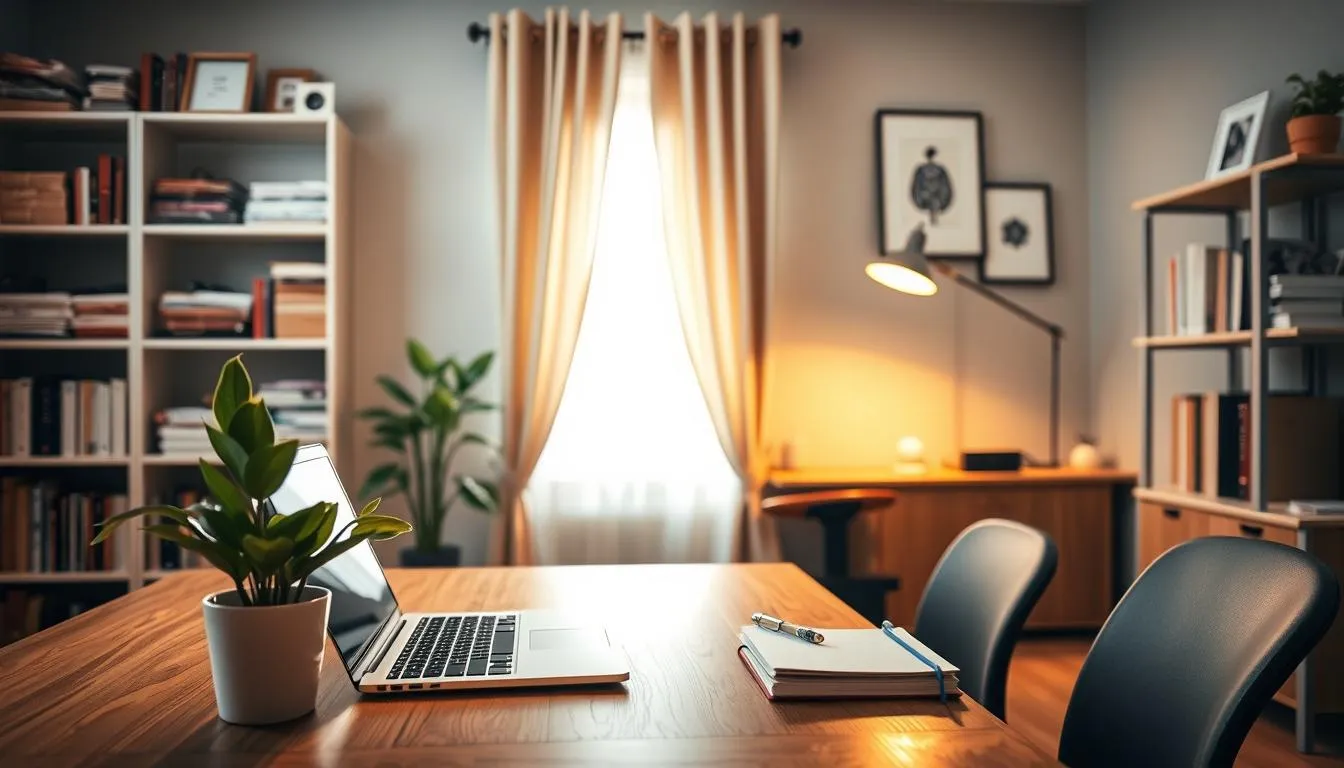
Choosing a dedicated location: room vs. corner desk
Pick a spot that prevents daily equipment moving and signals work time. A spare room gives clear boundaries and storage for home office basics like filing and shelving. A corner desk works for small apartments when paired with vertical storage such as IKEA shelves and a Skadis pegboard.
Measure your space, test light at work hours, and try a monitor arm to get the screen at the right distance. That small investment makes a corner desk feel like a true workstation.
Setting expectations with household members to protect work time
Tell family your work hours and post visual signals like a door sign or a closed-door rule. Agree on quiet windows for calls and times when interruptions are allowed.
Keep essential supplies, a designated mug, and office-only items inside the workspace to avoid mid-day borrowing. Clear signals help others respect your schedule and make it easier to stick to a routine.
Simple first steps: declutter, define, and schedule
Start minimal. Remove papers you no longer need, digitize receipts, and bundle cables behind the desk. Keep only daily essentials within arm’s reach to reduce distractions.
Define work hours, set Pomodoro-style blocks, and test tech and internet before important calls. These small moves show how to optimize workspace without large purchases.
- Declutter: bin, digitize, or file papers immediately.
- Define: label storage and create zones for tasks.
- Schedule: block focus time and short movement breaks.
Home Office Basics: Essential Furniture and Layout
Getting the fundamentals right sets the tone for a productive day. Start by thinking about flow, storage, and where power outlets sit. Small changes in furniture and layout yield big wins for comfort and focus.
Selecting the right desk for your space and tasks
Desk choice affects clutter, aesthetics, and ergonomics. Match your work tasks to desk size: a compact desk can hold a laptop and lamp, while a 48–60 inch surface suits dual monitors. Consider models like the IKEA Linnmon for budget builds or a Container Store adjustable desk for flexible height.
Use monitor mounts from VIVO or Grovemade shelves to raise screens to eye level. That improves posture and frees surface area for documents and a docking station. When selecting right desk, factor in cable routing, storage, and the room’s traffic flow.
Chair choices for comfort and lumbar support
Good seating makes long hours bearable. Look for adjustable lumbar support, seat height, and armrests. The Herman Miller Aeron is a premium pick for posture and long-term durability. The AmazonBasics Mesh chair fits a tight budget while offering breathable support.
Test back tilt and lumbar adjustment before buying if possible. Proper chair lumbar support prevents strain and boosts sustained focus during deep work sessions.
Benefits of standing desks and alternating sit/stand workflows
Electric standing desks let you switch positions quickly. Studies link ergonomic setups with measurable productivity gains. Alternating between sitting and standing reduces fatigue and improves circulation.
Standing desk benefits include fewer aches and a natural impulse to move more. Pair sit/stand cycles with Pomodoro-style breaks to avoid prolonged standing. For small spaces, an under-desk exercise bike or a compact riser gives extra options while following this setup optimization guide.
- Quick checklist: right desk height, monitor at eye level, adjustable chair with lumbar support.
- Storage tips: use vertical shelving and a small filing cabinet to keep surfaces clear.
- Layout tip: position task lighting to reduce glare and keep the main work zone within reach.
Ergonomics for Long-Term Comfort and Health
Setting up a healthy workspace is one of the best steps when getting started home office. Small adjustments now reduce pain later and keep focus steady through the day. Start with basics that support neutral posture and allow easy movement between tasks.
Monitor height and viewing distance recommendations
Position the top of your screen at or just below eye level so your gaze is slightly downward. Follow monitor height recommendations that pair screen height with viewing distance. Use a monitor arm like VIVO or an adjustable mount to fine-tune height and distance.
The ideal viewing distance depends on monitor resolution and size. A 24–27” 1080p display sits comfortably 20–30 inches away. Higher-resolution panels or ultrawides may allow a slightly closer setup without loss of clarity.
Keyboard and mouse placement to prevent strain
Place the keyboard so your forearms form a 90° angle at the elbow. Keep the mouse close to the keyboard to avoid reaching. Follow keyboard placement advice by testing split or ergonomic options such as Microsoft Sculpt or Kinesis Advantage to reduce wrist strain.
Wrist supports and a light-touch typing style help prevent repetitive stress. A stable tray or adjustable desk height can keep hands aligned with the forearms and wrists.
Posture tips and micro-break routines (Pomodoro-style)
Sit with your back supported, feet flat on the floor, and shoulders relaxed. The top of your monitor should align with eye level so your neck stays neutral. If a chair lacks lumbar support, add a cushion or choose a model with adjustable lumbar adjustments.
Use Pomodoro micro-breaks to reduce long, uninterrupted sitting. Work for 25 minutes, then take a short movement break. Stand, stretch, or step onto a yoga mat for a minute of mobility. These small changes cut musculoskeletal complaints and refresh attention.
- Adjustable monitor arms let you tweak height and depth easily.
- Choose an ergonomic chair with lumbar support and seat depth adjustment.
- Try an ergonomic keyboard and wrist rest to lower carpal tunnel risk.
- Schedule Pomodoro micro-breaks for regular movement and eye rest.
Lighting Strategies to Reduce Eye Strain and Improve Video Calls
Good lighting affects comfort, focus, and how you appear on camera. Use even, diffused light to cut glare and reduce eye strain. Aim for a balanced mix of daylight and artificial sources so your eyes stay relaxed during long work sessions.
Maximizing natural light
Place your desk near a window to get daylight without direct glare on the screen. Use light-filtering curtains or sheer panels to soften harsh sun. Reflective surfaces like a small mirror can amplify light for a small room, keeping the feel bright without adding strong contrast.
Maximizing natural light and avoiding glare
Natural light home office setups improve mood and reduce flicker-related fatigue. Shift your monitor slightly off-center from the window so reflections don’t hit the screen. On very bright days, lower blinds or use wood blinds behind curtains to tame hotspots and preserve an even field of view.
Task lighting: why a monitor light bar matters
A monitor light bar provides focused, indirect desk illumination that won’t create screen reflections. Choose models with dimmable, flicker-free drivers and adjustable color temperature. The BenQ ScreenBar Plus and similar options give clear desk lighting while keeping video call lighting steady and predictable.
Place a monitor light bar above the screen and a small, flicker-free desk lamp near paperwork to create a low-contrast task area. If your display has an ambient light sensor, like the Apple Studio Display, let it adapt brightness for you so the monitor and desk remain in balance.
Ambient and accent lighting for mood and video backgrounds
Layer ambient ceiling light, corner torchières, and accent LEDs to smooth shadows and add depth behind your camera. Use warm or neutral color temperatures for a cozy background and cooler tones for focused tasks. Smart bulbs and dimmers let you fine-tune video call lighting without moving fixtures.
- Diffuse overhead light with a central soft fixture or frosted shade.
- Use corner torchières to fill dark areas and lower overall contrast.
- Add LED strips or a backlight behind the monitor for gentle contrast reduction.
Test setups before important calls. Small changes to angle, brightness, or a monitor light bar position can shift camera exposure and skin tones. Follow the 20/20/20 rule to break eye strain: every 20 minutes, look at something 20 feet away for 20 seconds.
For product suggestions, consider dimmable, high-CRI bulbs such as Philips Ultra Definition LED Soft White, smart options from LIFX and Hue for color control, and reliable desk lamps like the Xiaomi Mi LED Desk Lamp. Practical reviews and further tips are available in this guide to work-from-home lighting: work-from-home lighting.
When you plan lighting, aim to balance camera needs with long-term comfort. Thoughtful lighting strategies create a pleasant natural light home office, reduce fatigue, and make video calls look professional while keeping your workspace ergonomic and eye-friendly.
Decluttering and Minimal Setup Optimization Guide
Start with a clear goal: make your desk a place for focused work. This decluttering guide helps you remove visual noise, keep essentials close, and set up systems that last. Small changes yield big gains in concentration and workflow.
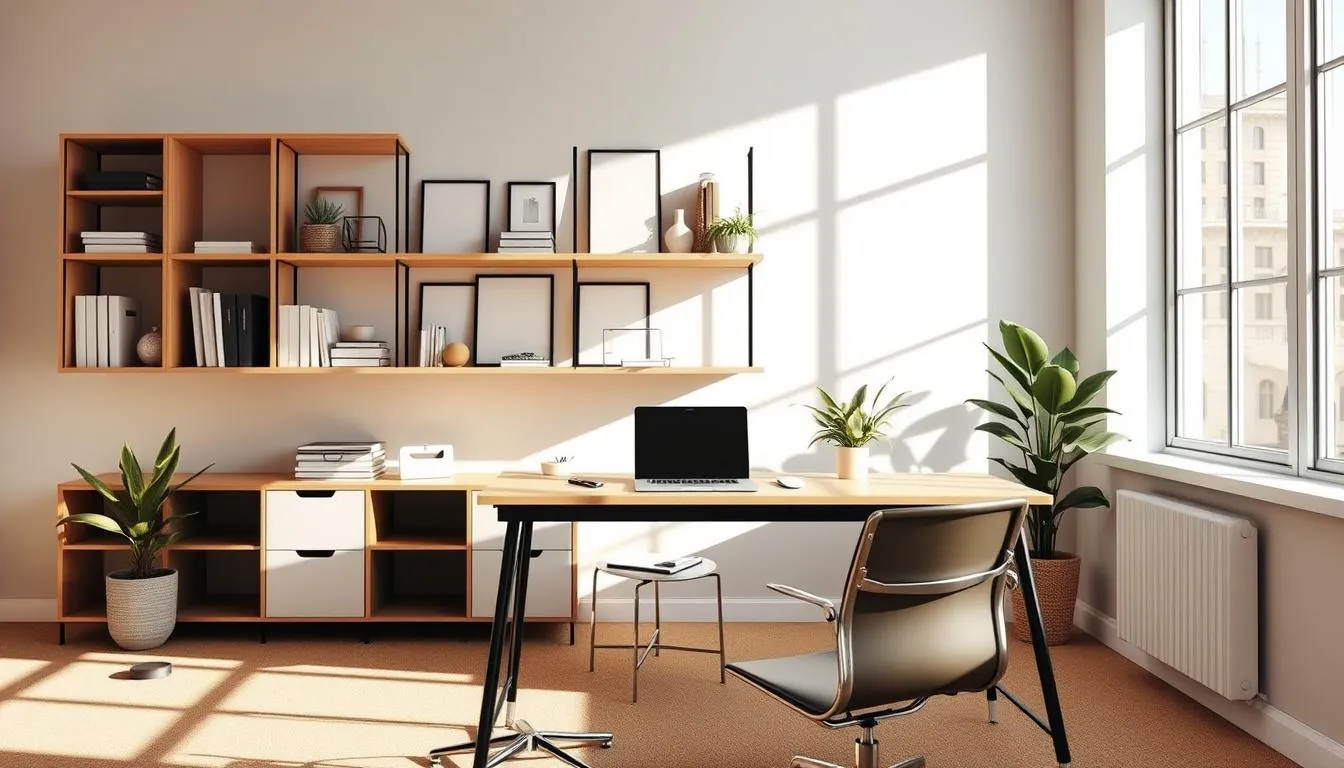
Benefits of a minimalist desk
A minimalist desk reduces distractions and improves focus. You notice fewer interruptions, move through tasks faster, and feel less mental fatigue. Clear surfaces help your eyes track work items and reduce decision friction.
Desk organization tools
Choose desk organization tools that fit how you work. Use a Grovemade desk shelf or an IKEA SKÅDIS panel to lift items off the main surface. A desk pad defines your zone and hides smudges while providing a smooth mouse surface.
Designate small trays, storage bins, or a narrow drawer for pens, chargers, and sticky notes. Keep one active notebook or whiteboard for quick sketches, then file or photograph pages to reduce paper buildup.
Cable management and docking stations
Good cable management clears the surface and speeds cleanup. Bundle cables with reusable ties, route them behind the desk, and use adhesive clips along the leg or wall. Label chargers so you grab the right one fast.
Docking stations cut desktop clutter by turning multiple cables into one connection. Consider a USB-C or multiport hub from Dell or a comparable brand to keep peripherals centralized. Place the dock under or behind the desk to hide bulk.
Use simple rules: digitize receipts and notes when possible, keep frequently used items within arm’s reach, and store seasonal or rarely used gear in labeled bins. A routine five-minute tidy at day’s end preserves the minimal setup optimization you created.
| Task | Recommended Tool | Why it Helps |
|---|---|---|
| Lift monitors and free surface | Grovemade desk shelf | Creates vertical storage and keeps the main desk clear |
| Organize small items | Desk trays, labeled bins | Prevents loose clutter and speeds retrieval |
| Hide cables | Adhesive clips, cable sleeves | Reduces visual distraction and tangles |
| Single-connection setup | USB-C hub or docking station | Streamlines peripherals and supports fast transitions |
| Off-screen brainstorming | Whiteboard or chalk wall | Keeps ideas visible while preserving desk space |
A workspace that reflects your tastes makes work feel less like a chore. Small choices—plants, framed photos, and a favorite print—lift mood and help focus. When getting started home office, pick one or two elements that truly inspire you and keep the rest simple.
Using plants, artwork, and photos to boost mood
Greenery brings life and cleaner air to a room. A snake plant or pothos is low maintenance and fits small desks. Add one or two pieces of artwork that speak to you. A framed photo of family or a travel scene offers a quick mental reset between tasks.
Balancing personalization with a professional video background
Keep personal items grouped off to the side so your camera shows a tidy backdrop. Neutral frames and a single shelf with a plant and a book create a professional video background that still feels warm. Avoid clutter near the camera to maintain a clean, confident presence on calls.
Creating a routine and rituals that signal “work mode”
Rituals help you switch into routine work mode. Try a short playlist on a Sonos speaker, a dedicated desk lamp you turn on each morning, or changing into work clothes. These cues train your brain to focus and respect boundaries with housemates.
Technology Picks That Improve Workflow
Picking the right tech changes how smoothly your day runs. This short guide covers practical choices, from laptop docks to displays, plus the small extras that cut friction. Use these technology picks workflow tips to shape a setup that feels fast and reliable.
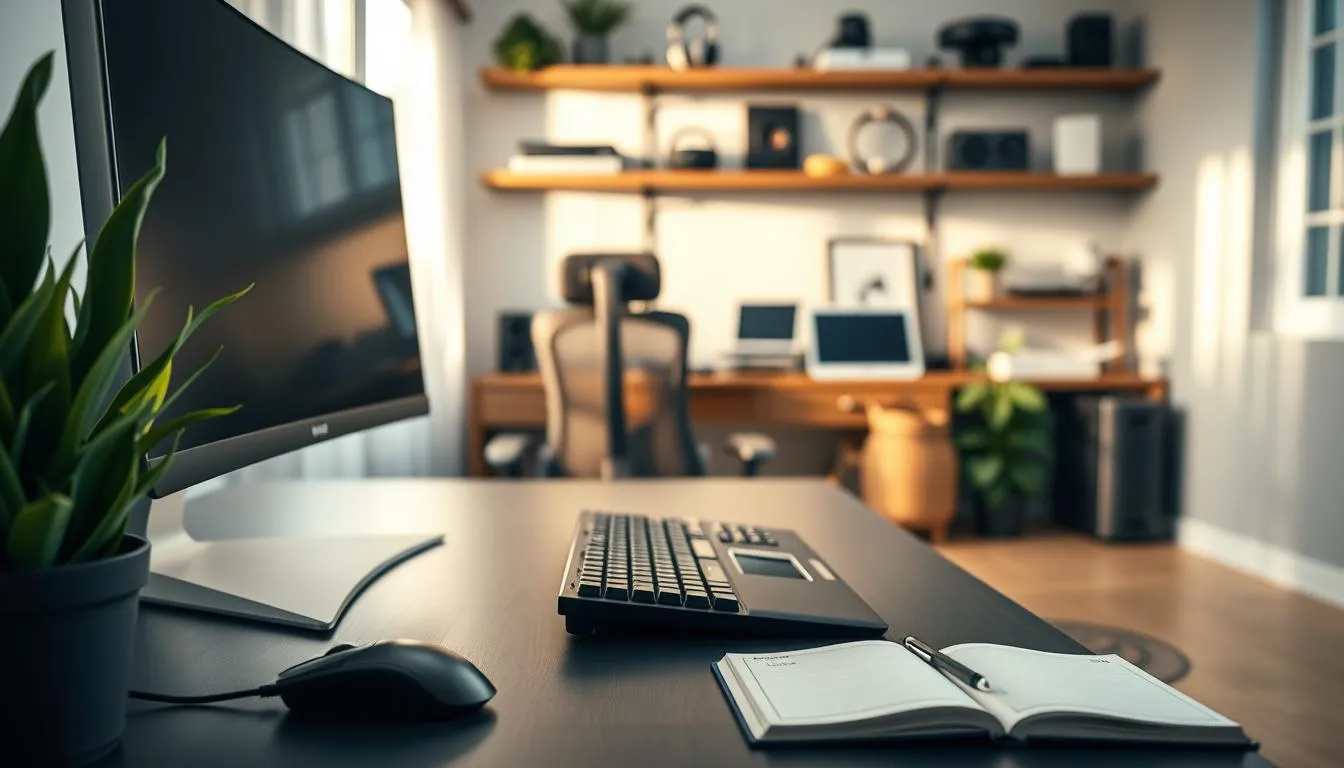
Laptops, docks, and when to choose a desktop or ultrawide monitor
For creators who need power on the go, the MacBook Pro with the M2 chip is a top pick. Windows users get solid options with the Dell XPS 13 Plus or the Lenovo ThinkPad E14. If you work mostly at a desk, a desktop gives higher performance per dollar and easier upgrades.
Laptop docks let you convert a portable machine into a full desktop experience in seconds. Popular USB docks from Dell, Mokia, and Falwendi provide extra ports, Ethernet, and multi-monitor support. Use laptop docks when you want a single-cable setup that reduces clutter and speeds transitions.
An ultrawide monitor such as the Samsung 49” Odyssey G9 or a 34” curved Xiaomi suits video editors and multitaskers. Standard 24”–27” displays serve most knowledge work well. Pick the screen that matches your tasks and focus on how to optimize workspace ergonomics around it.
Recommended peripherals: keyboard, mouse, webcam, and mic
Comfortable input devices matter more than sleek aesthetics. The Logitech MX Keys and MX Master combo delivers dependable typing and precise pointing for many users. For heavy typists, the Kinesis Advantage or Microsoft Sculpt offer ergonomic benefits that lower fatigue.
Webcam and audio gear shape meeting quality. The Logitech C920 remains a reliable webcam choice. Pair it with a good external mic or a headset. Bluetooth or wired speakers like Sonos Play:1 improve audio for calls and media, especially when paired with a quiet room.
Test your kit before important meetings. Reliable internet, spare chargers, and backups keep interruptions to a minimum. These small steps show how to optimize workspace readiness for live calls and deadlines.
Monitor mounts, dual displays, and ergonomic positioning tips
Mounts and monitor arms let you fine-tune height, tilt, and distance to meet eye-level recommendations. Set the top of the screen at or slightly below eye height and place displays about an arm’s length away. This reduces neck and eye strain.
Dual displays or an ultrawide monitor boost productivity by keeping reference material and apps visible at once. Use a primary screen centered in front of you and secondary screens angled slightly inward. Cable management and a single-cable dock help keep the desk clear.
Combine tech choices with digital organization and a short pre-meeting checklist. That routine, plus the right monitor placement and recommended peripherals, makes a workspace that supports focus and steady output.
Audio and Acoustics for Focused Remote Work
Good audio makes a home office feel professional and calm. A few smart choices help calls sound clear, keep music pleasant, and limit distracting noise. Aim for simple tweaks that boost concentration without big expense.
When to use speakers versus noise-cancelling headphones
Use speakers for background music, mood setting, or when you need to share audio during a team session. The Sonos Play:1 and compact Bluetooth models like Anker Soundcore or JBL Flip 4 give rich sound for casual listening.
Choose noise-cancelling headphones for deep work or when household noise is persistent. Premium models improve focus on long calls and reduce the need to raise volume. They also protect voice clarity when paired with a dedicated microphone, which helps separate you from room sound on video calls.
Reducing echo and background noise with soft furnishings and panels
Soft surfaces absorb reflections and lower the room’s reverberation. Add rugs, curtains, and a desk pad to cut ambient noise. Houseplants and bookshelves break up sound paths and give warmth to recordings.
Consider low-profile acoustic panels on the wall behind your desk to reduce echo. Small, targeted changes often make the biggest difference in call clarity without major renovation.
Smart assistants and voice controls to streamline tasks
Smart assistants like Google Assistant and Amazon Alexa handle timers, calendar reminders, and music without interrupting workflow. Use voice control to start a focus playlist, lower lights, or set a do-not-disturb mode while on calls.
Linking smart assistants to speakers or headphones can automate routines that keep your day moving. Hands-free commands save time and reduce the friction of switching tasks during a busy work session.
Storage, Filing, and Digital Organization
Start by choosing what stays physical and what you will digitize. The goal is clear: reduce desktop clutter while keeping essentials accessible. For sensitive items like birth certificates and titles, use a lockable filing cabinet and a small safe. For routine paper—receipts, bills, school forms—scan and store digitally whenever practical.
Set a simple capture workflow. Use a mobile scanner app or a desktop scanner to digitize documents and route them into one central place. Evernote, Microsoft OneNote, Google Drive, and Dropbox work well for most users. If you want a how-to on going paperless, see this guide at going paperless for practical steps.
Small spaces benefit from vertical storage solutions. Wall-mounted shelves, tall narrow bookcases, and pegboards free desk area and keep supplies visible. Combine labeled bins and drawers for daily tools like chargers, pens, and sticky notes so you can grab what you need fast.
Agree on folder naming conventions before you create folders. Use dates and short descriptors, for example: 2026-01_Tax-Receipts or Utilities_2025. Consistent names speed search and prevent duplicates. Keep top-level folders limited to a few categories and nest only when necessary.
Adopt weekly processing sessions to keep your digital inbox trimmed. During that session, rename files, apply tags, and move notes into the right folders. A twenty-minute habit replaces chaotic stacks and improves retrieval time.
Label cables and charging stations and dedicate a dock or multiport hub for your laptop and phone. Physical order supports digital order. That pairing of tidy shelves with cloud backups completes reliable storage filing digital organization for a modern home office.
| Need | Quick Solution | Recommended Tools |
|---|---|---|
| Paper to keep long-term | Lockable filing cabinet, archival folders | Fireproof safe, lateral file cabinet |
| Everyday paper | Scan then recycle; keep one active tray | Mobile scanner app, Evernote, Google Drive |
| Small-space storage | Use wall shelves and vertical organizers | IKEA Kallax, wall-mounted shelving, pegboard |
| Fast retrieval | Consistent folder naming conventions and tags | Standard date prefixes, searchable OCR PDFs |
| Cable and device clutter | Label cords, use a single dock | USB hub, cable labels, charging tray |
| Backup and security | Cloud backup plus local encrypted copy | Dropbox Backup, Google Drive, two-factor auth |
Clear rhythms make working from home less chaotic. Start by mapping personal and work needs side by side so you can maintaining boundaries home office without friction. Use a simple calendar to define work hours and list family commitments, meetings, and recurring tasks. Small rituals—changing into work clothes, a short walk, or an automated smart routine—help you begin and end the day with intention.
Tell your team and household when you are available. If you define work hours openly, colleagues learn when to expect responses and family members see when interruptions are off limits. Post a shared family calendar, set an out-of-office message for off-hours, and try a brief household meeting to allocate chores and timelines. For practical guidance, see this guide on setting boundaries.
Use visual signals to prevent surprise disruptions. A closed door, a colored sign, or a desk flag can communicate focus time without repeated explanations. Agree on easy door rules: red means do not enter, amber means knock, green means come on in. Visual signals work best when everyone follows them consistently.
Build short movement breaks into your day. Try Pomodoro breaks with a 25/5 cadence for focused sprints and brief stretching. Keep a yoga mat nearby for two- to five-minute stretches, or use a standing desk to alternate posture. These habits reduce fatigue and improve concentration.
Create a daily do-not-disturb hour for deep work. Block it on calendars, silence notifications, and protect it as you would a meeting. Combine that block with Pomodoro breaks, water reminders, and a clear end-of-day ritual to help you clock off and switch back to home life.
- Sync work and home schedules so tasks don’t collide.
- Reset expectations with managers when deadlines conflict.
- Communicate availability and preferred contact channels to colleagues.
- Practice saying no or delaying commitments to keep priorities clear.
Small changes in how you signal availability and how you structure breaks answer a big question: how to optimize workspace for focus and balance. Treat your routines as tools. Adjust them until your schedule protects work time and preserves family life.
Budget-Friendly Optimization Tips and IKEA Starter Pack Ideas
Small upgrades can transform a cramped corner into a productive workspace. This setup optimization guide focuses on smart buys that deliver big returns without breaking the bank. Use simple changes to improve comfort, reduce clutter, and lift your focus.
Start with an IKEA starter pack for basics: a Linnmon or IKEA Bekant desk, Kallax shelving for vertical storage, and a desk pad to protect surfaces. Pair those with labeled bins to keep papers under control. These choices epitomize budget-friendly optimization and make later upgrades easier.
Smart low-cost home office upgrades often include a desk shelf, an AmazonBasics mesh chair for short-term comfort, and a USB hub to reduce cable clutter. A monitor light bar is one of the cheapest lighting fixes that improves video calls and reduces eye strain.
Consider standing desk options from Container Store or secondhand adjustable desks if you want a mid-range solution. Test height before assembly, plan cable routing, and anchor shelves securely. These tips reduce returns and speed installation.
Where to splurge save matters for long-term comfort. Spend on an ergonomic chair and a quality monitor for sustained productivity. Save on decor, desk accessories, and decorative storage. This balanced approach keeps costs low while protecting your health and workflow.
Low-cost home office upgrades like an inexpensive desk lamp from Target, a ZEEFO task light, or compact speakers from Anker Soundcore or JBL improve mood and calls. A budget monitor from Xiaomi Mi can serve well until an upgrade is needed.
Use secondhand Herman Miller alternatives or sale cushions to mimic more expensive ergonomics. Digitize old paperwork, keep labeled bins, and use thrifted shelving to free floor space. These moves support a tidy, functional room without heavy spending.
Assembly tips: follow IKEA instructions step by step, pre-measure desk height for your monitor and keyboard, and route cables through clips or a simple cable tray. A small investment in a quality standing mat or a low-cost yoga mat helps with posture during stand periods.
| Item | Budget Pick | Why It Matters | When to Splurge |
|---|---|---|---|
| Desk | IKEA Linnmon / Bekant | Stable surface, affordable sizes for small rooms | If you need heavy-duty stability or sit-stand motorized features |
| Chair | AmazonBasics mesh | Comfort at low cost for shorter days | Choose a certified ergonomic chair for all-day use |
| Monitor | Xiaomi Mi budget monitor | Improved screen real estate and clarity | Upgrade to color-accurate, high-refresh models for design or gaming |
| Lighting | Monitor light bar; Target desk lamps | Reduces eye strain and improves video appearance | Invest in layered ambient and task lighting for long sessions |
| Storage | IKEA Kallax; labeled bins | Vertical storage saves space and simplifies filing | Custom built-ins if you need high-capacity, seamless look |
| Accessories | USB hubs, cable clips, desk pad | Clears surfaces and reduces friction in daily use | High-end docks for single-cable laptop setups |
Small additions can change how work flows each day. Focus on gadgets and tools that cut setup time, limit distractions, and make tasks feel easier. Think of these as investments in smart accessories efficiency that let you move from idea to action without friction.
Start with a dock or hub that supports single-cable laptop connections. Docking stations multi-port hubs from reputable makers let you close your laptop and keep a full desktop setup ready. Popular multi-port docks consolidate power, Ethernet, USB, and display outputs so you reconnect in seconds.
Choose peripherals that speed common actions. A reliable keyboard and mouse combo, like Logitech MX Keys with MX Master, reduces fatigue during long work sessions. Add a wrist rest and proper placement to protect posture. Monitor light bars improve screen contrast and cut glare for late-afternoon focus on documents or spreadsheets.
Docking stations, multi-port hubs, and single-cable setups
Look for docks with enough ports for your displays, Ethernet, and fast charging. Brands such as Dell and third-party makers offer high-port-count models useful for multi-monitor work. A single-cable setup shortens daily routines and supports a tidy desk that promotes concentration.
Desk organizers, monitor light bars, and keyboard wrist rests
Desk organizers keep essentials reachable and reduce visual clutter that harms focus. Monitor light bars mounted to the top bezel preserve desk space while giving adjustable color temperature for work or video calls. Wrist rests and an ergonomic keyboard help prevent strain when typing for hours.
Whiteboards, chalk walls, and analog tools for brainstorming
Analog brainstorming tools remain powerful for ideation. A wall-mounted whiteboard, a chalk-painted accent wall, or a portable easel helps teams sketch, plan, and iterate without screen fatigue. These options pair well with digital workflows by offering a quick way to capture and refine ideas.
For audio and video, a quality headset or speaker system improves clarity and reduces repeats during meetings. Consider a 1080p webcam at minimum and move to 4K if you need a sharper image. Use smart assistants for hands-free control of lighting and playback to keep momentum during focused work.
To explore professional setup guidance and device choices, review resources that detail hybrid meeting best practices and hardware recommendations like headset and camera pairings for hybrid meeting setups.
| Accessory | Purpose | Practical Benefit |
|---|---|---|
| Multi-port docking station | Consolidate displays, power, and network | Single-cable reconnect saves minutes each day |
| Monitor light bar | Illuminates work surface; reduces screen glare | Better eye comfort; improved video lighting |
| Ergonomic keyboard & wrist rest | Promotes neutral wrist alignment | Less strain; longer comfortable typing sessions |
| Desk organizer & vertical shelving | Keep tools and papers orderly | Faster access; reduced visual clutter |
| Whiteboard or chalk wall | Analog space for rapid ideation | Better group collaboration; clearer planning |
| Quality headset or speaker | Clear audio for calls and content | Fewer interruptions; more efficient meetings |
Creating a productive home workspace starts with simple, intentional choices. A dedicated workstation, ergonomic chair, and a minimal desk set the foundation. Add a monitor arm, monitor light bar, or standing desk options where they make sense to reduce strain and keep energy up.
This setup optimization guide shows how small tech and comfort upgrades pay off. Use laptop docks, quality peripherals, and smart assistants to cut friction. Digitize papers, secure filing, and manage cables to keep the area calm and focused.
Remember the mental side: proper lighting, plants, music or speakers, and scheduled breaks support concentration and work-life balance. These home office basics and final tips how to optimize workspace help prevent burnout and make remote work sustainable.
FAQ
What’s the first step for optimizing a home office setup?
Start with a dedicated workstation—a room or a clearly defined corner desk—so you don’t move equipment daily. Clear the desk to a minimal essentials-only setup, set a consistent schedule, and create a simple ritual (turning on a lamp, starting a playlist) to shift into “work mode.”
Why does a dedicated workspace matter for productivity and work-life balance?
A dedicated workspace creates physical and mental boundaries. It reduces role confusion, helps you “clock off” at the end of the day, lowers the chance of interruptions, and reduces the stress that leads to burnout.
How does clutter and poor lighting affect efficiency?
Clutter increases distractions and wastes time searching for items. Poor lighting causes eye strain and headaches, lowers focus, and makes video calls look worse. Decluttering and adding proper lighting—natural whenever possible plus task lighting—improve comfort and output.
How should I choose a location: whole room or corner desk?
Use a room if you can for maximum separation and fewer interruptions. If space is limited, pick a consistent corner and use vertical storage (shelves, pegboards like IKEA Skadis) and visual signals (closed door, sign) to protect work time.
What are the essential furniture items to start with?
A stable desk sized for your tasks, an ergonomic chair with lumbar support, and a monitor or laptop stand/arm. Consider a height-adjustable or electric standing desk if you alternate sit/stand. Keep the surface minimal and essentials within arm’s reach.
Which chairs offer the best long-term comfort?
For long-term support, ergonomic chairs like the Herman Miller Aeron are top-rated for adjustability and lumbar support. Budget-friendly options such as AmazonBasics mesh chairs can deliver acceptable comfort if adjusted properly.
Should I get a standing desk?
Yes—alternating between sitting and standing reduces sedentary strain. Electric adjustable desks make transitions simple. Use micro-breaks or Pomodoro-style timing to avoid standing too long.
How do I set up monitors for correct ergonomics?
Position the monitor top roughly at eye level and at a comfortable viewing distance for your screen resolution. Use a monitor arm or mount to fine-tune height and distance so your neck stays neutral and your eyes look straight ahead.
How should my keyboard and mouse be placed?
Keep keyboard and mouse close so elbows rest at about 90°, forearms roughly parallel to the floor, and wrists neutral. Ergonomic keyboards (Microsoft Sculpt, Kinesis) and wrist rests can reduce strain.
What lighting strategy reduces eye strain and improves video calls?
Maximize natural light while avoiding glare. Use a monitor light bar to illuminate your desk area without reflections, and add ambient or accent lighting (smart bulbs or desk lamps) to create even color temperature and a flattering video background.
How do I declutter without losing access to what I need?
Embrace a minimalist desk—keep only daily essentials on the surface. Use desk shelves, desk pads, labeled bins, and vertical storage to keep supplies handy but out of the way. Digitize papers when possible and store sensitive documents in a filing cabinet.
What cable-management and docking solutions help clear surfaces?
Use multi-port docking stations or USB-C hubs (Mokia, Falwendi, Dell D6000 types) to consolidate connections to one cable. Route cables behind the desk with clips or channels and use under-desk trays for power strips to keep the surface tidy.
How much personalization is appropriate for a home office?
Personalize with plants, a few photos or artwork, and subtle decor to boost mood. Keep personalization restrained so it doesn’t distract and so your video background remains professional when needed.
What tech and peripherals are worth investing in?
Prioritize a reliable laptop or desktop, a single-cable docking workflow, a good monitor (or ultrawide if you need screen real estate), a quality keyboard and mouse (Logitech MX Keys/MX Master), and a dependable webcam (Logitech C920). Splurge on what you use every day—chair and monitor—and economize on decor.
When should I use speakers versus noise-cancelling headphones?
Use speakers for ambient music and low-level background sound when interruptions aren’t an issue. Use noise-cancelling headphones for deep-focus work or in noisy environments and for clearer calls. Small speakers (Anker Soundcore, JBL) or Sonos work well for shared spaces.
How can I reduce echo and background noise in a home office?
Add soft furnishings like rugs, curtains, and cushions. Acoustic panels, bookshelf placement, and plants also absorb sound. For meetings, use a quality headset or microphone to improve clarity.
What’s the best approach to storing papers and digital files?
Digitize when practical and use consistent folder naming conventions and cloud backups for fast retrieval. Keep sensitive or legal documents in a locked filing cabinet and use labeled bins or shelves for frequently used physical supplies.
How do I maintain boundaries and avoid interruptions at home?
Define clear work hours, communicate them to household members, and use visual door signals or a closed-door policy. Create “clocking off” rituals—shutting down, turning off your desk lamp, or changing clothes—to separate work from personal time.
What quick movement or break practices prevent fatigue?
Use micro-breaks like the Pomodoro Technique (25 minutes focused, short break). Keep a yoga mat or space for quick stretches, and alternate sit/stand or use a short walking break every hour to reduce the risks of prolonged sitting.
What are budget-friendly upgrades that make the biggest difference?
Prioritize an ergonomic chair (or good lumbar support), a monitor light bar, a basic dock or hub, and cable management. IKEA starter desks, desk shelves, and affordable desk lamps deliver big returns for low cost.
Which smart accessories actually boost efficiency?
Multi-port docking stations for a single-cable setup, monitor mounts to optimize ergonomics, monitor light bars, a reliable webcam and microphone, and simple analog tools like whiteboards or chalk boards for brainstorming all reduce friction and speed workflows.