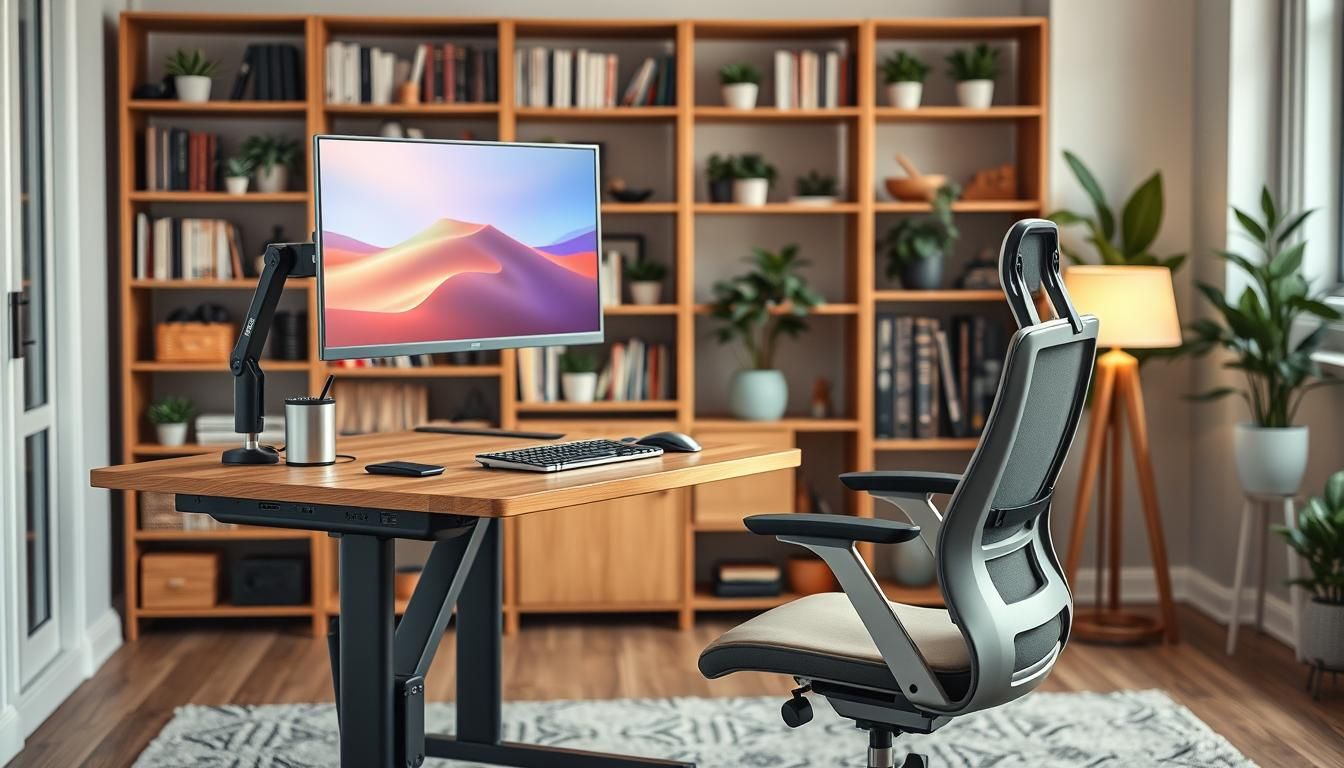

Surprisingly, U.S. workers who spend more than six hours a day at a desk report up to twice the rate of chronic neck and back pain compared with those who don’t — a clear signal that the right tools matter. This short guide highlights the top accessories home office buyers should consider to turn long hours into productive, pain-free work time.
Whether you’re a remote employee, freelancer, or student, investing in ergonomic office accessories can reduce fatigue, prevent injury, and boost focus. From ergonomic office chairs and monitor arms to small helpers like cable organizers and wrist rests, the best office tools make daily tasks easier and healthier.
We pulled practical tips from ergonomics research and marketplace examples so you can pick essential home office items that fit your budget and work style. For a deeper look at how accessories relieve neck and eye strain, see this ergonomics primer from Solutions M3.
Key Takeaways
- Ergonomic accessories cut pain and improve productivity during long desk hours.
- Start with a good chair, monitor arm, and keyboard setup for the biggest impact.
- Small items—wrist rests, footrests, cable management—complete a healthier workspace.
- Choose adjustable, well-built accessories to accommodate different tasks and body types.
- Investing now in the right tools yields long-term returns in comfort and work quality.
Why ergonomic accessories matter for home offices
A proper home office shapes how you feel and perform each day. Small changes to your setup can cut discomfort, lift focus, and make long hours sustainable. Choosing the right ergonomic office accessories turns a cluttered desk into a healthier workspace.
Health and productivity benefits
Poor setups cause neck pain, wrist strain, fatigue, and reduced concentration. Ergonomic items such as an adjustable chair, a monitor arm, and a supportive keyboard align the body to lower musculoskeletal risk. When posture and reach are correct, workers report fewer breaks from pain and higher task accuracy.
Research links ergonomics with improved job satisfaction and output. Investing in essential home office items supports clearer thinking and steadier energy across the workday.
Long-term cost savings from preventing injury
Small purchases often yield big returns over time. A quality chair that reduces back pain prevents doctor visits and lost work hours. A standing desk converter lowers sedentary risk that can lead to chronic conditions.
Employers and individuals save money when injuries drop and productivity rises. Choosing proven products from brands like Herman Miller or Steelcase can be an upfront cost that pays back through fewer medical claims and steadier performance.
How remote work trends make ergonomics essential
Remote work has lengthened screen time and blurred work-life boundaries. Many companies now standardize ergonomic tools for remote staff, showing that office culture values health at home. Market options range from premium chairs to budget-friendly footrests, so an ergonomic upgrade fits many budgets.
Combining a supportive chair, monitor arm, ergonomic keyboard and mouse, plus task lighting and a footrest, creates a cohesive system. Those top accessories home office benefits add up to better health and sustained output for anyone working from home.
Ergonomic office chair: the foundation of comfort
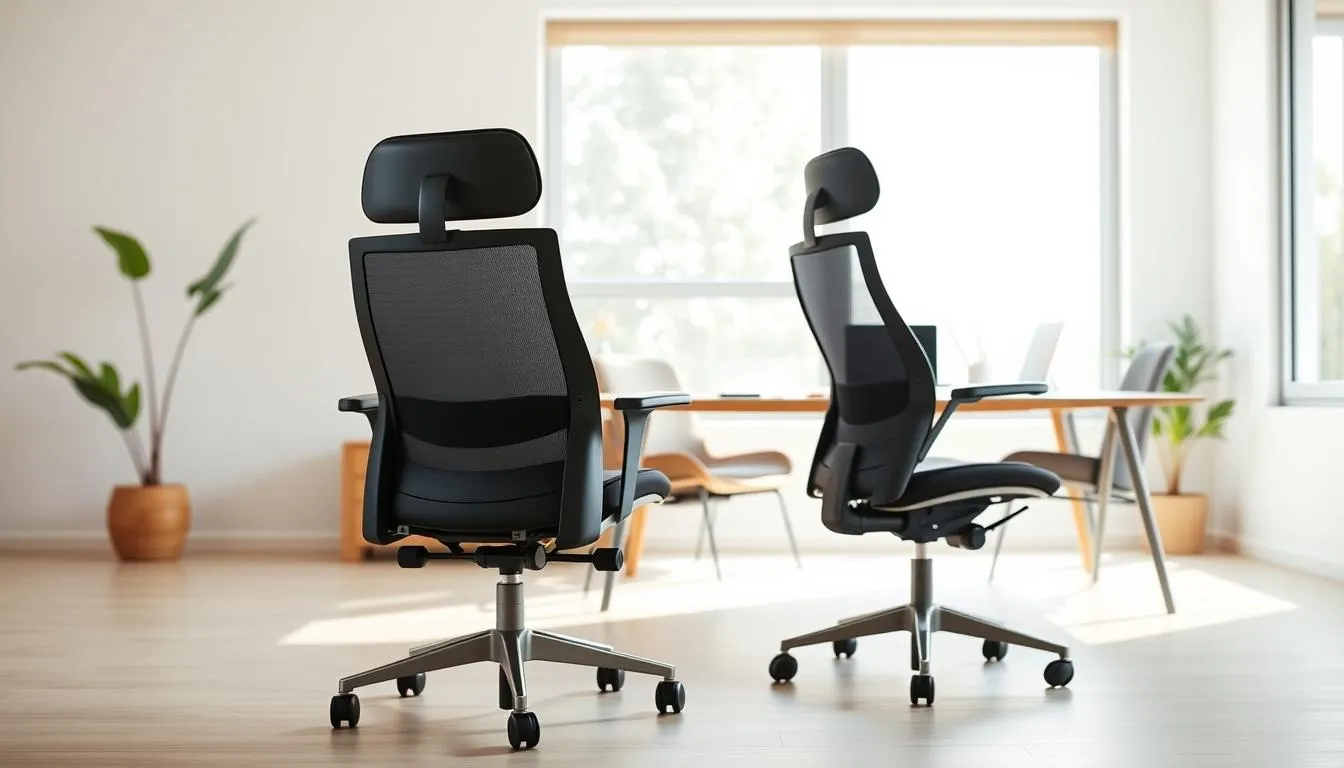
An ergonomic office chair sets the tone for any productive home workspace. Pick a chair that supports the spine, reduces slumping, and keeps circulation steady so long work sessions feel easier on your body.
Key features to look for
Look for adjustable lumbar support that follows your lower-back curve. Seat height should lift so your feet sit flat and knees form roughly a 90° angle. Armrests that move up, down, forward, and back let you relax shoulders while keeping elbows near 90°.
Choose breathable mesh for long, warm days or padded upholstery like Nappa leather for a plush feel and durability. Brands used in offices, such as Herman Miller Aeron and Steelcase Leap, show how premium materials and thoughtful engineering make a difference when evaluating the best office tools and ergonomic office accessories.
How to adjust your chair for optimal posture
Raise the seat until your feet rest flat on the floor. Adjust the seat depth so two to three fingers fit behind your knees. Move lumbar support to match the small curve of your lower back. Tilt tension should allow small reclines without collapsing forward.
Set armrests so your shoulders relax and wrists align with the keyboard. Fine-tuning these points keeps your posture neutral and reduces strain over the day.
When to upgrade: signs your chair is hurting productivity
Consider replacing a chair if back or neck pain increases, cushioning sags, or you can no longer reach a feet-flat position. Frequent fidgeting, constant readjustments, and dropping focus are signs that a worn seat is costing you time and comfort.
Premium models often cost $500–$2,000 and come with extended warranties and superior adjustability. For reliable long-term support, compare features and warranties before buying. For a focused selection of home office seating that balances comfort and durability, check this curated collection of chairs.
ergonomic office accessories and the right chair make up the core of the best office tools for a healthy, productive home setup.
Standing desk converter to alternate sitting and standing
A standing desk converter sits on top of your existing desk to create a flexible sit-stand workstation without replacing furniture. This cost-effective option ranks among essential home office items for anyone who wants ergonomic gains without a full-height desk swap. Popular models from Varidesk and FlexiSpot show how office tech can be simple, reliable, and widely adopted in corporate and remote setups.
Benefits of sit-stand transitions for circulation and focus
Switching between sitting and standing eases lower back strain and boosts circulation. Studies show modest calorie increases and reduced back pain when workers alternate postures. Short stand breaks can raise alertness and help maintain focus during long workdays.
Placement and setup tips (monitor and keyboard height)
Place your monitor at eye level so the top third of the screen sits at or just below eye height. Keep the monitor about 20–26 inches away to reduce eye strain. Set the keyboard so wrists stay neutral in both sitting and standing positions; a slight negative tilt often helps. Check that the converter platform is stable and wide enough for a monitor and a full keyboard to avoid awkward reaches.
Using anti-fatigue mats and gradual standing schedules
An anti-fatigue mat softens pressure on feet and calves when you stand. Start with 15–30 minute standing periods each hour and build up slowly to allow your muscles to adapt. Pick a converter with a reliable lift mechanism, such as a gas spring for smooth transitions, and confirm its weight capacity for monitors and accessories.
When shopping, weigh stability, surface area, and lift type. A sturdy platform makes the converter one of the top accessories home office setups depend on. Treat a standing desk converter as an essential home office item that blends ergonomics with practical budget sense.
Ergonomic keyboard to prevent wrist strain
An ergonomic keyboard can ease pressure on wrists, hands, and fingers by promoting a more natural typing posture. Choosing the right model helps reduce the risk of carpal tunnel and other repetitive strain injuries while supporting long hours of focused work. Pairing one with other ergonomic office accessories creates a safer, more comfortable desk setup.
Design choices matter. Split keyboards separate the halves so your hands align with your shoulders. Tented models raise the center to reduce forearm pronation. Curved or contoured layouts match the arc of your fingers for a softer reach. Popular examples include the Microsoft Sculpt and the Logitech Ergo K860, both praised among the best office tools for comfort.
Adjustment period varies by user. Expect two to four weeks to adapt. Start with mild tenting and lower tilt, then raise settings slowly as your muscles adjust. Practice a light touch and keep your wrists floating above the keys to speed relearning and reduce strain.
Combine a new keyboard with good posture and breaks. Set chair and desk heights so forearms are parallel to the floor. Use short, frequent pauses and wrist stretches. External palm rests can support hands during rests, not while typing.
When shopping, look for adjustable tenting, split options, and reliable wireless or wired connections based on your desk layout. Testing models in-store helps find the best office tools for your body and workflow.
Ergonomic mouse options for neutral wrist alignment
Choosing the right mouse makes a big difference for comfort and injury prevention. An ergonomic mouse supports a neutral wrist and forearm position, reduces gripping and twisting, and lowers pressure on the median nerve. These benefits matter when building a healthy home setup with the best office tools and top accessories home office users recommend.
Vertical mice rotate the hand into a handshake posture. Models like the Logitech MX Vertical and Evoluent VerticalMouse cut pronation and can ease wrist pain for people who type a lot.
Trackballs keep the hand stationary while fingers or the thumb control the cursor. Designers and CAD professionals who need precision often prefer trackballs for detailed work.
Contoured designs cradle the palm and encourage a relaxed grip. These work well for general office tasks and blend into a collection of best office tools for daily use.
Place the mouse close to the keyboard and at elbow height to limit reaching. Use whole-arm movement for large cursor moves. Keep the wrist neutral during small adjustments to avoid strain.
Alternate between devices during the day to spread muscle load. Program extra buttons for copy, paste, and navigation to cut down on repetitive motions. Match the device to your primary tasks: graphic work benefits from high-precision mice, while general office tasks fit contoured or vertical designs.
Start new devices with short sessions and build up time to adapt. Check desk height, chair position, and mouse pad so the setup helps your posture. Adding an ergonomic mouse to a lineup of top accessories home office users rely on can make long days less tiring and more productive.
Monitor arm to eliminate neck and eye strain
A monitor arm is a simple upgrade that changes how you interact with screens. As one of the essential home office items, it lets you set monitor height, distance, and tilt so your neck and eyes work less. Swapping a fixed stand for a flexible arm can free desk space and make your setup feel cleaner.
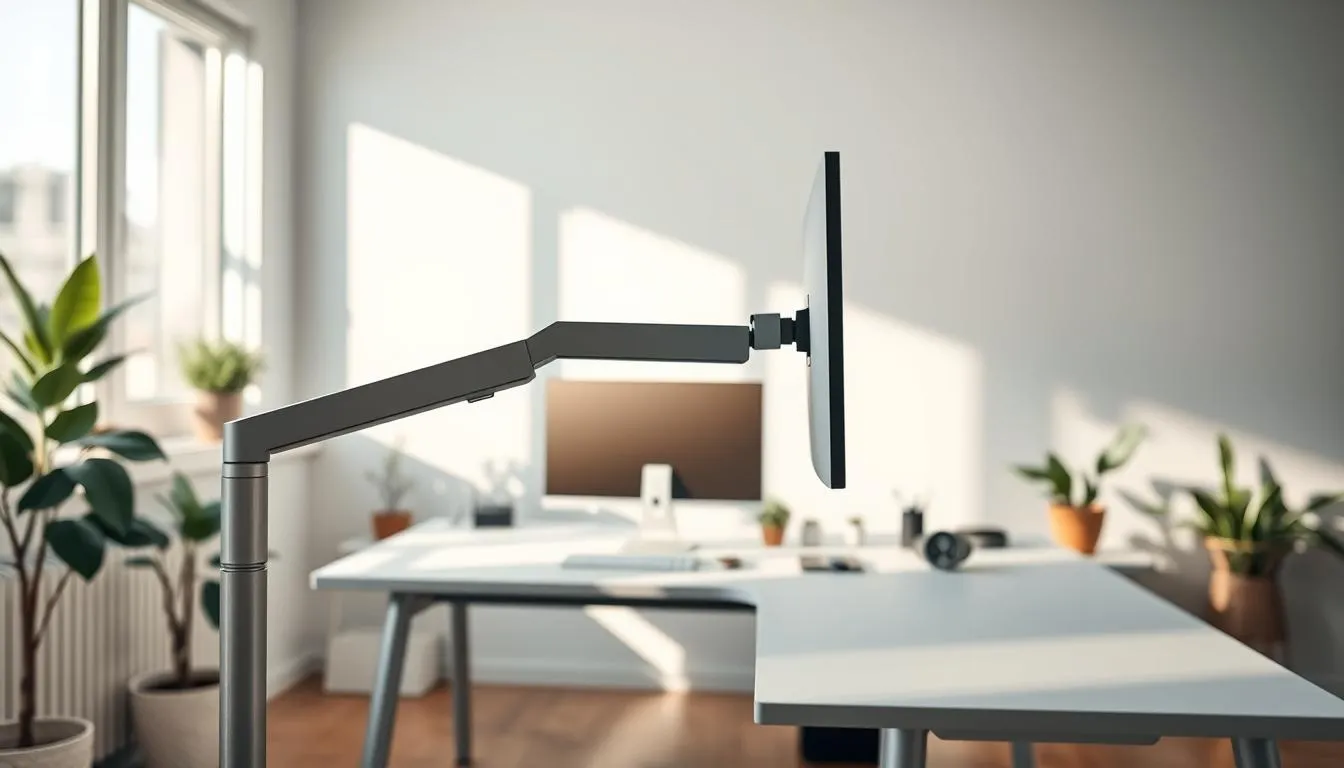
Place the top of the screen at or just below eye level. Keep the monitor about 20–26 inches away, roughly an arm’s length. Tilt the display back 10–20 degrees to cut glare and make viewing comfortable. Face the screen perpendicular to windows to reduce reflections and squinting.
For people who use two screens, dual-monitor arms make alignment easy. Developers and analysts benefit from arms that allow side-by-side, stacked, or angled arrangements. Pick models rated for your monitor size and weight and with a wide range of motion to match your workflow.
Cable management is part of the appeal. Many monitor arms include channels or clips that route power and display cables neatly. That keeps cords off the desk and creates room for other ergonomic office accessories like keyboard trays and laptop stands.
Well-known brands such as Ergotron and Humanscale build durable, adjustable arms found in both corporate and home setups. Choosing a quality monitor arm is an investment in comfort that pairs well with other ergonomic office accessories to round out a practical, healthy workspace.
Ergonomic footrest for improved leg circulation
An ergonomic footrest can make a big difference when your chair can’t be lowered enough. It lifts feet so thighs sit parallel to the floor and knees form a 90° angle. That posture reduces lower-back pressure and helps blood flow in the legs, cutting down on swelling and fatigue.
Shorter users and anyone at a fixed-height desk often need a footrest to avoid dangling legs and lumbar strain. If your feet do not rest flat on the floor, a footrest joins the list of essential home office items to restore comfort and protect vein health.
When a footrest is necessary
Use a footrest when your chair and desk combo prevents a neutral sitting position. Dangling feet create pressure on the underside of the thighs and restrict circulation. A properly placed platform prevents that and encourages a healthier seated posture.
Adjustable height and angle features to look for
Choose a model with adjustable height and tilt so you can fine-tune thigh and knee angles. A stable base and non-slip surface keep feet secure during use. Brands like 3M and Fellowes make reliable options that fit under most desks.
Active footrests (rocking) vs. static models
Active, rocking footrests promote subtle movement and boost circulation during long sessions. Static platforms deliver steady support for focused work. Alternate between rocking and still positions to combine movement with stable posture.
Position the footrest close to your chair so you can rest feet without leaning forward. Pair it with a supportive office chair to create one of the top accessories home office owners rely on for long-term comfort.
Explore adjustable under-desk options and model choices at Desky footrests to find the right fit for your setup among the top accessories home office lists.
Document holder to streamline reference work
A well-placed document holder cuts the repeated neck rotations that come with reading papers while you type. Positioning papers at the same height and distance as your monitor speeds workflow and lowers strain. This small accessory ranks among the best office tools for anyone who relies on printed reference material.
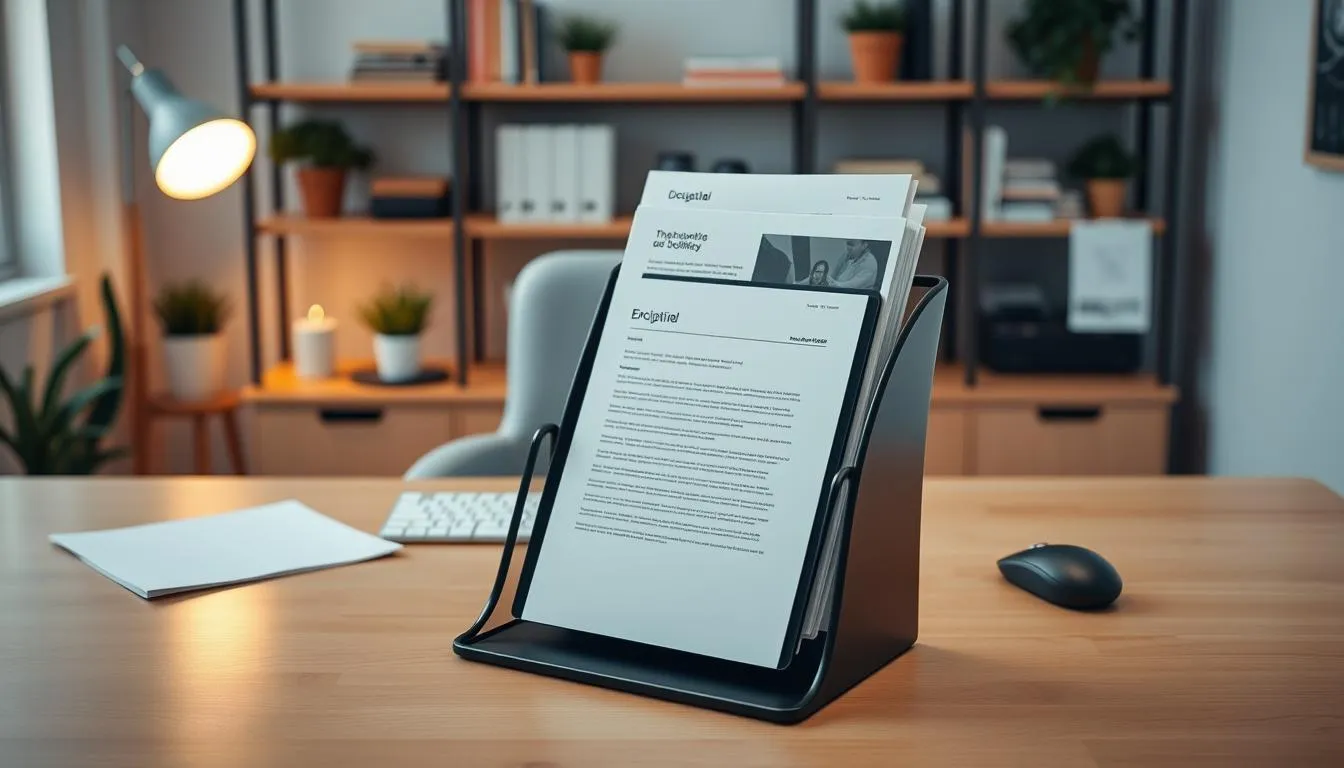
Place a holder so your eyes move in a straight line from screen to page. Inline holders sit between keyboard and monitor for minimal head turn. Side-mounted clamps attach to an arm or the monitor bezel and keep pages at monitor height. Match the holder distance to your screen to reduce refocusing time.
Look for angle adjustment, built-in line guides, and secure ledges to keep dense documents readable. Adjustable tilt reduces glare from windows or lamps. Line guides help with tracking long columns of numbers, which raises accuracy for data-entry tasks.
Common use cases include transcription, accounting, and legal review. Medical records professionals and copy editors find document holders indispensable for fast, accurate work. Brands such as 3M and Fellowes offer reliable models that pair well with other ergonomic office accessories.
Productivity gains come from cutting the micro-pauses that break concentration. By lowering head movement and easing eye refocusing, a document holder makes repetitive tasks smoother and less tiring. It earns its place among the best office tools for focused, high-volume work.
| Feature | Why it helps | Best for |
|---|---|---|
| Adjustable height and tilt | Aligns paper with monitor to reduce neck strain and glare | Accountants, legal reviewers, transcriptionists |
| Line guide or ruler | Improves speed and accuracy when tracking rows of text or numbers | Data entry and proofreading |
| Clamp or monitor mount | Keeps pages stable at eye level without taking desk space | Small desks and multi-monitor setups |
| Inline desk rest | Places pages directly between keyboard and screen for straight gaze shifts | Transcription and rapid typing tasks |
| Folding/portable design | Easy to store and take to off-site meetings or courtrooms | Mobile professionals and consultants |
A laptop stand lifts the screen to eye level, which helps reduce forward head posture and the common “tech-neck” that comes from hunching over a laptop. When the screen is separated from the keyboard, you can use an external keyboard and mouse to keep your hands at a comfortable desk height. This simple swap ranks among the essential home office items for anyone who works on a laptop for hours a day.
How a stand changes posture and why an external keyboard is needed
Raising the laptop screen brings the top of the display to or just below eye level. That change shortens the neck angle and reduces strain on cervical muscles. With the laptop higher, typing on the built-in keyboard forces the wrists and shoulders into awkward positions. Switching to an external keyboard and mouse restores neutral wrist alignment and lets you set the desk surface at an ergonomic height.
Portable vs. desktop stands: choosing by use case
Portable stands such as the Roost Stand are light and foldable, which makes them ideal for travel and co-working. They give a quick posture boost when you move between locations. Desktop stands like the Rain Design mStand offer a stable, stylish base for a permanent setup at home. Pick a model based on how often you relocate and whether you want style and stability or compact mobility.
Cooling and ventilation considerations for laptops
Airflow matters when your laptop runs heavy loads. Open-frame and metal stands let heat escape more easily, which improves long-term performance. Some stands include built-in fans or vents to help with prolonged use during video editing or virtualization tasks. Keep the laptop about 20–26 inches from your eyes and use a slight tilt to reduce glare while preserving ventilation.
Adding a laptop stand to your desk setup is one of the top accessories home office buyers overlook. It pairs well with other essential home office items and gives an immediate posture improvement that pays off in comfort and focus.
Wrist rest guidance for keyboard and mouse use
Choosing the right wrist rest helps reduce pressure on the carpal tunnel area when you pause between typing or mousing. Use a wrist rest as a support for the heel of your hand during breaks, not as a pad to rest on while actively typing. Pairing this item with other ergonomic office accessories creates a safer, more comfortable workspace.
Proper use: support during pauses, not while actively typing
Rest your palms or heels on the pad only when you stop keystrokes or mouse movement. Keep your wrists floating above the board while you type so tendons move freely and pressure points do not form. For mouse work, touch the rest between tasks rather than keeping your wrist on it during continuous dragging.
Materials and height matching to front-of-keyboard level
Common materials include gel-filled, memory foam, and firm foam. Gel gives a cool, cushioned feel. Memory foam contours to hand shape. Firm foam keeps a stable surface. Match the rest height to the front edge of your keyboard so your wrist stays neutral and neither flexed nor extended.
Cleaning and maintenance tips for hygiene
Wipe wipeable surfaces with a mild disinfectant regularly to remove oils and bacteria. Choose models with removable covers when possible for machine washing. Follow manufacturer care instructions for 3M, Fellowes, or Belkin products to extend life and keep the pad sanitary.
Use a wrist rest alongside proper chair height, keyboard placement, and scheduled breaks to get the most benefit. When chosen and used correctly, this simple item ranks among the best office tools for daily comfort and injury prevention.
Task lighting to reduce eye strain and improve focus
Good task lighting directs focused light to your work area so you can read, type, or sketch without squinting. A well-chosen lamp cuts eye strain and headaches by offering glare-free illumination that complements room lighting and supports long sessions at the desk.
Choosing color temperature and brightness for time of day
Pick cooler light near 5000K for daytime work to mimic daylight and boost alertness. Use warmer tones near 3000K in the evening to lower blue light exposure and aid winding down.
Choose a lamp with adjustable brightness and color temperature so the same fixture adapts from morning focus to late-night review. Consistent color rendering matters for color-critical tasks such as design or photo edits.
Placement to avoid screen glare and cast minimal shadows
Place the light to the side of your dominant hand to prevent shadows on documents. Angle the beam away from the monitor so it does not reflect on glossy screens or cause distracting glare.
Keep the light close enough to illuminate the desk but far enough to avoid hotspots. A diffuser or a low-glare LED reduces hard shadows and softens contrast between page and screen.
Monitor-mounted lights vs. adjustable desk lamps
Monitor-mounted lights, such as the BenQ ScreenBar, free desk surface and aim light downward to limit screen reflection. They work well when desk space is tight and for dual-monitor setups.
Adjustable desk lamps, like Humanscale Element, give precise directional control for tasks that need focused illumination. Pick a model with dimming and color controls if your work shifts through the day.
Task lighting ranks among essential home office items when you want steady focus and comfort. Pair it with other top accessories home office picks to create a balanced, ergonomic workspace that protects your eyes and improves productivity.
Small accessories that complete an ergonomic setup
Tiny additions can transform a good desk into a great one. Thoughtful small items improve posture, reduce strain, and keep your workspace tidy. Pair them with a quality chair, monitor arm, and ergonomic keyboard to get the best results.
Anti-glare screen filters and monitor calibration
Anti-glare screen filters cut reflections that force you to crane your neck or squint. Set display brightness and color temperature for daytime and evening use to ease eye fatigue. For quick reference on matching filters to monitors, see this guide from Mount-It for practical tips on ergonomic office accessories: ergonomic office accessories.
Cable organizers, laptop risers, and CPU holders for tidy workspaces
Cable organizers free desk space and prevent tangles that block proper equipment placement. Laptop risers lift screens to eye level so you can use an external keyboard and mouse. CPU holders and under-desk trays reclaim floor space and protect hardware from dust.
| Accessory | Main Benefit | Quick Tip |
|---|---|---|
| Cable Organizer | Reduces clutter, prevents trip hazards | Use Velcro wraps and a under-desk tray |
| Laptop Riser | Improves screen height, reduces tech-neck | Pair with external keyboard and mouse |
| CPU Holder | Protects and clears floor space | Mount under desk for easy access |
Acoustic panels, smart placement of soft furnishings, and noise-cancelling headphones cut background distraction. Privacy screens limit side glances when handling sensitive documents and reduce unnecessary neck twists.
Think of these items as finishing touches. When combined with the best office tools like a standing desk converter and an ergonomic mouse, they make your home setup more efficient. A few well-chosen pieces from the list of top accessories home office users favor will deliver a measurable comfort boost and clearer focus.
top accessories home office
Start your setup by combining foundational pieces with targeted extras. A quality chair, a monitor arm, and an ergonomic keyboard and mouse form the base. From there add a standing desk converter, a footrest, a document holder, focused task lighting, and a tidy set of desk organizers to create a cohesive workspace that supports comfort and focus. These top accessories home office choices help reduce clutter and improve workflow.
Build in tiers. Begin with essential home office items that protect posture and sight. Place the monitor at eye level, adjust the chair for lumbar support, and position keyboard and mouse to keep wrists neutral. Layer ergonomic office accessories such as a footrest and wrist rest to fine-tune comfort. Small organizers and vertical stands free surface area and make the best office tools easier to reach.
Budget-friendly vs. premium paths
Choose a budget path if you must stretch funds. Affordable sit-stand converters, entry-level split keyboards, basic monitor risers, and simple task lamps deliver most benefits at low cost. For longer-term investment pick premium brands like Herman Miller or Steelcase for chairs, Ergotron for monitor arms, Logitech for high-end keyboards and mice, and BenQ lighting for adjustable color temperature. Premium ergonomic office accessories often come with better warranties and adjustability that pay off over time.
Room layout and lighting for U.S. home offices
Position desks perpendicular to windows to cut glare on screens. Route power and cables along walls or under the desk to keep traffic areas clear. Select a desk size that fits dual monitors and a monitor arm if you use multiple screens. Use task lighting with adjustable color temperature to match morning and evening work, which supports focus and reduces eye strain.
Erin Condren desk accessories provide stylish organizers, planners, and vertical storage that help keep pens, planners, and papers accessible while freeing desk real estate for core tools.
| Setup Tier | Core Items | Upgrades |
|---|---|---|
| Starter | Adjustable chair, monitor riser, wired keyboard and mouse | Basic footrest, simple task lamp, desk organizer |
| Balanced | Ergonomic chair, monitor arm, ergonomic keyboard and mouse | Standing desk converter, document holder, wrist rest |
| Premium | Herman Miller or Steelcase chair, Ergotron arm, high-end Logitech peripherals | BenQ lighting, vertical acrylic organizers, premium footrest |
Conclusion
Investing in ergonomic office accessories pays off in comfort, fewer aches, and better focus. Prioritize a supportive ergonomic office chair and a standing desk converter first, then add an ergonomic keyboard, mouse, monitor arm, and footrest. These top accessories home office choices form the foundation of a safer, more productive workspace.
Set up each item to ergonomic guidelines: align monitor height, fine-tune chair adjustments, and place keyboard and mouse to keep wrists neutral. Gradual habits—sit-stand schedules and short adaptation periods for new devices—help you get the most from these essential home office items without overwhelm.
Shop with U.S. options in mind and consider trusted brands such as Herman Miller, Steelcase, Ergotron, Humanscale, Logitech, Microsoft, 3M, Fellowes, and BenQ. Balance budget-friendly and premium paths to build a cohesive ecosystem of ergonomic office accessories that matches your needs.
Start by assessing your current setup, pick one or two high-impact pieces, and iterate toward a full solution. Using the best office tools in stages makes the transition manageable and ensures lasting benefits for health and productivity.
FAQ
What are the top accessories home office items I should buy first?
Start with foundational ergonomic office accessories: a quality ergonomic chair and a monitor arm or height-adjustable solution so your screen sits at eye level. Add an ergonomic keyboard and mouse to maintain neutral wrists. From there, prioritize a standing desk converter (or full standing desk), a footrest if your feet don’t sit flat, and task lighting. Smaller essential home office items—wrist rests, document holders, a laptop stand, anti-glare filter, and cable organizers—round out a productive setup.
How do ergonomic accessories improve health and productivity?
Ergonomic tools align your body to reduce musculoskeletal strain, fatigue, and chronic pain that come from prolonged desk hours. Proper chair support, correct monitor height, and neutral wrist positions lower injury risk and discomfort. That comfort boosts focus and productivity, and users often report higher job satisfaction and fewer interruptions from pain or fatigue.
Are ergonomic accessories worth the long-term cost?
Yes. Small investments in the best office tools often pay off by preventing long-term conditions, reducing lost work time, and improving efficiency. Premium chairs and adjustable equipment cost more upfront but typically last longer and offer warranty and adjustability benefits that reduce medical and productivity costs over years.
How should I adjust an ergonomic office chair for correct posture?
Raise seat height so your feet are flat and knees sit near 90°. Set lumbar support to fit the natural curve of your lower back. Position armrests so shoulders relax and elbows form about a 90° angle near the desk. Adjust seat depth so you have a couple inches between the seat edge and the back of your knees. Use tilt and tension settings to avoid slumping.
When is it time to replace my office chair?
Replace the chair if you feel increasing back or neck pain, if cushions sag or controls no longer hold settings, or if you cannot achieve a feet-flat posture. Frequent adjustments that can’t maintain comfort or visible wear are signs the chair is harming productivity rather than helping it.
Do standing desk converters really help, and how do I start using one?
Converters let you alternate between sitting and standing without replacing your desk. They reduce sedentary risks, can ease back pain, and boost circulation. Start with 15–30 minute standing intervals each hour and gradually increase. Use an anti-fatigue mat, set the monitor to eye level, and keep the keyboard at a neutral wrist height when standing.
What should I look for when choosing an ergonomic keyboard?
Look for adjustable tenting and tilt, a layout that supports natural hand posture (split, tented, or curved), and wrist-height compatibility. Wireless options improve cable management, while build quality affects feel and durability. Allow 2–4 weeks to adapt and pair the keyboard with proper chair and desk settings.
How do I choose between a vertical mouse, trackball, or traditional ergonomic mouse?
Vertical mice reduce forearm pronation and are good for general office use and RSI prevention. Trackballs minimize arm movement and suit limited desk space or precision tasks. Contoured mice provide palm support for comfort. Match the device to your primary tasks—graphic work may prefer different shapes—and position the mouse close to the keyboard at elbow height.
What are the best monitor arm placement rules to reduce neck strain?
Place the top of the screen at or just below eye level. Keep the monitor about 20–26 inches away (arm’s length) and tilt it slightly back (10–20 degrees) to reduce glare. Monitor arms should be rated for your display weight and allow easy adjustments for multi-monitor workflows.
When should I use a footrest and which type is best?
Use a footrest if your chair cannot be lowered enough for your feet to rest flat, if you’re shorter, or if your desk is a fixed height. Choose an adjustable height and angle model with a non-slip surface. Active (rocking) footrests can encourage movement and circulation, while static models give steady support—alternate as needed.
How does a document holder reduce neck and eye strain?
A document holder places reference papers at the same height and distance as your monitor, reducing repetitive neck turns and refocusing. Inline or side-mounted holders that align with screen height save time and lower strain—especially valuable for transcription, accounting, legal, and data-heavy work.
Do I need a laptop stand if I already use an external monitor?
If you use your laptop screen as a primary display, a laptop stand raises the top of the screen to eye level and helps prevent “tech-neck.” Even with an external monitor, a stand can improve cooling and ergonomics while enabling the laptop to serve as a second display. Always pair a laptop stand with an external keyboard and mouse so wrists stay neutral.
How should I use a wrist rest correctly?
Use wrist rests to support your palms during pauses, not while actively typing or mousing. Keep wrists floating and neutral during input; rest your palms on the pad between typing bursts. Choose gel, memory foam, or firm foam that matches the front-of-keyboard height and clean it regularly to maintain hygiene.
What task lighting is best for home offices to reduce eye strain?
Use adjustable task lighting with dimmers and color temperature control. Aim for cooler light (~5000K) during daytime to boost alertness and warmer light (~3000K) in the evening. Position lights to the side of your dominant hand to avoid screen shadows, or use monitor-mounted lights like the BenQ ScreenBar to cut glare and free desk space.
Which small accessories make the biggest difference for an ergonomic setup?
Anti-glare screen filters, cable organizers, laptop risers, CPU holders, noise controls (acoustic panels or noise-cancelling headphones), and privacy screens all improve comfort and focus. These essential home office items help keep equipment in the right place, reduce distractions, and protect posture when combined with core ergonomic pieces.
How do I combine budget-friendly and premium options when outfitting a home office?
Prioritize high-impact items first—chair, monitor arm, and keyboard/mouse. For budget paths, choose reliable mid-range chairs, basic converters, and affordable keyboards/mice. For premium paths, invest in brands like Herman Miller, Steelcase, Ergotron, Humanscale, Logitech, and Microsoft. Mix and match: a premium chair with budget accessories can deliver strong returns in comfort and productivity.
How do room layout and lighting affect ergonomic setup for U.S. home offices?
Position desks perpendicular to windows to minimize glare, route power and cables for safety, and ensure enough desk depth for monitors and a monitor arm. Use adjustable lighting with color-temperature control for time-of-day productivity. Consider room size for dual-monitor setups and place task lighting to reduce shadows on work surfaces.