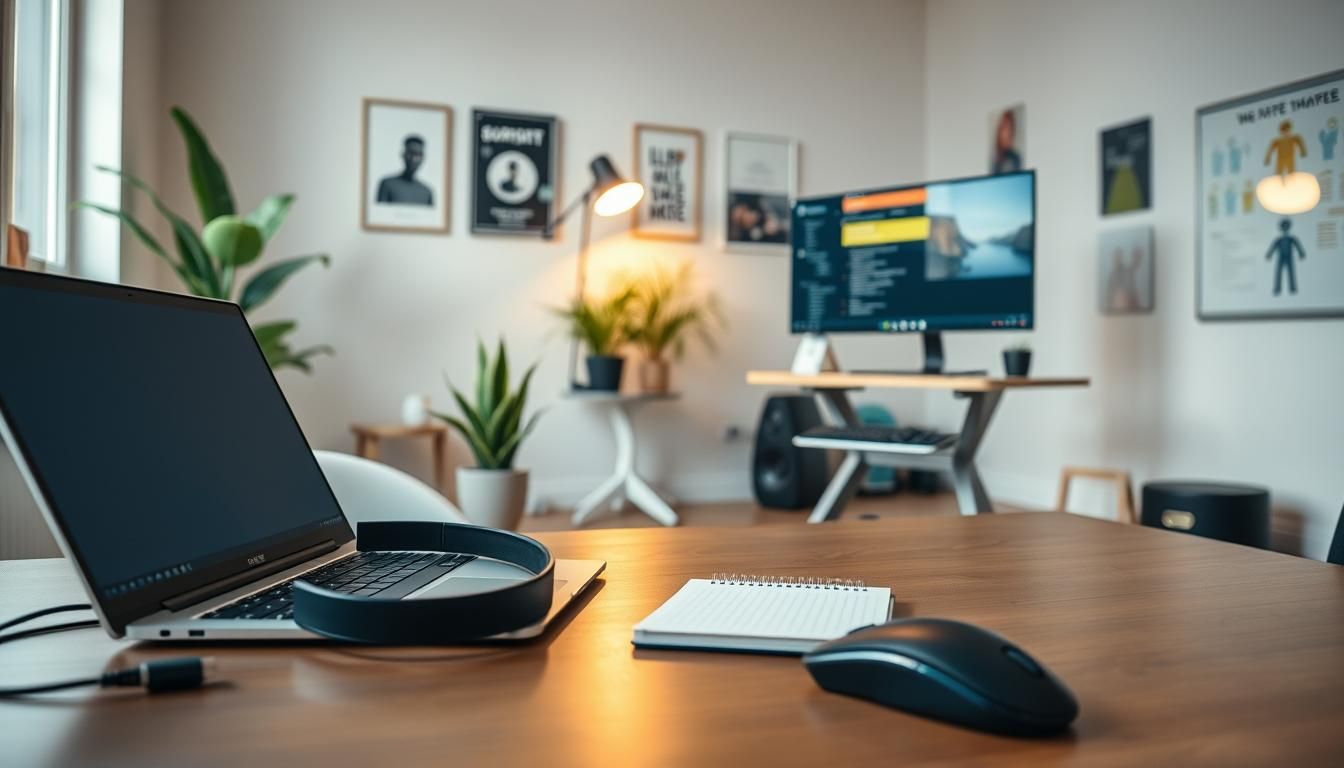

Surprising but true: more than 30% of U.S. knowledge workers say they will work remotely at least part-time for the foreseeable future, and small choices in gear can add up to big gains in comfort and output.
Whether you’re setting up a spare-bedroom office or upgrading a permanent workspace, this short guide lists the top 10 must-have gadgets for remote work that balance productivity, comfort, and budget. From ergonomic chairs and standing desks to reliable webcams and noise-cancelling headphones, the best remote work tools help you stay focused and healthy over long days.
Experts at RemotePass recommend planning purchases based on how long you expect to work remotely: small items like wrist rests make sense for short stints, while a quality office chair and a docking station are smart long-term investments. Applied Innovations emphasizes a capable laptop with at least 8GB RAM and a 256GB SSD, dual monitors, and a 1080p webcam as baseline essentials.
Product roundups repeatedly call out trusted brands and practical picks—BenQ lighting, Logitech keyboards like the MX Keys S, Jabra headsets, and compact presentation tools—for durable, ergonomic home office gadgets that repay their cost in comfort and fewer aches.
Key Takeaways
- Plan purchases by expected remote-work duration to maximize value.
- Start with a reliable laptop, docking station, and a 1080p webcam.
- Invest in ergonomic gear—chair, desk, and keyboard—for long-term health.
- Noise-cancelling headphones and good lighting improve call quality and focus.
- Explore detailed product lists like this one from DeskTime for hands-on recommendations: top productivity gadgets and products.
Why investing in remote work gear matters for productivity and health
Remote work trends show steady growth across industries in the United States. Many companies now offer telecommuting or hybrid schedules. That shift makes a functional home office more than a perk. It becomes a workplace that must support performance and well-being.
Early choices shape daily experience. Workers who buy reliable laptops, quality webcams, and conference headsets avoid repeated interruptions during meetings. Teams that recommend the best remote work tools reduce friction and keep projects on schedule.
The growth of remote work and long-term trends
Before the pandemic, remote staffing was rising. Demand for flexible roles increased after 2020. Employers now plan for long-term distributed teams and invest in policies and equipment to match. That planning influences hiring, security, and how teams collaborate across time zones.
Organizations report that consistent setups improve security and performance. Providing standard peripherals and a reliable computer lowers troubleshooting and helps IT manage updates and backups. Companies that treat remote work as permanent get steadier output from their teams.
How the right gadgets improve posture, focus, and ergonomics
Ergonomic choices make a big difference. A height-adjustable desk and a supportive office chair reduce neck and back strain. Monitor arms position displays at eye level. Proper lighting and noise control cut fatigue and distractions.
Small items often pay off quickly. A wrist rest, lumbar cushion, or glare-filtering lamp boosts comfort for developers and writers. Investing in essential remote work gadgets like task lighting and ergonomic mice helps sustain concentration during long coding sessions or video calls.
Short-term vs. long-term remote setups: cost-effective choices
Match purchases to how long you expect to work remotely. For short assignments, prioritize portable solutions. A laptop stand, USB webcam, and noise-cancelling earbuds offer immediate gains at modest cost.
When remote work is permanent, aim for durable gear. A full ergonomic chair, an adjustable desk, and a multi-monitor setup deliver ongoing health benefits. These best remote work tools reduce sick days and improve retention by showing that employer and employee value comfort.
For teams seeking guidance, practical recommendations and product ideas can help. Learn more about ergonomic setups and durable accessories from Desky’s overview of workstation benefits at ergonomic workstations for distributed teams.
| Time Horizon | Priority Purchases | Expected Benefit |
|---|---|---|
| Short-term (weeks to months) | Portable webcam, USB headset, laptop stand, wrist rest | Quick comfort gains, better meeting quality, low upfront cost |
| Medium-term (6–18 months) | Ergonomic chair cushion, external keyboard, monitor arm | Improved posture, reduced neck strain, increased typing comfort |
| Long-term (ongoing remote) | Height-adjustable desk, full ergonomic chair, dual monitors | Sustained health benefits, higher focus, consistent productivity |
| Team-level investments | Standardized peripherals, secure laptops, conferencing bundles | Simplified IT support, consistent user experience, better security |
This selection brings together trusted recommendations from IT experts, product editors, and hands-on user tests. It focuses on practical picks that deliver daily value in a U.S. home office. The list highlights proven brands and sensible specs so readers can choose items that match short-term budgets or long-term setups.
How this list was compiled from expert recommendations and user-tested picks
We started by reviewing multiple “must-have” and “best accessories” lists from reputable outlets. Applied Innovations and corporate IT teams contributed practical minimum specs, such as 8GB RAM and 256GB SSD. Product roundups and lab tests then narrowed options to models that balance performance and reliability.
Editorial testing focused on real-world use. Reviewers evaluated Logitech webcams like the C920 and BRIO, Microsoft and Logitech keyboards, Jabra speakerphones, and leading noise-cancelling headphones from Sony and Bose. Each item passed hands-on checks for comfort, connectivity, and consistent performance.
Balancing price, durability, and functionality for U.S. remote workers
Budget and durability matter when choosing home office gadgets. For ergonomic chairs, we compared premium options from Humanscale and Herman Miller with affordable alternatives such as the Habitat Ezra. For standing desks, we weighed Yo-Yo and Vernal against more budget-friendly converters.
Peripherals follow the same rule. The best remote work tools include mid-range models like the Logitech MX Keys S for long-term reliability and accessible choices such as the Sony WH-CH720N for affordable noise cancellation. Docking stations and USB-C hubs were selected based on port variety and build quality to avoid frequent replacements.
Practical checklist used across categories
- Minimum specs: 8GB RAM, 256GB SSD and USB/USB-C docking compatibility.
- Trusted brands: Logitech, Microsoft, Jabra, Sony, Bose, Herman Miller, Humanscale.
- Durability test: warranty length, user reviews, and return rates.
- Price tiers: budget, mid-range, premium to fit different remote budgets.
| Category | Recommended Models | Why it made the cut |
|---|---|---|
| Webcams | Logitech C920, BRIO | Sharp 1080p/4K, reliable drivers, good low-light performance |
| Keyboards | Logitech MX Keys S | Comfortable typing, multi-device pairing, long battery life |
| Headphones | Sony WH-CH720N, Bose QuietComfort | Strong ANC, long battery life, comfortable for long calls |
| Standing desks | Vernal, Yo-Yo | Sturdy lift, smooth adjustment, good value for stability |
| Ergonomic chairs | Herman Miller, Humanscale, Habitat Ezra | Range from premium support to affordable lumbar options |
| Speakerphones & docks | Jabra Speak series, USB-C docking stations | Clear meeting audio, broad compatibility, multiple ports |
| Lighting | BenQ task lamps, adjustable desk lighting | Color-temp control, reduced eye strain, reliable LEDs |
Ergonomic office chair and back support options
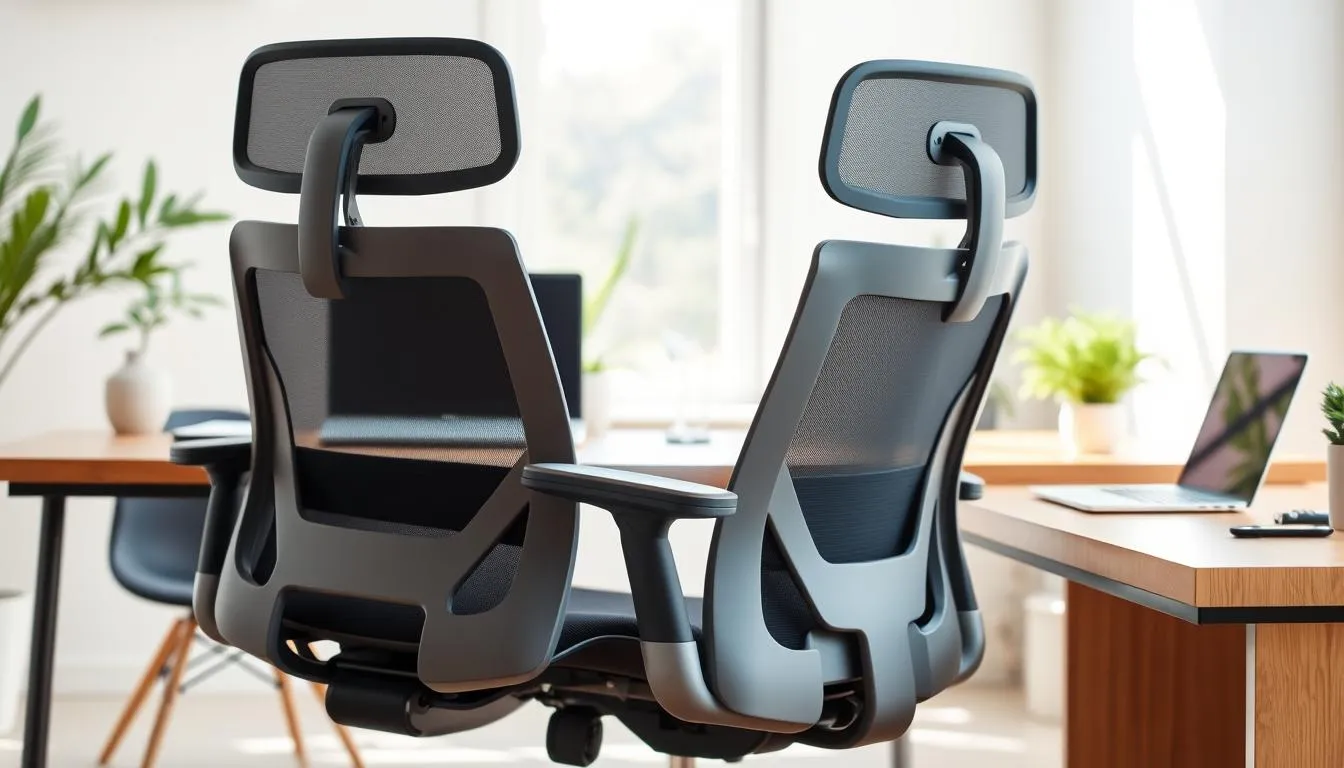
Good seating changes how you work. A proper ergonomic office chair pays off when you log long hours from home. It supports the spine, reduces fatigue, and ranks high among essential remote work gadgets for anyone serious about comfort and focus.
When to choose a full ergonomic office chair
Choose a full ergonomic office chair if you sit more than four hours a day. Models like the Herman Miller Aeron or Humanscale Freedom offer adjustable lumbar, seat depth, and tilt-lock features that adapt to different bodies. Firms such as Steelcase and Herman Miller have strong warranties and testing histories that protect long-term job performance.
Affordable lumbar and tailbone cushions as alternatives
For short-term setups or tight budgets, memory foam lumbar pillows from FORTEM or Qutool can improve posture without replacing your chair. Tailbone cushions and gaming-style supports from HyperX work for many users. These home office gadgets are portable, inexpensive, and effective when paired with good sitting habits.
Key features to look for: adjustable lumbar, armrests, tilt and warranty
When shopping, focus on four features. Look for adjustable lumbar support that fits your lower back. Confirm adjustable armrests and seat height for proper elbow and knee angles. Test tilt and lock mechanisms for a stable recline. Check breathability and a clear warranty to cover defects.
| Option | Best for | Key features | Approximate price range |
|---|---|---|---|
| Herman Miller Aeron | Full-time remote workers | Customizable lumbar, breathable mesh, tilt limiter, long warranty | $900–$1,600 |
| Humanscale Freedom | Premium ergonomic support | Dynamic recline, adjustable headrest option, adaptive lumbar | $800–$1,400 |
| Hinomi H2 Pro | Adjustability-focused users | Multiple height/tilt settings, supportive spine design | $400–$800 |
| Habitat Ezra (budget) | Cost-conscious buyers | Basic lumbar support, adjustable height, breathable fabric | $120–$250 |
| FORTEM / Qutool lumbar pillow | Temporary upgrades | Memory foam contour, washable cover, portable | $25–$60 |
| HyperX tailbone or gaming cushion | Gamers and hybrid users | Dense foam, pressure relief, slip-resistant base | $30–$80 |
Adjustable standing desks and desk converters for better posture
Alternating between sitting and standing eases back pain and boosts energy. Modern standing desks let you switch positions quickly. Lightweight desk converters bring the same benefit at a fraction of the cost.
Benefits come from movement, not just posture. Short standing breaks reduce lumbar strain and can sharpen focus during long calls. Pair a standing desk with an anti-fatigue mat and an adjustable monitor riser for best results.
Which option fits your budget?
Full electric desks such as the Herman Miller Jarvis and Fully Jarvis models offer smooth motors and long warranties. Expect higher prices for solid construction and quiet lifting systems. Desk converters work well for those who rent or have limited space. They cost less, sit on your existing surface, and still support sit-stand transitions.
Trusted brands and what to expect
Top-tested models include the Yo-Yo Desk Pro 2 for overall value, Humanscale Float for refined adjustability, and Vernal for customization. Fully and Autonomous remain accessible choices with good warranty coverage.
| Type | Representative Brand | Typical Price Range | Why Choose It |
|---|---|---|---|
| Electric standing desk | Herman Miller Jarvis | $600–$1,600 | Durable motors, wide height range, long warranties |
| High-end adjustable desk | Humanscale Float | $1,200–$2,000+ | Precise adjustability, premium materials, sleek design |
| Value standing desk | Fully / Autonomous | $300–$800 | Solid performance, good warranty, popular pick for home offices |
| Desk converter | Vendors across market | $100–$350 | Cost-effective, portable, fits existing desks |
When choosing, weigh motor strength, warranty length, and tabletop quality. Think of a standing solution as one of the top gadgets remote work setups need to keep your body and output in balance.
Second monitor and multi-screen setups for increased efficiency
Adding a second monitor can change how you work. It cuts time spent switching windows and keeps email, chat, and documents visible. Small teams and solo consultants find this boosts focus and reduces digital fatigue.
For mobile professionals, a portable USB monitor is an easy way to gain screen space without a full desktop setup. Many road warriors pick slim Full HD panels that connect over USB-C or USB 3.0 for simple plug-and-play performance.
Productivity gains from dual-monitor setups
Studies and user reports show dual screens speed up tasks like editing, coding, and data entry. Keeping a reference on one display and active work on the other reduces context switching. Teams using remote collaboration tools notice fewer errors and faster review cycles.
Portable USB monitors and budget-friendly 1080p options
Options such as USB-powered 1080p monitors give clear text and enough workspace for spreadsheets and video calls. Brands like ASUS and AOC offer models that balance size, weight, and color accuracy. Choose a model with a foldable cover or built-in stand for better stability on the go.
Docking stations and connectivity tips for laptops
Docking stations expand ports and simplify multi-display setups. Plugable’s USB 3.0 docking station and many USB-C port replicators handle extra monitors, Ethernet, and USB accessories. Match cables to your laptop’s output: HDMI for wide compatibility, DisplayPort for higher refresh, USB-C for single-cable power and video.
When pairing screens, check resolution and scaling to avoid mismatched text sizes. Keep spare HDMI or USB-C cables on hand to avoid last-minute hiccups. Treat a second monitor as one of the best remote work tools for improving workflow and comfort.
High-quality webcams and lighting for professional video calls
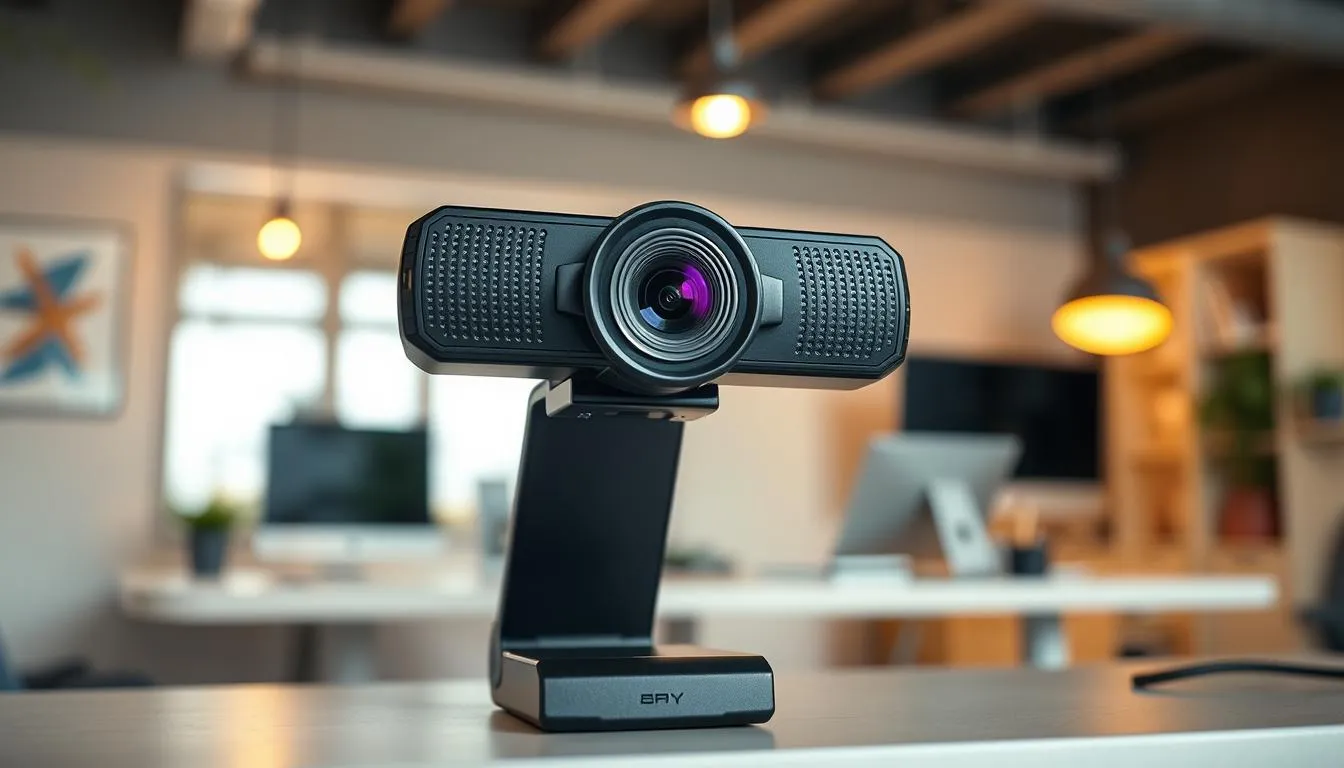
Good video calls start with the right gear. Built-in laptop cameras often sit too low and capture unflattering angles. An adjustable laptop stand and an external camera fix posture and framing. Investing in reliable tools elevates presence during meetings and makes remote work feel more professional.
Why a 1080p webcam outperforms built-in cameras
A dedicated 1080p webcam delivers sharper image quality and better color than most integrated laptop cameras. Models such as the Logitech C920 offer consistent clarity for team meetings. Higher-end options like the Logitech BRIO add HDR and wider dynamic range for bright windows and dim rooms.
Ring lights and adjustable desk lights to boost on-camera appearance
Even the best camera looks flat without proper video call lighting. Adjustable ring lights let you control color temperature and brightness to match natural light. Task lamps like the BenQ e-Reading LED Swing Arm Desk Lamp provide focused, mixable light for clearer skin tones and reduced shadows.
Background blur and virtual background tools for privacy
Virtual background software can hide a busy room and keep attention on you. Tools such as Snap Camera and ChromaCam let you blur or replace backgrounds while preserving natural edges. Use soft, even lighting and a 1080p webcam to improve the accuracy of background effects.
These items rank high on lists of essential remote work gadgets. A clear camera, quality lights, and simple software tweaks make video calls feel polished and less tiring for participants. Small upgrades pay off quickly in confidence and perceived professionalism.
Noise-cancelling headphones and headsets for focus and calls
Good audio gear is one of the best remote work tools you can buy. Clear sound and a reliable mic keep meetings efficient and reduce repeat calls. Pick gear that fits how you work: long focus sessions, frequent VoIP calls, or a mix of both.
Over-ear vs. true wireless earbuds
Over-ear noise-cancelling headphones like the Sony WH-1000XM6 or Bose QuietComfort series block distractions and offer long battery life. They suit deep-focus days and noisy home environments.
True wireless earbuds from Sony and Apple fit mobile setups and short calls. They are lighter and easier to stash, but their mic performance can vary compared with full-size cans.
Wired USB headsets and conference speakers
Wired USB headsets such as Logitech’s H390 provide rock-solid connectivity for desk-bound work. They cut latency and avoid pairing issues, making them a solid choice for heavy VoIP use.
Conference speakers like the Jabra Speak line work well for small group calls in a shared room. They pair with laptops and phones and reduce the need for a dedicated VoIP headset when multiple people join from one spot. Learn more about top picks and features at this guide: best noise-cancelling headsets for office calls.
Battery life, mic quality, and comfort
Battery matters when you work long shifts. Aim for 20+ hours of talk time for wireless headsets; some models reach 30+ hours. Charging cases for true wireless earbuds add portability but expect lower continuous runtime.
Mic quality should be tested in your environment. Multi-mic arrays and beamforming give better voice pickup on noisy lines. Look for UC certification if you use Microsoft Teams or Zoom frequently.
Comfort affects all-day wear. Padded headbands, memory-foam ear cups, and a lightweight frame prevent fatigue during long calls. Try models with adjustable suspension and replaceable ear pads if you wear them many hours.
| Use Case | Recommended Type | Example Models | Key Benefit |
|---|---|---|---|
| Deep focus in noisy home | Over-ear ANC | Sony WH-1000XM6, Bose QC | Superior noise blocking and long battery |
| Mobile work and commuting | True wireless earbuds | Sony WF-C700N, Apple AirPods Pro | Compact, portable, quick pairing |
| Stable desk calls | Wired USB headset | Logitech H390 | Consistent audio and plug-and-play |
| Small team meetings | Conference speaker | Jabra Speak 510, 410 | Hands-free group calls with clear pickup |
| Hybrid work with long talk time | Bluetooth headset with UC cert | Yealink BH74, Poly Voyager Focus 2 | Wireless freedom and platform integration |
Reliable laptop or desktop with docking and necessary specs
Pick a device that fits how long you’ll work remotely. For short stints a tablet or lightweight laptop can do the job. For a long-term home setup invest in a reliable laptop for remote work or a desktop that supports docking and full-size peripherals.
Minimum recommended specs for remote productivity (RAM, SSD, OS)
Aim for at least 8GB of RAM and a 256GB SSD to keep applications and files responsive. Use a current operating system with security and app updates applied. These laptop specs remote work needs balance cost and performance for video calls, browser tabs, and light multitasking.
Choosing a laptop vs. desktop vs. tablet for remote work needs
Laptops offer portability and built-in webcams. Desktops give more power per dollar and easier upgrades. Tablets work for brief or mobile tasks but may limit multitasking. Brands like Dell, Apple, Lenovo, and Microsoft provide models that meet modern expectations for battery life and screen quality.
Docking stations and USB-C port replicators to expand ports
If the laptop lacks ports, use a dock or USB-C port replicator to add HDMI, Ethernet, USB-A, and multiple monitors. Plugable and vendor docks are common choices that make a laptop behave like a desktop. A docking setup helps integrate home office gadgets such as external displays, keyboards, and Ethernet for stable meetings.
For examples and further testing notes, read the buyer guidance at Forbes Personal Shopper to compare models and docking options.
Wireless keyboard and ergonomic mouse choices
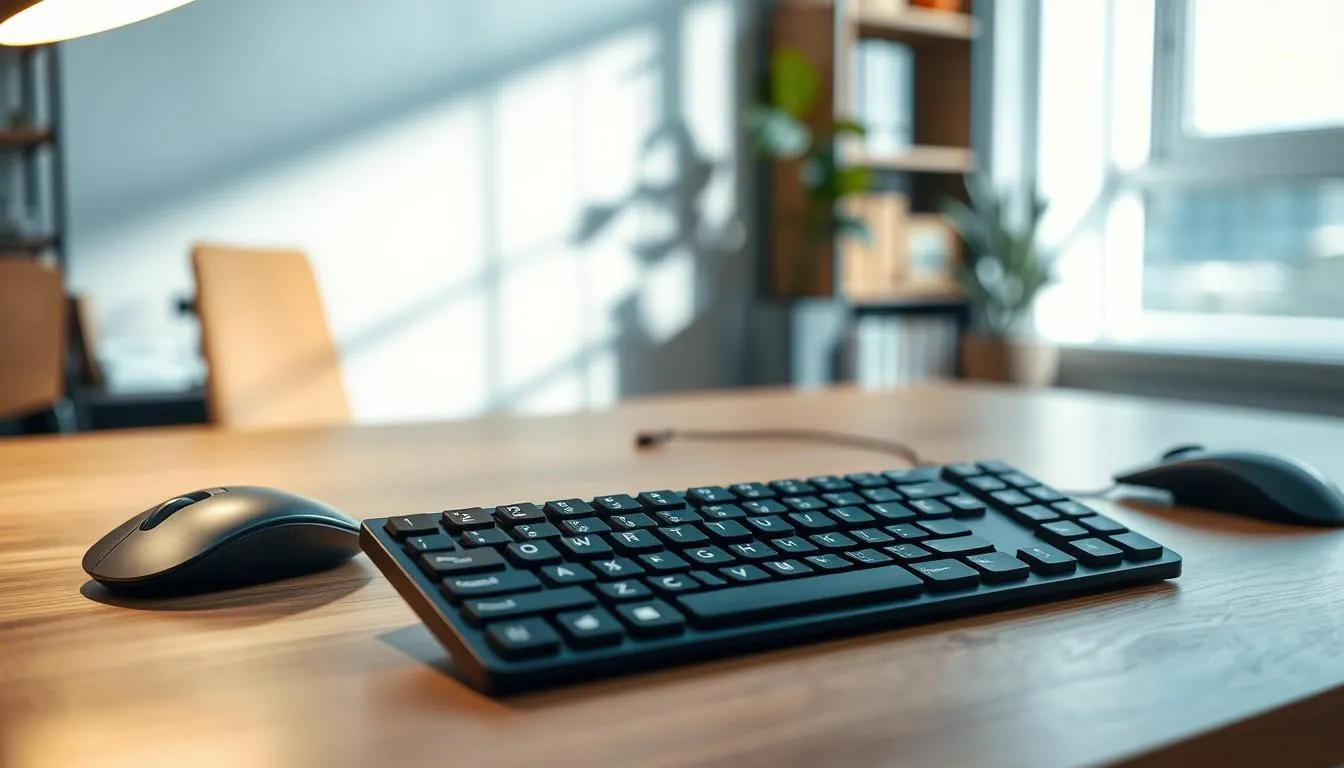
A quality wireless keyboard and a supportive ergonomic mouse rank high among essential remote work gadgets. Choosing the right pair improves comfort, reduces wrist pain, and keeps long workdays productive. Consider battery life, connectivity options, and build quality when you shop.
Benefits of full-size keyboards and numeric pads
Full-size wireless keyboards with numeric pads speed data entry and reduce hand movement for spreadsheets and accounting tasks. Models like the Logitech MX Keys S offer a stable, quiet typing feel that many remote professionals prefer.
Look for backlit keys and stable key travel if you work in varied lighting. A USB-rechargeable option simplifies power management compared with replaceable batteries.
Ergonomic mice, vertical designs, and wrist rests
An ergonomic mouse shapes your hand to lower strain. Vertical designs from Logitech and Microsoft tilt the hand into a handshake posture that eases pronation stress. Test grip size and button placement to match your natural motion.
Wrist rests help short sessions and transitions, while a more supportive mouse design offers long-term relief. Oversized mouse pads, such as XXL pads from Aukey, give more room for fluid movement and reduce shoulder tension.
Recommended models for longevity and comfort
Trusted combos include the Logitech MK850 Performance for comfort and multi-device switching, the Logitech MX Keys S keyboard for accuracy, and the Microsoft Surface Keyboard for USB-rechargeable convenience. The MK270 remains a solid budget choice for dependable day-to-day use.
Check models that support Bluetooth and a 2.4GHz dongle to maximize compatibility across Windows, macOS, and tablets. High-end mice often feature rechargeable batteries, adjustable DPI, and programmable buttons for workflow shortcuts.
For a deeper look at top-rated sets and editorial picks, visit this guide on the best wireless keyboard and mouse to compare features and user reviews: best wireless keyboard and mouse.
Portable chargers, wireless chargers, and cable management
Keep power within reach and your desk tidy to stay focused during long workdays. A mix of portable power banks and fixed charging stations lets you move between couch, kitchen, and office without hunting for an outlet. Pair those choices with simple cable organization to keep your setup clean and efficient.
Keeping devices topped up with power banks and pads
Choose a portable charger that supports USB-C Power Delivery for fast phone and laptop top-ups. Brands like Anker and RavPower offer compact power banks that can charge phones, earbuds, and small laptops on the go. Add a multi-device wireless charger on your desk to drop phones and AirPods in one place for hassle-free charging.
Cable organization tips to declutter your home office
Start with a simple cable tray under the desk to hide chargers and power strips. Use Velcro straps or silicone clips to group cables by device and keep them from tangling. Label each cord at both ends so you know which cable goes to the webcam, monitor, or laptop without guessing.
Choosing fast-charge compatible accessories for multiple devices
Look for chargers and hubs that list Quick Charge or Power Delivery specs. A wireless charger with 10W or 15W output handles modern phones better than older pads. Pick a docking station that supplies power to laptops while offering extra USB-C and USB-A ports for peripherals.
| Item | Best For | Key Feature | Example Brand |
|---|---|---|---|
| Portable charger (20,000 mAh) | Mobile workers and travel | USB-C PD 45W output | Anker |
| Multi-device wireless charger | Desk with phone and earbuds | Simultaneous charging, 15W phone coil | Belkin |
| USB-C docking station | Laptop users needing ports | Power delivery plus HDMI and Ethernet | CalDigit |
| Cable management kit | Any home office gadgets setup | Under-desk tray, clips, and labels | Bluelounge |
| Fast-charge wall adapter | Charge multiple devices quickly | GaN tech, 65W output | Aukey |
Choosing the right calling setup affects call quality, team collaboration, and work-life balance. Many companies support softphones for home offices so employees can transfer calls from the office to a personal device with minimal fuss. A VoIP softphone on your laptop or phone keeps work numbers separate from personal lines. That separation makes it easier to switch off after hours and to comply with company policies.
Use a physical VoIP desk phone when your employer requires hardware for security, fixed extensions, or power-over-Ethernet setups. Desk phones from Cisco or Yealink give reliable call handling and tactile controls for busy receptionists or sales teams. Those models work well as part of a mixed home-office and on-site ecosystem where consistency matters.
For small-team calls, a conference speakerphone delivers clearer group audio than a laptop mic. The Jabra Speak 510 and Jabra Speak 410 are proven Bluetooth and USB options that balance price with pickup range. Plug-and-play devices cut setup time and avoid driver headaches during urgent meetings.
Personal headsets remain a strong choice for one-on-one calls. Logitech models like the H390 and H600 offer USB and wireless simplicity. Those headsets pair well with a VoIP softphone or a physical desk phone via USB adapters.
Integration with Zoom, Microsoft Teams, and Google Meet should guide device selection. Pick conference speakerphone and headset models that list platform compatibility. Bluetooth support and simple USB connectivity reduce friction when switching between apps on Windows, macOS, and Chromebooks.
When compiling your home setup list of the best remote work tools, prioritize plug-and-play functionality, battery life for portable units, and clear mute indicators. Good compatibility and vendor support make daily calls less stressful and keep teams productive.
Blue light protection, desk lighting, and eye-care gadgets
Working from home long hours means paying attention to light that hits your eyes. Smart desk lighting and simple eye-care gadgets cut glare, ease focus, and help maintain energy through the day.
Blue light blocking glasses and screen protectors: do they help?
Blue light protection can reduce sleep disruption and lower digital eye strain when used thoughtfully. Brands such as Ocushield offer screen protectors and glasses that filter short-wave blue light around the 415–455 nm range linked to retinal stress. These products will not replace good habits, but they can be part of a layered strategy for healthier screen time.
Task lamps with adjustable color temperature for reduced eye strain
Task lamps that let you change color temperature and brightness improve contrast without washing out colors. Look for high-CRI options above 90 for accurate color and less visual stress. Models like the BenQ e-Reading series and select Honeywell LED lamps offer flicker-free operation and color ranges that mimic natural light.
Best practices for screen time and eye breaks during the workday
Follow the 20-20-20 rule: every 20 minutes, look at something 20 feet away for 20 seconds. Adjust desk lighting so ambient light matches screen brightness and avoid high-blue settings in the two hours before bedtime. Combine physical adjustments with eye-care gadgets to make breaks easier and more effective.
For a practical deep dive on lighting that supports long sessions and circadian health, consult this guide on healthy lighting for extended use: healthy lighting tips.
Mix blue light protection, quality desk lighting, and targeted eye-care gadgets among your essential remote work gadgets to lower eye fatigue and keep performance steady across long workdays.
Desk organization, storage solutions, and home office accessories
A tidy workspace helps you work faster and feel calmer. Start with a simple plan that fits your room, budget, and daily routine. Small items make a big difference when paired with reliable gear from brands like Logitech, Anker, and Herman Miller.
Essential organizers: trays, cable holders, and drawer systems
Use divided trays for papers, pens, and chargers so small items don’t pile up. Cable holders and clips keep power cords neat and reduce tripping hazards. A compact drawer system stores backups like spare SSDs, HDMI cables, and adapters.
Minimalist setups vs. fully equipped workstations—what to keep
Minimalist setups focus on the essentials: monitor, keyboard, mouse, and webcam. That arrangement boosts focus and cuts cleaning time. A fully equipped workstation adds task lighting, a small plant, and a document stand to enhance comfort and mood.
Affordable organizer picks to keep productivity high
Choose stackable organizers, simple trays, and adhesive cable clips for quick wins. Power strips with surge protection and a small docking station reduce wear on laptop ports. These home office accessories protect electronics and make daily routines smoother.
| Item | Use | Budget Range | Why it helps |
|---|---|---|---|
| Divided desk tray | Sort papers, notes, stationery | $10–$30 | Prevents pileups and speeds retrieval |
| Adhesive cable holders | Secure charging cables and headphones | $5–$15 | Reduces clutter and cable wear |
| Compact drawer unit | Store drives, adapters, spare batteries | $20–$60 | Keeps essentials accessible and out of sight |
| Surge-protected power strip | Power monitors, chargers, lamps | $15–$50 | Protects devices and centralizes power |
| Monitor riser with storage | Raise screen; store keyboard or papers | $20–$70 | Improves ergonomics and frees desk area |
| Stackable organizers | Modular storage for supplies | $10–$40 | Adapts as needs change without overhaul |
Small touches change how your day feels. A compact footrest or a soft blanket can ease tension during long calls. Adding a few low-maintenance plants lifts mood and may improve air quality, making the workspace feel less clinical and more personal.
Small investments that improve daily comfort and reduce pain
Footrests, lumbar cushions, and wrist rests are inexpensive home office gadgets that target pressure points. Steelcase and Herman Miller offer full chairs for long-term needs, yet a simple memory-foam footrest or gel wrist rest can cut discomfort on tighter budgets.
Benefits of greenery and low-maintenance plants for mood and air quality
Succulents, snake plants, and pothos thrive with little fuss. These easy picks fit small desks and resist forgetful watering habits. Studies link indoor plants to lower stress and better concentration, so adding greenery counts as one of the simplest wellness gadgets you can adopt.
Workspace rituals and accessories that boost well-being
Pair comfort items with short rituals. A wearable blanket or throw can signal a break between focused tasks. Timed stretch reminders, a small diffuser for calming scent, and a tidy desk organizer help separate work from home life. Employers may reimburse essential remote work gadgets, so check your benefits before buying.
Mixing practical home office gadgets with mood-boosting wellness gadgets creates a balanced setup. Small choices add up to fewer aches, clearer focus, and a workspace you want to use every day.
Conclusion
Creating a productive home office comes down to finding the right mix of gear and habits. Focus on the top gadgets remote work that match your daily tasks and budget. Balance affordability with ergonomics, and think about how long you expect to work remotely and whether your employer will cover some costs.
Choose reliable brands and current hardware for steady performance. Meeting minimum recommended specs for computers, plus docking stations, webcams from Logitech or Sony, and headsets from Jabra, prevents hiccups. These best remote work tools reduce friction so you can stay focused and professional on every call.
Invest in ergonomic furniture, smart lighting, noise control, and simple organization to support health and efficiency. Pair tested products from Humanscale or Herman Miller with budget-friendly alternatives like BenQ monitors or compact standing desk converters to build essential remote work gadgets tailored to your needs. Small comfort items—footrests, plants, and cable organizers—add up to big gains in well-being and productivity.
FAQ
What are the absolute must-have gadgets for a productive home office?
A reliable laptop or desktop with at least 8GB RAM and a 256GB SSD, a docking station or USB-C port replicator, a second monitor (or portable 1080p monitor), an ergonomic keyboard and mouse, a quality webcam (1080p), adjustable lighting or ring light, and noise-cancelling headphones or a wired USB headset. Add an ergonomic chair or lumbar support and a sit-stand desk or desk converter for long-term comfort.
How do I decide between short-term and long-term purchases for remote work gear?
Match purchases to how long you expect to work remotely. For short-term setups, focus on low-cost comfort items—wrist rests, lumbar pillows, laptop stands, a basic headset, and a second portable monitor. For long-term work, invest in durable gear: a full ergonomic chair (Herman Miller, Humanscale or mid-range alternatives), a standing desk or high-quality desk converter, a docking station, and premium peripherals like the Logitech MX Keys S or an ergonomic mouse.
Are Chromebooks OK for remote work?
Chromebooks can work for light, cloud-based tasks but have limitations with some enterprise apps, heavier local workloads, and advanced multitasking. For full compatibility with Windows or macOS workflows, choose a Windows laptop or Mac with the recommended specs and docking support.
Do I really need a docking station?
If you use a laptop as your main machine and want multiple monitors, wired Ethernet, and USB accessories, a USB-C or USB 3.0 docking station is highly recommended. Docking stations (Plugable, manufacturer USB-C docks) simplify connections, provide power delivery, and reduce cable swapping for a cleaner, more stable workspace.
What should I look for in an ergonomic office chair?
Prioritize adjustable lumbar support, seat height, armrests, tilt and lock mechanisms, breathability, and warranty coverage. Premium options (Herman Miller Aeron, Humanscale Freedom) offer long-term customization. Budget-friendly chairs or high-quality lumbar pillows (FORTEM, Qutool) are good interim choices.
How much does a good standing desk cost, and are converters a good alternative?
Full electric standing desks from trusted brands (Fully, Jarvis, Humanscale Float, Vernal) range from mid to premium prices depending on motors and warranties. Desk converters are a lower-cost alternative that lets you add sit-stand flexibility without replacing your desk. Choose converters for limited budgets or test standing routines before upgrading to a full desk.
Will a second monitor really improve productivity?
Yes. A second monitor boosts efficiency for multitasking, reference work, and conferencing. Portable USB-powered 1080p monitors (ASUS MB169B+ style) are great for travel. Pair monitors with a dock and the right cables (HDMI, DisplayPort, USB-C) to avoid connectivity headaches.
Which webcams and lighting work best for professional video calls?
External 1080p webcams like the Logitech C920 (reliable) and the BRIO (premium) offer better framing and low-light performance than built-in laptop cameras. Pair them with adjustable ring lights or task lamps (BenQ e-Reading, Honeywell) that let you control brightness and color temperature to reduce shadows and eye strain.
Should I buy over-ear ANC headphones or true wireless earbuds?
Choose based on priorities. Over-ear active noise-cancelling headphones (Sony WH-1000XM6, Bose QuietComfort) provide superior focus and mic performance for long calls. True wireless earbuds (Sony WF series, Bose QuietComfort Earbuds) are portable and convenient. For dependable call quality, wired USB headsets like the Logitech H390 or Jabra Speak speakerphones are solid choices.
What are minimum specs for a remote-work laptop?
Aim for at least 8GB RAM and a 256GB SSD on Windows. Keep your OS and apps up to date. If you run heavy multitasking, virtual machines, or media work, upgrade RAM and storage. Ensure the laptop supports docking (USB-C or Thunderbolt) if you plan to use multiple monitors and peripherals.
Which keyboards and mice are best for long typing sessions?
Full-size wireless keyboards with numeric pads (Logitech MX Keys S) offer comfort and multi-device support. Ergonomic options like the Logitech Ergo K860 reduce wrist strain. For mice, consider ergonomic or vertical designs, rechargeable models, and multi-device switching—Logitech ergonomic mice are frequently recommended.
How do I keep wireless accessories powered and organized?
Use multi-device wireless charging pads or USB-C PD power banks for phones and earbuds, and pick rechargeable keyboards and mice. Docking stations can supply power to laptops and reduce separate chargers. Cable organizers, trays, and drawer systems keep clutter down and improve workflow.
When should I use a softphone versus a physical VoIP desk phone?
Use a softphone for flexibility—calls on your computer or smartphone integrate with conferencing apps and let you separate work/home. Choose a physical VoIP desk phone if company policy requires it or for constant desk-based calling. For meeting rooms or small teams, Jabra Speak 510/410 or Logitech conference speakers are practical.
Do blue light blockers and special lamps actually help reduce eye strain?
Blue light–blocking screen protectors and glasses (Ocushield and similar) can reduce perceived glare and improve comfort, especially in the evening. Task lamps with adjustable color temperature (BenQ, Honeywell) let you match ambient light and reduce eye fatigue. Combine these with regular breaks and the 20-20-20 rule for best results.
What affordable accessories make the biggest comfort difference?
Small investments often pay off: a lumbar pillow, wrist rest, footrest, laptop stand to improve posture, and a quality desk lamp. Desk organizers, cable holders, and a plant or two help mood and focus without a big budget. Check employer reimbursement policies before buying higher-cost items.
Can I mix premium and budget brands in my setup?
Yes. Balance your budget by buying premium where durability and ergonomics matter (chair, desk, monitor, headset) and choosing reliable budget alternatives for accessories (wrist rests, lumbar pillows, budget headphones). Trusted brands—Logitech, Jabra, Sony, BenQ, Herman Miller, Humanscale—offer proven quality; mid-range and budget picks can complement them effectively.