
Complete Guide to Workspace Setup for Remote Work
Elevate your productivity with our comprehensive workspace setup guide for remote work success. Tailor your home office to fit your needs!

35 min read
91% of employees say they prefer remote or mostly remote work, yet most still work from makeshift spots like kitchen tables or bedroom desks. That mismatch turns short-term convenience into months of neck pain, eye strain, poor focus, and blurred boundaries between work and rest.
This workspace setup guide helps you stop treating a home workspace as an afterthought. Location is foundational: the right spot supports furniture, lighting, and tech; the wrong one undoes even the best chair or monitor. Think practical home office essentials—a stable work surface, a supportive chair, decent lighting, and a clear psychological separation so you can close the day without dragging work into the night.
Match your remote work setup to the nature of your job. Collaborative roles need reliable conferencing tools like Zoom or Microsoft Teams and clear audio; heads-down work benefits from focused layouts and fewer distractions. Remote work ergonomics and optimal workspace design are not luxury topics—they shape productivity, physical health, and long-term job satisfaction.
Key Takeaways
- Pick a dedicated spot to protect focus and sleep quality.
- Prioritize a good chair, a solid work surface, and proper lighting.
- Match tech (internet, camera, apps) to the way you actually work.
- Iterate your setup: small changes in monitors, lighting, or sound make big differences.
- Balance cost and function—start with home office essentials, then upgrade.
Choosing the Right Location for Your Home Workspace
Location sets the tone for every remote work day. Start by mapping out every possible spot in your home and weigh trade-offs. A dedicated room gives privacy and a permanent setup, which helps with boundaries. Shared spaces require daily setup and takedown, raising the chance of interruptions. Bedrooms offer quiet but can blur sleep and work. Living rooms provide natural light and ventilation, yet they often bring traffic and background noise that hurt focus and video calls.
Begin with a quick natural light evaluation in candidate rooms. Sit at the desk at the hour you usually work and note glare, changing light through the day, and whether side light or back light will affect video. Check outlets and Wi‑Fi strength where you plan to place gear. Run a three‑point check: light, power, and connectivity before you decide.
Assessing available rooms and shared spaces
Walk each option during normal household routines. Spend an hour in a spot to gauge temperature, smells, and how easy it is to close a door. Ask if a guest bedroom can become a primary hub. If space is tight, identify a secondary zone for short meetings or quick tasks.
Evaluating natural light, noise, and traffic patterns
Note consistent noise sources like HVAC, street traffic, or a kitchen TV. If noise is frequent, plan for noise mitigation such as door seals or sound-absorbing panels. Use curtains or blinds to control glare. Track foot traffic at peak hours to avoid repeated interruptions during deep work.
Practical tests to simulate real work hours
Run a short pilot: work from the spot for two typical work blocks and treat them like real meetings. Test video backgrounds, mic pickup, and Wi‑Fi stability. Invite a colleague to a quick call and record any interruptions. These practical tests reveal hidden issues that a quick look might miss.
Adapting imperfect spaces with dividers and room tweaks
If the best option is far from ideal, adapt it. Use room dividers, folding screens, or a tall bookshelf to create a visual boundary. Add draft stoppers and door seals to cut noise and drafts. Position your desk for side-lit windows to reduce screen glare and improve video appearance.
| Location Type | Strengths | Challenges | Quick Fixes |
|---|---|---|---|
| Dedicated Room | Privacy, permanent setup, clear boundary | Requires spare room, may limit natural light | Use task lighting, add plants, ensure strong Wi‑Fi |
| Shared Space (Living Room) | Good natural light, ventilation, roomy | High traffic, noisy, less professional background | Room divider, noise mitigation, tidy background for calls |
| Bedroom | Quiet, private, close to amenities | Blurs work/life balance, may affect sleep | Close door, use curtains, remove work gear before bed |
| Corner or Alcove | Compact, cost-effective, easy to zone | Limited space, possible poor light or outlets | Side-lit lamp, cable management, small storage solutions |
| On-the-go / Mobile Spot | Flexible, good for hybrid days | Inconsistent setup, variable connectivity | Portable hotspot, compact kit of home office essentials |
Start with clear goals. A simple workspace setup guide helps you decide what you need now and what can wait. Think in terms of short-term vs long-term setup so choices match how long you’ll work from home.
Defining short-term vs. long-term setup goals
Short-term setups are quick fixes for a few weeks. A dining table and a laptop stand will do. Long-term setups suit months or years. They require durable furniture and better equipment to protect health and productivity.
Match purchases to the expected timeline. If remote work becomes permanent, upgrade to items built for daily use rather than temporary comfort.
Checklist for a basic functional setup
Focus on essentials first. Prioritize a stable work surface, a supportive chair, good lighting, and a way to separate work from home life.
- Desk or stable table sized for your tasks
- Adjustable chair with lumbar support
- Task light or daylight lamp for eye comfort
- Computer, reliable internet, and a quality mouse
- Webcam and headset or microphone for calls
- Basic organization: trays, cable clips, and a small shelf
These home office essentials protect focus and health before you spend on extras.
Scaling your setup as remote work becomes permanent
Upgrade in stages. Add a second monitor, an ergonomic keyboard, and a monitor arm when daily workflows demand them. Consider a sit-stand desk from manufacturers like Uplift or Fully only after testing fit and space.
Look for used or open-box options from trusted brands such as Steelcase or Herman Miller to get higher-end gear at lower cost.
Balancing budget, space, and ergonomics
Balancing budget and ergonomics means spending where it prevents pain. Invest in a good chair and proper monitor height before decorative items. If space is tight, choose vertical storage and compact desks.
Use return policies to test products. Employers may supply some gear, so confirm allowances before buying. Treat the workspace as an evolving project and audit needs every few months.
Essential Home Office Furniture and What Matters Most
Setting up a productive home office starts with a few smart furniture choices. Focus on pieces that fit your equipment, support good posture, and keep clutter under control. This short guide covers practical desk recommendations, ergonomic chair fundamentals, cable management, and small-space storage so you spend less time fussing and more time working.
Desk size, stability, and layout recommendations
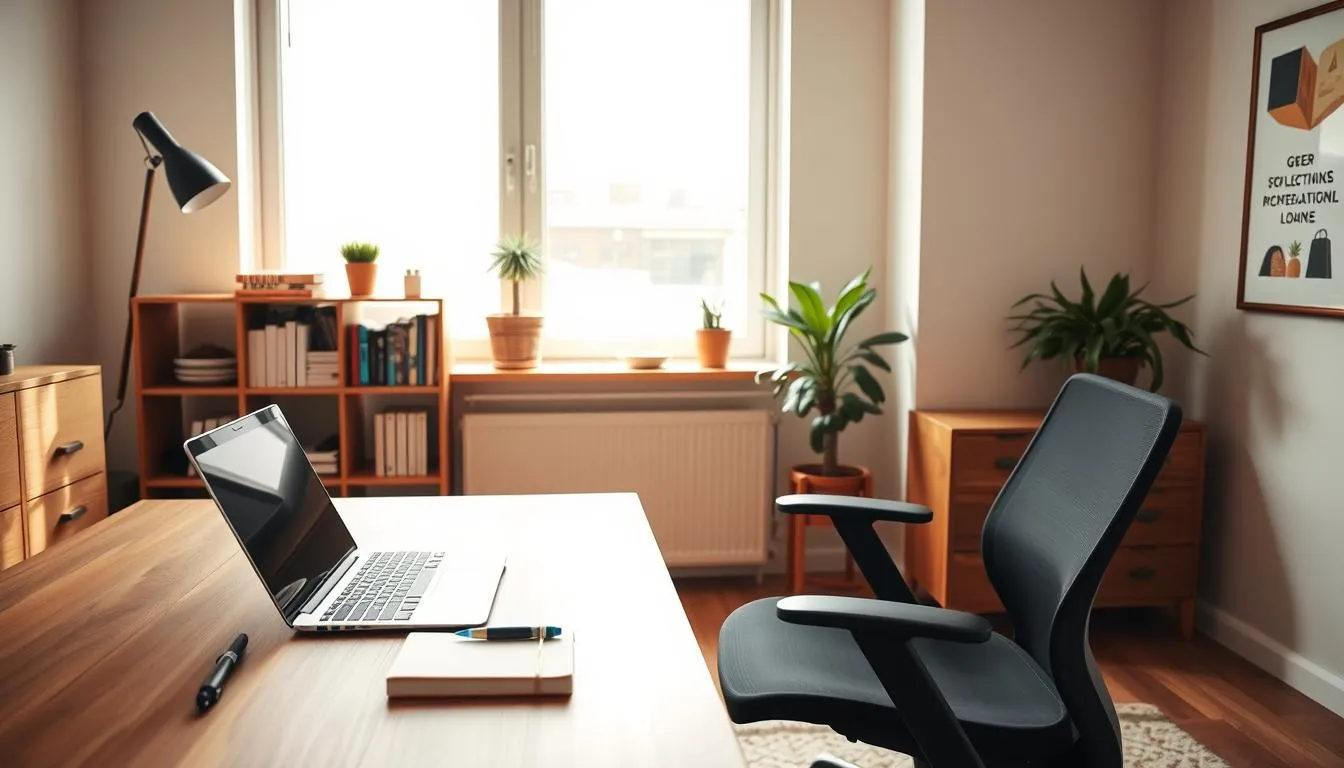
Choose a desk at least 48 inches wide and 24 inches deep to hold a monitor, laptop, and peripherals comfortably. Stability matters more than style because a wobbly desk breaks concentration and shortens gear life.
Plan the layout so your main monitor sits at arm’s length and your keyboard allows elbows at roughly 90 degrees. If you like to alternate standing, look at sit-stand options from IKEA, Autonomous, or Fully. Measure equipment footprint before buying to avoid returns.
Chair fundamentals for comfort and health
Pick a chair with adjustable height, reliable lumbar support, and a seat deep enough to support your thighs without pressing the knees. Armrests should support the forearms without lifting the shoulders.
Try models in-store or buy from retailers with good return policies. Think of seating as an investment in comfort and productivity, especially if you work long hours.
Storage, cable management, and small-space solutions
Basic storage such as a compact filing cabinet, a small bookshelf, or under-desk drawers keeps surfaces clear and reduces visual stress. Use vertical space with wall shelves when floor area is limited.
Cable management is essential. Add trays, clips, and sleeves to route power and data lines away from feet and views. Neat cables cut setup time and prevent trips and tangles.
Items you can skip or buy later to save money
Delay decorative furniture, specialized printer stands, and pricey organizers until your workflow proves the need. Monitor arms and high-end accessories help but are not always essential; buy them when you upgrade displays or when posture needs demand change.
Consider quality used desks and chairs or employer allowances to stretch your budget while keeping the core home office essentials strong.
Remote work ergonomics: posture, monitor, and input setup
Good ergonomics keeps you productive and pain-free. Start with small changes you can test in a single workday. Use practical monitor height tips and keyboard placement that support comfort, not gimmicks.
Correct monitor height, distance, and multi-monitor tips
Place the top of the screen at or just below eye level so your gaze tilts slightly downward. Sit about an arm’s length from the display. These simple monitor height tips reduce neck strain during long calls.
When using two or more screens, center the primary monitor in front of you. Put the secondary screen to the side and angle it to avoid repeated neck twisting. For equal use of both screens, set them close together on the same plane.
Keyboard and mouse positioning for neutral wrists
Keep the keyboard and mouse close to the body so elbows rest near 90 degrees. Aim for neutral wrist positioning: wrists straight, neither bent up nor down. Use an ergonomic keyboard and mouse to lower force and awkward angles.
Choose an external keyboard and mouse over a laptop tray when possible. Try models like Logitech MX Master 3 or split mechanical keyboards to find what reduces tension for you.
Sitting posture, lumbar support, and foot positioning
Sit with feet flat on the floor or on a low footrest. Thighs should be roughly parallel to the floor. Support the natural curve of your lower back with a lumbar cushion or a rolled towel.
Relax shoulders and keep the head aligned over the spine. Alternate sitting with standing briefly during the day instead of standing all day to avoid new strain.
Simple ergonomic fixes without expensive gear
Raise a laptop screen with a stand or stack of books, add an external keyboard and mouse, and use a towel for lumbar support. Adjust chair height so knees are slightly lower than hips.
Make iterative adjustments and record what helps. Small changes reduce the risk of tendinitis and nerve compression while you refine your setup for long-term comfort.
Movement and routines to prevent aches from remote work
Long periods at a desk reduce circulation and create stiffness. Good movement routines help prevent aches and keep energy steady during the day. Start with simple, repeatable habits that fit your schedule and workspace.
How often to stand, stretch, and change position
Follow a practical rhythm: sit, stand, or move in short cycles to reduce strain. Aim to stand every 30–60 minutes and break long sits into smaller periods. Research suggests a sit-stand ratio between 1:1 and 1:3 works well for most people.
Use standing calls and adjust your desk or chair quickly so changes feel natural. An anti-fatigue mat helps when standing for longer intervals.
Easy microbreaks and mobility exercises for desk workers
Microbreaks for desk workers should be brief and focused. Try neck rolls, shoulder stretches, wrist circles, and gentle hip flexor releases. Walk for a minute or two to restore circulation and clear your head.
Do simple stretches every hour. If pain appears, stop and adjust your setup before the discomfort grows. Small, frequent movements prevent aches better than occasional long workouts.
Using timers and apps to build healthy movement habits
Timers and apps reinforce healthy movement habits by turning intentions into routines. Pomodoro timers, movement reminders, and calendar blocks keep breaks consistent.
Pair a morning ritual like 10 minutes of light exercise or meditation with scheduled microbreaks to form a daily practice. For practical guidance on scheduling and ergonomics, see this resource on workplace habits remote work ergonomics tips.
- 20-8-2 rule: 20 minutes sitting, 8 minutes standing, 2 minutes moving helps balance load.
- Use an external keyboard and mouse to make standing calls comfortable.
- Set alarms or smart-watch prompts to nudge movement into your day.
Consistent microbreaks and a few mobility moves build resilience. Over time, these habits reduce stiffness and help prevent aches while supporting better remote work ergonomics.
Home office technology essentials for reliable remote work
Setting up a dependable tech stack keeps your day smooth and productive. This short guide covers the core items every remote worker needs, from network basics to sound and video gear. Follow these steps in the workspace setup guide to prioritize purchases and placements that matter most.
Internet speed requirements and wired vs. wireless
Aim for at least 25 Mbps download and 5 Mbps upload for reliable video calls and file transfers. Businesses that rely on heavy uploads or cloud backups should push higher upload tiers.
Use wired ethernet when possible for stability during meetings and large transfers. Place a quality dual-band router where it has clear line of sight to your main workspace when you rely on Wi‑Fi.
Choosing a computer based on job type and workload
Match specs to tasks. For basic office work, 8GB RAM and a recent Intel Core i5 or Apple M1/M2-class chip handles documents, web apps, and meetings. For design, video editing, or software development choose 16GB or more, a faster CPU, and a dedicated GPU.
Consider laptops from Dell, Lenovo, Apple, or HP if you need mobility. Desktop systems give more power per dollar and easier upgrades for long-term use.
Monitor choices: sizes, resolutions, and number of screens
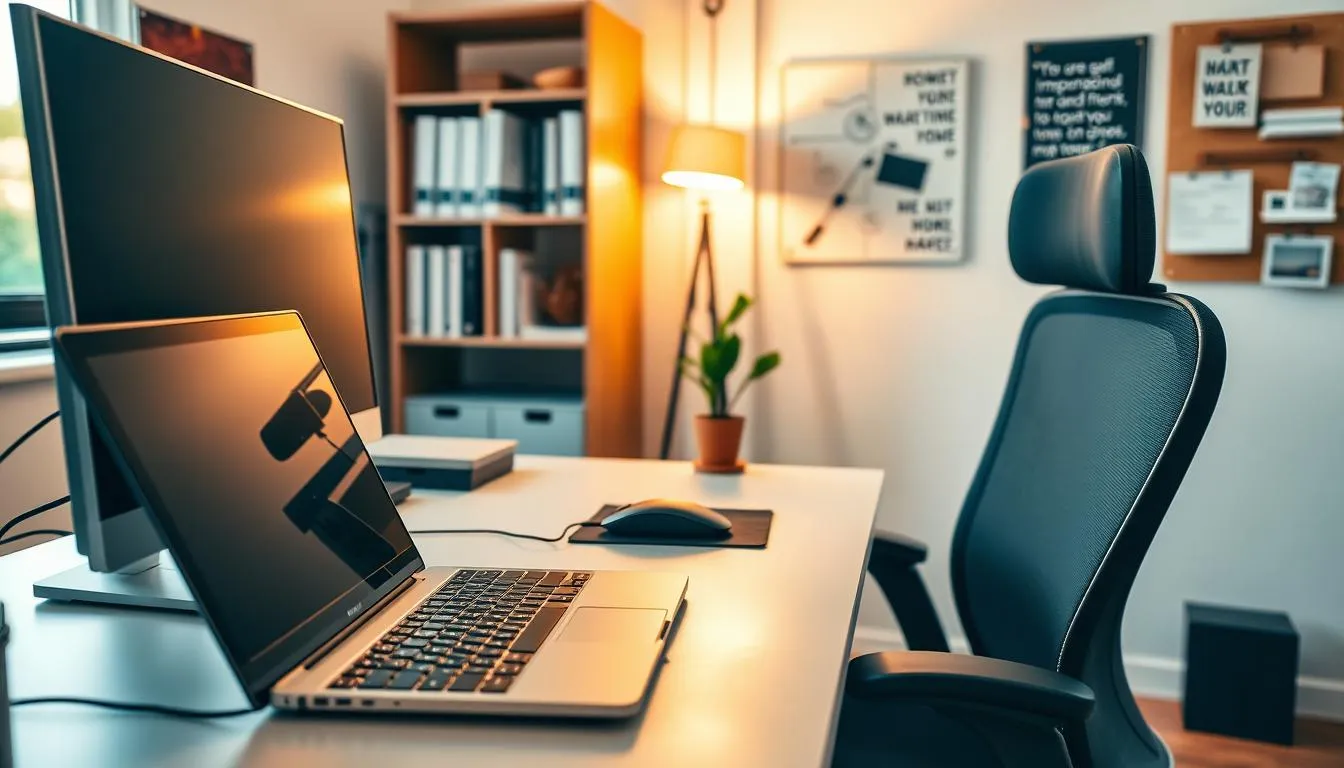
Choose monitors that reduce eye strain and boost focus. A 24–27 inch external screen at 1080p or 1440p suits most tasks. If you often reference multiple docs, add a second monitor to increase productivity.
Use ergonomics to set monitor height and distance. Pick IPS panels for color accuracy and wide viewing angles when you work with images or design files.
Webcam, microphone, and audio options for clear calls
Built-in webcams and mics are a start. Upgrading to an external USB webcam like Logitech Brio improves clarity. For podcast-quality voice, choose a USB microphone from Blue Microphones or a comparable brand.
For long calls, closed-back headphones or a headset reduce background noise and give clearer audio. Keep drivers and firmware up to date for optimal performance.
Essential peripheral checklist
- Computer with matched specs to your workload
- One or two external monitors for better multitasking
- External webcam and USB microphone for clearer video and audio
- Reliable router and wired ethernet option for stable internet speed requirements
- Backup drives and a headset for long meetings
Follow this compact workspace setup guide to assemble equipment in order of impact: network first, core computer second, displays third, then audio and camera. Small upgrades yield large gains in day-to-day reliability and call quality.
Backup plans and redundancy for critical work systems
Redundancy keeps a remote workday running when something goes wrong. Start with a simple rule: one local copy, one offsite copy. That prevents a single failure from costing hours of work or client trust.
Cloud and local backup strategies for important files
Use cloud backup strategies like Google Drive, OneDrive, or Dropbox for automatic offsite protection. Pair cloud storage with a local external SSD or hard drive for fast restores and version control.
Set scheduled backups and test restores monthly. Keep critical project folders and current drafts synced to both locations. This layered approach makes backup plans practical and reliable.
Mobile hotspot and secondary internet options
A mobile hotspot provides a quick internet fallback when the home connection fails. Upgrade a phone plan for tethering or buy a dedicated hotspot device from Verizon or T-Mobile if you need consistent backup bandwidth.
Consider a secondary ISP or a different medium, such as LTE, when multiple household users strain the primary line. Test your mobile hotspot speed and latency before relying on it during meetings.
Spare peripherals and emergency power solutions
Keep spare charging cables, a USB mouse, and a compact keyboard in a drawer or bag for fast swaps. Employers sometimes supply extras; if not, buy reputable brands like Anker for cables and Logitech for mice.
Emergency power prevents sudden shutdowns. Use an uninterruptible power supply (UPS) for desktops and critical networking gear. For laptops, maintain battery health and carry a charged power bank as a short-term solution.
- Checklist: external SSD + cloud account + monthly restore test.
- Connectivity: mobile hotspot with tethering plan or MiFi device.
- Peripherals: spare cables, mouse, keyboard, and headset.
- Power: UPS for router and PC, plus a laptop power bank.
Adopt these steps into your workspace setup guide so redundancy becomes routine. Regular checks keep backup plans effective and reduce last-minute stress when systems fail.
Lighting that protects eyes and improves video calls
Good lighting for home office work starts with harnessing natural light benefits. Place your desk beside a window so daylight falls from the side. Facing a bright window can cause glare on screens. Side lighting brings steady illumination that eases eye strain and supports circadian rhythm.
Layered artificial lighting keeps your workspace balanced. Combine soft ambient light with a focused task lamp and a small accent source to reduce harsh contrasts. Bias lighting behind the monitor lowers contrast and improves comfort for long sessions. For specific product ideas and setup tips, see the practical recommendations at workspace lighting for productivity.
Video call lighting needs a soft, even face light to avoid shadows. Place a ring light or LED panel just above the camera or clip a small adjustable light to your monitor. Avoid strong backlighting from windows or lamps behind you. Test your video call lighting before meetings and tweak angle and brightness until skin tones look natural.
Simple fixes solve common mistakes. Move side lamps to soften shadows, add a diffuser to harsh overhead lights, or use an LED strip behind the monitor to reduce eye fatigue. Match monitor brightness to room light. When natural light fades, switch to neutral color temperatures to keep focus steady.
Budget lighting solutions can deliver big gains. Affordable adjustable desk lamps, clip-on lights, and basic ring lights cover most needs for under $50. Smart bulbs from Philips Hue or tunable LEDs let you change color temperature as daylight shifts. For targeted ideas and product guidance, consult the linked resource above.
Color temperature tips help with both comfort and clarity. Neutral light in the 3500–4500K range balances warmth and clarity for daytime tasks and reading. Cooler temperatures above 5000K can feel clinical and strain eyes over long stretches. Warmer tones under 3000K lower alertness, so save them for evening wind-downs.
| Lighting Element | Purpose | Recommended Range | Budget Options |
|---|---|---|---|
| Natural light | Reduce eye strain, mood, circadian support | Daylight; side placement | Desk near window, blackout blinds to control glare |
| Ambient lighting | Even room illumination to lower contrast | 3500–4500K | Floor lamp, ceiling fixture with diffuser |
| Task lighting | Focused desk illumination for reading and screen work | 450–1000 lumens depending on task | Adjustable desk lamp, clip-on LED ( $20–40 ) |
| Video call lighting | Soft, even face light to eliminate shadows | Neutral to slightly warm, single-direction front lighting | Ring light or small panel ( $30–50 ); clip-on options |
| Accent / bias lighting | Reduce monitor contrast and add depth | Neutral 3500–4100K | LED strip behind monitor, smart bulbs |
| Remote work ergonomics | Holistic fit of lighting, posture, and screen setup | Combine proper lumens with neutral color temp | Adjustable lamp, monitor riser, affordable tunable bulbs |
A clear layout supports work and well-being. Start by deciding which tasks need deep concentration and which invite collaboration. Use simple zones to separate intense work from lighter activities. This protects focus and flow while keeping the room flexible for meetings or quick calls.
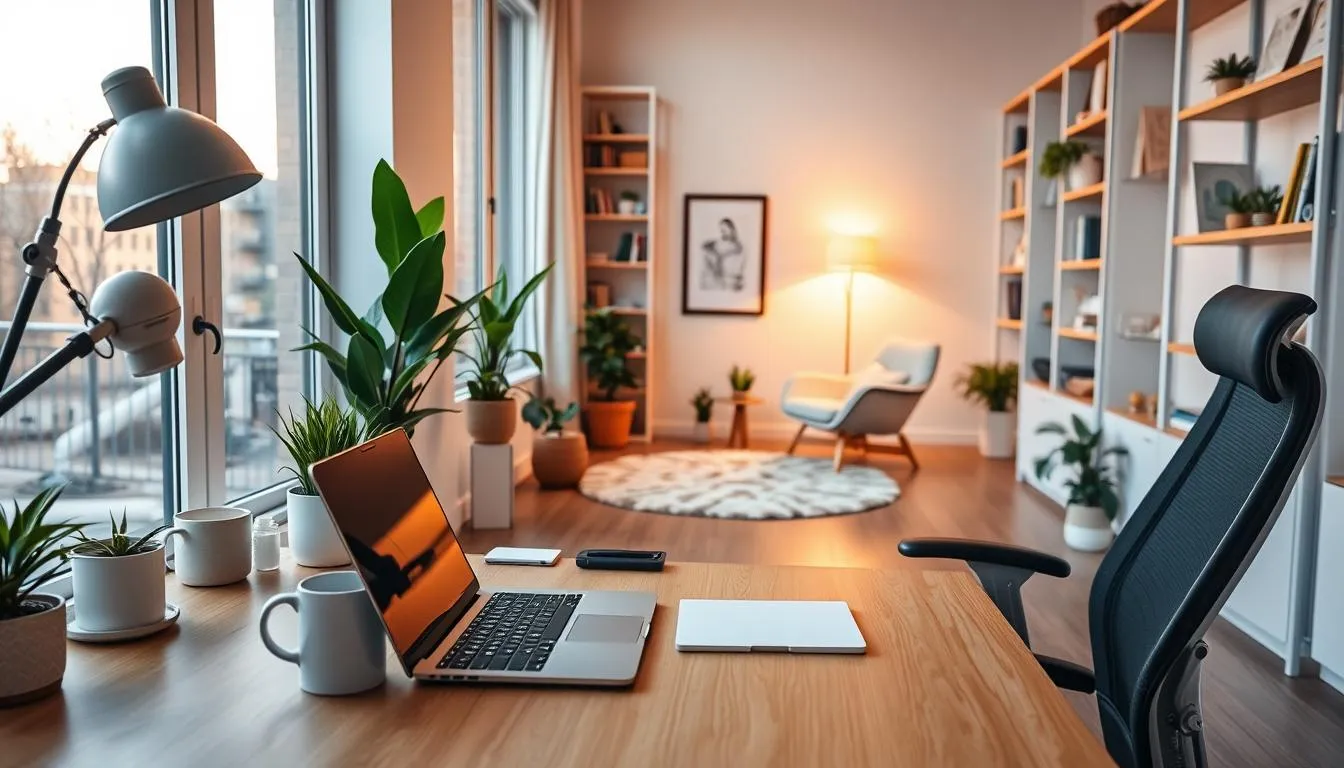
Decluttering keeps distractions low. Apply practical decluttering tips: clear the desktop each evening, limit items to essentials, and use a weekly five-minute tidy habit. Store paperwork in labeled folders so you can find what you need fast.
Smart storage systems reduce friction. Pick filing cabinets, open shelves, or drawers for supplies you use most. Use cable clips under the desk to prevent tangles and loss of focus. Keep frequently used tools within arm’s reach to avoid repeated interruptions.
Design two complementary layouts. Create a primary setup for focused work with restricted sound and controlled lighting. Build a secondary area for collaboration, with a surface for shared notes and casual seating. Move between zones to reset attention and energy.
Visual organization aids clarity. Use trays, desk organizers, and labeled bins to group related items. A small whiteboard or pegboard helps track priorities without crowding the desktop. Color-coded labels speed retrieval and keep the space tidy.
Personal touches should boost mood without creating clutter. Choose one or two items, such as a plant or a framed print, that fit the room’s scale. Avoid excessive knickknacks that pull attention from tasks. Maintain home office essentials only when they serve daily needs.
Iterate based on use. Track which zones see the most activity and move monitors, lighting, or seating to suit your routine. Consider busy/available indicators like a desk flag to signal when you need uninterrupted time. Small changes can sharpen focus and restore flow.
- Keep deep-focus tools in the primary zone.
- Store reference materials in labeled shelves or drawers.
- Reserve the secondary area for collaborative work and breaks.
- Adopt a nightly five-minute tidy ritual to reinforce decluttering tips.
Managing noise and interruptions in shared homes
Working from home means juggling family life, street sounds, and appliances while you try to concentrate. This short guide shows practical steps for managing noise and reducing shared home interruptions so you can protect focus and still stay connected with household rhythms.
Start with basic home office essentials that block or absorb sound. Close doors, add draft stoppers or weather stripping, and use door seals to cut hallway and kitchen noise. A set of noise‑canceling headphones handles most sudden disruptions during calls. For longer stretches of quiet, consider a compact soundproof office pod or a portable booth that avoids costly renovations and offers true privacy.
Sound-mitigation options: headphones, panels, and door seals
Acoustic panels and ceiling tiles reduce echoes and background noise. Place panels where conversations or TV sound bounce most. High-pile rugs, fabric chairs, and soft furnishings help absorb reflections in open rooms. Folding screens or room dividers give visual privacy and an extra layer of sound reduction when you need short bursts of concentration.
Aiming for measurable performance helps. When choosing booths or panels, look for high decibel reduction and good ventilation for longer sessions. For more practical solutions and model ideas, see a vendor write-up that covers booths and panels here.
Scheduling, signals, and household rules to reduce interruptions
Set clear household rules and visible signals to limit shared home interruptions. Use a calendar block for focus time. Post a simple sign at the door or use a status light like Luxafor Flag to show when you’re on a call. Teach family members to check calendars before planning noisy chores.
Adopt norms that work with your employer’s policies. Ask teams to favor asynchronous updates when possible. Reserve midmorning or late-afternoon for meetings if those times align with lower house activity. These small scheduling changes reduce the need for last‑minute fixes.
Designing secondary spaces for informal or low-focus tasks
Create a tiered workspace plan so different tasks live in different rooms. Keep a dedicated closed room for client calls and deep work. Use a secondary spot for email, learning, and casual collaboration where ambient noise is acceptable. This preserves quieter zones for high-stakes tasks and keeps the household flexible.
Label areas and set simple policies, for example a weekly block of “No Meeting Thursday” to protect deep work. Encourage headphones in shared spaces and provide a basket of spare earbuds for visitors. Small, deliberate boundaries make this workspace setup guide practical and repeatable.
Communication, collaboration tools, and workflow setup
Reliable digital systems keep remote teams aligned and productive. Pick proven options for daily use, test them before important meetings, and document norms so everyone knows how to interact. Clear choices make the rest of your workspace setup guide simpler to follow.
Essential apps
Choose a messaging platform like Slack or Microsoft Teams for fast chats and channels. Use Zoom or Google Meet when video clarity matters. For project tracking, consider Asana, Trello, or Monday.com. Add Google Workspace or Microsoft 365 for shared docs and real-time edits. Regularly update apps and run quick tech checks before calls to avoid interruptions.
Meeting norms and asynchronous practices
Set brief agendas and share them ahead of time. Limit meetings to a clear purpose and slot expected outcomes on the invite. Encourage asynchronous updates in Threads or Docs for progress that doesn’t need live time. Use polls, breakout rooms, and shared notes to keep engagement focused and actionable.
Status signals and shared calendars
Adopt visible availability markers like Slack status, calendar blocks, or small devices such as Luxafor Flag for deep work periods. Block calendar time for concentrated tasks and label it explicitly. Teach teams to respect status indicators so interruptions stay minimal and remote work ergonomics supports real focus.
Workflow setup tips
Create a simple, repeatable task flow that links messaging, file storage, and project tracking. Standardize file naming and folder locations in Google Drive or OneDrive to reduce friction. Use recurring reminders for daily standups or weekly reviews so accountability stays steady without extra meetings.
Boundary-setting techniques
Agree on core hours, meeting-free blocks, and response expectations. Encourage time-blocking for deep work and ask teammates to use calendar labels when they need quiet. Reinforce boundaries in onboarding notes so new hires adopt the same habits from day one.
Practical checklist
- Pick one primary messaging tool and one video platform.
- Implement a single project management system for tasks and priorities.
- Share meeting agendas and minutes for every decision-focused call.
- Use status indicators and calendar blocks to protect focused time.
- Document the workflow setup and update it as tools or team needs change.
Security and privacy best practices for a home office
Working from home calls for simple, sensible steps to protect data and privacy. Use clear rules for devices and documents so personal and work information stays safe. This short guide covers easy actions anyone can take as part of a reliable workspace setup guide.
Strong passwords, two-factor authentication, and device encryption
Choose long, unique passwords and store them with a trusted manager such as 1Password or Bitwarden. Pair passwords with two-factor authentication on accounts that support it to stop most account takeovers.
Turn on device encryption for laptops and phones. On Windows use BitLocker, on macOS use FileVault, and on iOS and Android enable built-in encryption to protect files if hardware is lost or stolen.
VPNs, secure Wi‑Fi setup, and keeping software updated
When accessing company networks, use a VPN for home office access. Pick a reputable provider or use your employer’s corporate VPN to encrypt traffic on public and home networks.
Secure your router by setting a strong admin password and enabling WPA3 where available. Place the router centrally for good coverage and change default network names to avoid revealing the make or model.
Keep operating systems, apps, and router firmware current. Regular updates patch vulnerabilities and reduce exposure to common attacks.
Physical privacy: document storage and camera awareness
Store sensitive papers in a locked drawer or small filing cabinet. Shred documents you no longer need instead of tossing them in the trash.
Be mindful of what appears on camera during video calls. Position your desk to avoid showing confidential material. Use a webcam cover and a privacy screen if you work in shared or public spaces.
Below is a practical reference comparing actions, ease of implementation, and expected benefit for common home office protections.
| Action | How to implement | Effort | Benefit |
|---|---|---|---|
| Strong passwords | Use a password manager and create unique entries for each account | Low | High — reduces credential reuse risk |
| Two-factor authentication | Enable SMS, authenticator app, or hardware key on key accounts | Low | High — stops most unauthorized logins |
| Device encryption | Enable BitLocker, FileVault, or mobile encryption settings | Medium | High — protects data if device is lost |
| VPN for home office | Subscribe to trusted VPN or use employer-provided client | Medium | High — encrypts internet traffic, safer remote access |
| Secure Wi‑Fi | Set strong admin password, enable WPA3, update firmware | Low | High — prevents casual intrusions |
| Physical document security | Locked storage, shredding, restrict visitor access | Low | Medium — reduces chance of data leaks |
| Camera and background control | Reposition desk, use covers, signal when recording | Low | Medium — preserves visual privacy |
Set a simple framework to help your brain switch into work mode and back to personal time. A clear plan helps you establish work hours, reduce task spillover, and protect evenings for rest.
Establishing work hours and transition rituals
Pick consistent start and stop times and add a short ritual at each end. Change into a fresh shirt, take a five-minute walk, or make a cup of tea to mark the shift. Tell housemates and teammates when you are available so boundaries hold up.
Time-blocking, priority setting, and avoiding burnout
Use a calendar like Google Calendar to block focus windows, lunch, and short breaks. Group deep tasks into morning blocks and administrative items into the afternoon. Time-blocking makes it easier to tackle top priorities and helps you avoid burnout by preventing overwork.
Healthy habits: breaks, exercise, and digital detox tips
Build microbreaks into every hour for standing, stretching, or a brief walk. Start the day with ten minutes of light movement or breathing to sharpen focus. After work, practice a short digital detox: no email checks for at least an hour, and save full device-free weekends when possible to recharge.
Track how your time feels and adjust. Use a simple timer or time-management app to see where hours go, then tweak blocks and rituals. Over weeks, this approach helps you create a productive routine that supports focus, stamina, and healthy remote work habits.
Continuous improvement: iterate your setup as needs change
Treat your home workspace as a living system that benefits from small, steady changes. Use a simple cadence to audit workspace performance, track what works, and make low-effort fixes first. This lets you keep momentum without overspending on gear that may not solve the real issues.
The easiest place to start is a short checklist. Note persistent pain, call quality issues, frequent interruptions, and slow apps. Combine those observations with objective metrics like time-on-task or focus sessions. That data helps you iterate workspace setup with clear priorities.
Collect feedback from teammates about meeting audio and screen sharing. Ask family members about noise or shared-space conflicts. Use a mix of quick surveys and one-on-one chats to gather practical input. For a structured process, follow the PDCA cycle and the six-step continuous improvement roadmap found at continuous improvement process.
Use lightweight tools to map problems. Kanban boards show task flow. Value stream mapping reveals waste in routines. Visual Management keeps standards visible so everyone knows the target setup. These methods help you iterate workspace setup while keeping changes transparent.
Decide when to upgrade by testing low-cost adjustments first. Try moving a lamp, adding cable management, or using a laptop stand. If problems reappear after simple fixes, consider bigger purchases. Invest in ergonomics or network gear when issues are recurring and measurable.
Use this quick decision guide to weigh fixes and upgrades:
| Symptom | First action | When to upgrade |
|---|---|---|
| Neck or back discomfort | Adjust monitor height, add lumbar pillow, brief posture checks | Persistent pain after 2–4 weeks; consider ergonomic chair (try Steelcase or Herman Miller with return policy) |
| Poor call quality | Reposition mic, test headset, check Wi‑Fi channel | Repeated failures during meetings; upgrade router, wired Ethernet, or a quality microphone |
| Low productivity or frequent interruptions | Set visible do-not-disturb signals, time-block, redesign layout | When layout limits work types or persistent context switching reduces output |
| Slow device performance | Clean startup apps, add external monitor or SSD, optimize settings | Hardware limits tasks and software fixes don’t help; replace or upgrade machine |
| Setup inconsistency across team | Create standard checklist, share simple automation scripts | When onboarding or security risks rise; invest in company-supported provisioning tools |
Embed the mindset early. Encourage short review cycles, pilot changes, and return policies for large buys. That approach helps you audit workspace performance without waste and decide when to upgrade based on evidence rather than impulse.
Conclusion
A practical workspace setup guide starts with the basics: pick the right location, secure supportive furniture, and address remote work ergonomics to protect your body over long days. Small fixes—like a laptop stand, noise‑cancelling headphones, or a desk lamp—often deliver big gains in comfort and focus without a large budget. Solve foundational problems first and build up from home office essentials as your needs evolve.
Match your environment to the type of work you do, equip reliable tech for calls and collaboration, and layer lighting and storage for an optimal workspace design. Use clear routines, time‑blocking, and boundaries to protect deep work, and keep water and short breaks part of your day to sustain energy and concentration for remote work success.
Take an iterative approach: run simple audits, collect feedback, and invest in ergonomics and connectivity where evidence shows the biggest impact. For a practical checklist and cost guidance, see this home office setup resource—then adapt recommendations to your space and workflow to maintain productivity, health, and long‑term remote work success.
FAQ
What’s the most important first step when setting up a home workspace?
Location is the foundation. Choose a spot that minimizes noise and visual distractions, offers reliable outlets and Wi‑Fi, and provides natural light without direct glare. Test potential locations during real work hours—sit there for an hour to notice noise, temperature, foot traffic, and connectivity before committing.
How do I decide between a dedicated room, shared space, or using my bedroom?
Match the location to your work needs. A dedicated room gives privacy and clearer boundaries; shared spaces require setup/takedown and can increase interruptions; bedrooms can harm sleep by blurring rest/work separation. If a perfect room isn’t available, pick the least problematic spot and use dividers, headphones, or scheduling to create separation.
What should be in a basic, functional setup for daily remote work?
Start with four essentials: a stable work surface, a supportive adjustable chair, decent layered lighting, and some psychological separation (even a folding screen). Add a reliable computer, external keyboard and mouse, a monitor if possible, and a solid internet connection. Prioritize what prevents pain and workflow disruptions over decorative items.
How do I balance budget with ergonomics and space limits?
Solve foundational problems first—location, chair support, desk size, and connectivity. Use affordable ergonomic fixes (laptop stand, external keyboard, rolled towel for lumbar). Buy used or choose retailers with good return policies for pricier items like Herman Miller or Steelcase chairs. Delay nonessential aesthetics and specialty gear until pain points persist.
What desk size and layout work best in a small space?
Aim for a desk footprint that fits your equipment—roughly 48” x 24” is a common comfortable size for most people. Prioritize stability and enough surface to place a monitor at arm’s length, keyboard, and a small workspace. Wall-mounted shelves, vertical storage, and cable management keep small desks usable without clutter.
What should I look for in an ergonomic chair?
Look for adjustable seat height, effective lumbar support, appropriate seat depth, and armrests that support without raising your shoulders. Test chairs in-store or buy from retailers with a strong return policy. If budget is tight, add lumbar rolls or seat cushions to improve comfort temporarily.
How should I position my monitor, keyboard, and mouse?
Place the top of the monitor at or slightly below eye level and about an arm’s length away. Center the primary monitor in front of you; place secondary screens adjacent to reduce neck twisting. Keep keyboard and mouse close so elbows are about 90 degrees and wrists remain neutral. Use an external keyboard and mouse instead of a laptop keyboard when possible.
Can I avoid standing desks and still stay healthy?
Yes. You don’t need to stand all day. Alternate sitting and standing—aim for a sit:stand ratio between about 1:1 and 1:3. Take movement breaks every 30–60 minutes, stretch, and use standing calls. If you try standing desks, use anti‑fatigue mats and ease into longer standing periods.
How often should I move or stretch during the workday?
Change position every 30–60 minutes. Do brief mobility moves—neck rolls, shoulder stretches, hip flexor releases, and short walks. Use timers, Pomodoro apps, or calendar blocks to remind you. Movement prevents stiffness, improves circulation, and reduces cumulative injury risk.
What internet speed and tech specs do I need for reliable video calls?
For smooth video and file transfers, aim for at least 25 Mbps download and 5 Mbps upload. Wired ethernet is more stable than Wi‑Fi. For computer specs, basic office work runs well on 8GB RAM and a recent CPU; heavy tasks (video editing, design) benefit from 16GB+ RAM and a strong CPU/GPU. A 24–27” external monitor is a good sweet spot for productivity.
What audio and camera gear matters most for professional calls?
A dedicated webcam and a good headset or USB microphone noticeably improve call quality. Mid‑range webcams (Logitech Brio or C920) and USB mics (Blue Yeti or Shure MV) are effective without astronomical cost. Prioritize clear audio first—bad sound is more damaging to meetings than slightly soft video.
How do I handle backups and internet outages?
Use a two‑part backup: cloud storage (Google Drive, OneDrive, Dropbox) and a local external drive for critical files. Keep spare charging cables and peripherals (mouse, keyboard). For internet redundancy, have a mobile hotspot or upgraded smartphone plan for tethering and consider a UPS for essential equipment in outage‑prone areas.
What lighting setup reduces eye strain and looks good on camera?
Position your desk for side‑lit natural light when possible. Layer lighting with ambient room light, a task lamp, and bias/accent lighting behind the monitor to reduce eye contrast. Aim for neutral color temperature (about 3500–4500K). Avoid bright window glare behind you; use diffusers, blinds, or curtain adjustments to stabilize lighting for video calls.
How can I manage noise and interruptions in a busy household?
Combine behavioral and physical strategies. Set household rules, visible signals (Slack status, door sign, Luxafor flag), and schedule calls outside high‑traffic times. Use noise‑canceling headphones, close doors, add draft stoppers or weatherstripping, and install sound‑absorbing panels or folding screens to reduce audible and visual distractions.
Which apps and workflows help remote teams stay productive?
Use messaging (Slack, Microsoft Teams), video (Zoom, Google Meet), and project tools (Asana, Trello, Monday.com) that match your team’s needs. Adopt meeting norms—clear agendas, set lengths, and post‑meeting notes. Emphasize asynchronous practices and shared calendars to protect deep work time.
How do I keep my home office secure and private?
Use strong, unique passwords and two‑factor authentication. Keep software and firmware updated, use a VPN for company resources, and secure Wi‑Fi (WPA3 where available). Store sensitive documents in locked cabinets and be mindful of camera and background privacy during calls; use privacy screens if working in public or shared spaces.
How can I create psychological separation between work and home life?
Establish a dedicated place or transition rituals—change clothes, take a brief walk, or do a five‑minute routine to start and end the day. Set clear work hours in your calendar and communicate boundaries to household members. Small rituals signal your brain to switch modes and help prevent work from bleeding into off hours.
How often should I audit and upgrade my workspace?
Treat your setup as iterative. Audit every few months for pain points, interruptions, or tech failures. Collect feedback from teammates about call quality and observe your productivity. Invest in upgrades when issues are recurring—chronic pain, frequent connectivity failure, or persistent audio problems—not just for aesthetics.
What small, inexpensive changes can produce the biggest improvements?
Try a laptop stand with an external keyboard, a better task lamp, a lumbar roll or cushion, noise‑canceling earbuds, cable clips, and a folding screen for separation. These low‑cost fixes often resolve major comfort and focus issues without a big investment.