
The Ultimate Guide to Ergonomic Accessories for Home Offices
Transform your home office with the best ergonomic office accessories for ultimate comfort and productivity. Elevate your workspace today!

29 min read
Nearly 80% of people who work from home report new or worsened neck, shoulder, or back pain within a year a sharp reminder that where we work shapes how we feel. Small upgrades can cut discomfort and boost focus, so this ergonomic workspace guide shows practical, lasting changes you can make today.
Prolonged desk hours lead to fatigue and chronic pain when chairs, screens, and keyboards are poorly matched to the body. Investing in the best ergonomic tools from an adjustable chair to a monitor arm and task lighting pays off in comfort and productivity over time.
This guide avoids one-size-fits-all tips and focuses on durable, modular choices that future-proof your setup. Follow easy placement and adjustment steps, learn which home office must-haves give the biggest returns, and consider professional consultation when a personalized layout is needed.
For quick product ideas and practical setup examples, see this concise resource on ergonomic office accessories from a vendor that covers chairs, converters, and smaller supports here.
Key Takeaways
- Poor home setups cause widespread pain; targeted accessories reduce symptoms and improve focus.
- Prioritize an adjustable chair, monitor placement, and keyboard/mouse ergonomics as core home office must-haves.
- Choose durable, modular gear to avoid frequent replacements and support changing work styles.
- Small supportsfootrests, wrist rests, document holdersdeliver outsized comfort gains for little cost.
- Start with placement: natural light, enough space, and clear sightlines make ergonomics easier to sustain.
Why Ergonomics Matter for Home Offices
A well-planned home office reduces pain and boosts performance. Poor setup leads to musculoskeletal complaints, numbness, fatigue, and lower concentration. Targeted ergonomic office accessories importance becomes clear when employees avoid strain and stay focused.
Small changes add up. The right chair, keyboard, mouse, and monitor arm prevent repetitive stress injuries. These accessories for comfort help maintain posture and circulation throughout the day.
Health and productivity impacts of poor setup
Poor ergonomics can trigger shoulder, neck, and lower back pain. Eyestrain, headaches, and wrist issues follow from bad screen height or awkward typing. These problems lower output and increase sick days.
Using the best ergonomic tools reduces pain and speeds recovery. Workers who use ergonomic keyboards, vertical mice, and adjustable monitor arms report fewer interruptions and improved health and productivity.
Research and standards: BIFMA, ISO, OSHA guidance
Industry standards guide safe workstation design. BIFMA G1 offers practical guidance for office furniture. ISO 9241-5 covers workstation layout and postural needs. OSHA solutions from eTools emphasize engineering controls as the most effective risk reduction.
Following standards helps select durable, modular gear that fits a range of body sizes. For more detailed advice on office ergonomics, see this resource on setup and equipment at office ergonomics guidance.
Return on investment: comfort, focus, long-term wellbeing
Investing in quality accessories for comfort saves money over time. Fewer injuries mean less downtime. Durable items lower replacement costs and reduce waste.
Improved comfort pairs with better focus. Teams show gains in output when workstations reduce distractions and pain. Choosing the best ergonomic tools creates an efficient, healthy workspace that supports long-term wellbeing.
| Issue | Ergonomic solution | Expected benefit |
|---|---|---|
| --- | --- | --- |
| Neck and upper back strain | Monitor arm, laptop stand, document holder | Improved head alignment, reduced pain, clearer vision |
| Wrist and hand discomfort | Ergonomic keyboard, vertical mouse, wrist rest | Lower risk of RSI, steadier typing, less numbness |
| Lower back pain | Adjustable ergonomic chair with lumbar support | Better spine support, fewer absences, more focus |
| Prolonged sitting effects | Sit-stand desk or desk converter, anti-fatigue mat | Improved circulation, reduced sedentary risks |
| Clutter and trip hazards | Cable management, CPU support, organized storage | Safer workspace, easier maintenance, tidy focus |
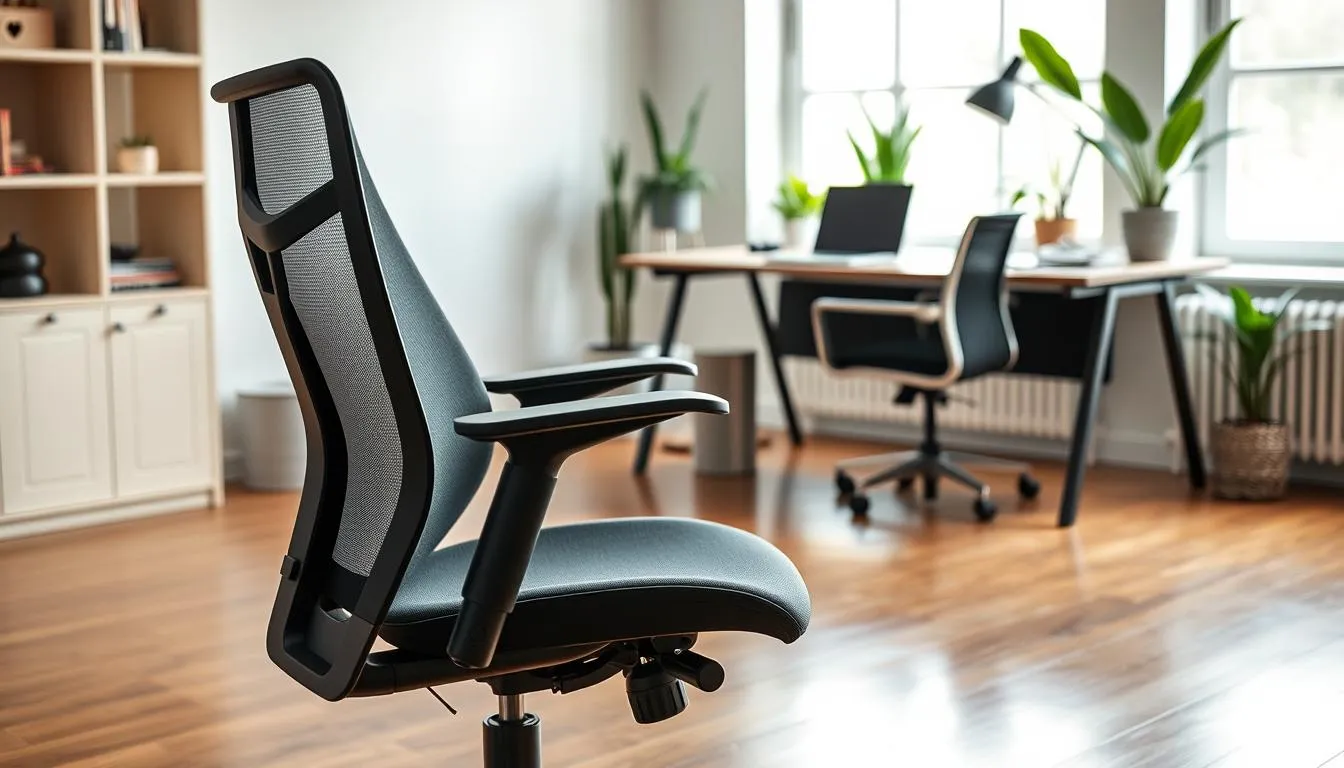
Choosing the right seat sets the tone for every workday. An ergonomic office accessories chair supports the spine, encourages circulation, and lowers strain on shoulders and hips. Small adjustments make a big difference for daily comfort and long-term health.
Key features to look for
Look for strong lumbar support that matches the lower back curve. Good lumbar support keeps the pelvis neutral and prevents slouching.
Chair adjustability is essential. Adjustable seat height, tilt, armrests, and adjustable lumbar depth let one fit the chair to body size and desk height.
Materials matter. Breathable mesh, durable foam, and robust frames extend life and comfort. The best ergonomic tools chair balances cushioning with support.
How to adjust your chair for optimal posture
Set seat height so knees form roughly a 90-degree angle and feet rest flat on the floor or a footrest. This improves circulation and reduces knee stress.
Position lumbar support at the small of the back. When lumbar support matches the spine, lower-back muscle activity falls and posture feels natural.
Adjust armrests so shoulders relax. If armrests are too high, youll lift shoulders. Too low and you slouch forward. Fine-tune tilt and seat depth for full thigh support.
Why high-quality chairs pay off
Premium models from brands like Herman Miller Aeron and Steelcase Leap show why build and engineering matter. These chairs offer refined chair adjustability and proven lumbar support that many users report reduces discomfort.
Durable, modular designs cut long-term costs by avoiding frequent replacements. BIFMA and ANSI/HFES guidance favor chairs that fit wide anthropometric ranges, giving more people a better fit.
A well-chosen chair turns a home workspace into a supportive sanctuary. For many, investing in the best ergonomic tools chair brings measurable gains in comfort and productivity.
Standing Desk Converters and Sit-Stand Desks
Adding a standing option to your home setup improves comfort and focus. Small changes reduce stiffness, boost circulation, and break long sitting stretches. Many workers treat standing desk converters as an easy first step toward a more active day.
Benefits appear quickly when you alternate posture. Short standing sessions ease lower back strain and raise energy. The WHO sedentary guidance and Cornell ergonomics research encourage regular movement to limit prolonged sitting.
Converters vs full desks
Standing desk converters slide onto an existing surface. They cost less, fit many desks, and let you keep current cable and storage setups. Sit-stand desks come with integrated height mechanisms and offer smoother transitions and higher load capacity for multiple monitors and bigger setups.
Compare trade-offs before buying. Converters work well for limited budgets and tight spaces. Sit-stand desks are better when you need heavy monitors or long-term reliability. Think about future upgrades when weighing price against durability.
Safe transition tips
Start small and build tolerance. Begin with 1530 minute standing periods and add time each week. Use an anti-fatigue mat to reduce foot and leg strain and encourage natural micro-movements.
Adopt a movement pattern like the 20-8-2 rhythm: sit 20 minutes, stand 8 minutes, move 2 minutes. This simple schedule aligns with WHO sedentary guidance and helps you switch postures without overloading muscles.
Round out the setup with accessories for comfort such as a supportive anti-fatigue mat, a monitor arm, and a compact platform for keyboards. These home office must-haves improve ergonomics and make standing feel sustainable.
Choose products with adequate weight capacity and stable construction. That gives room for future monitors, docking stations, and other accessories for comfort without needing early replacements.
ergonomic office accessories
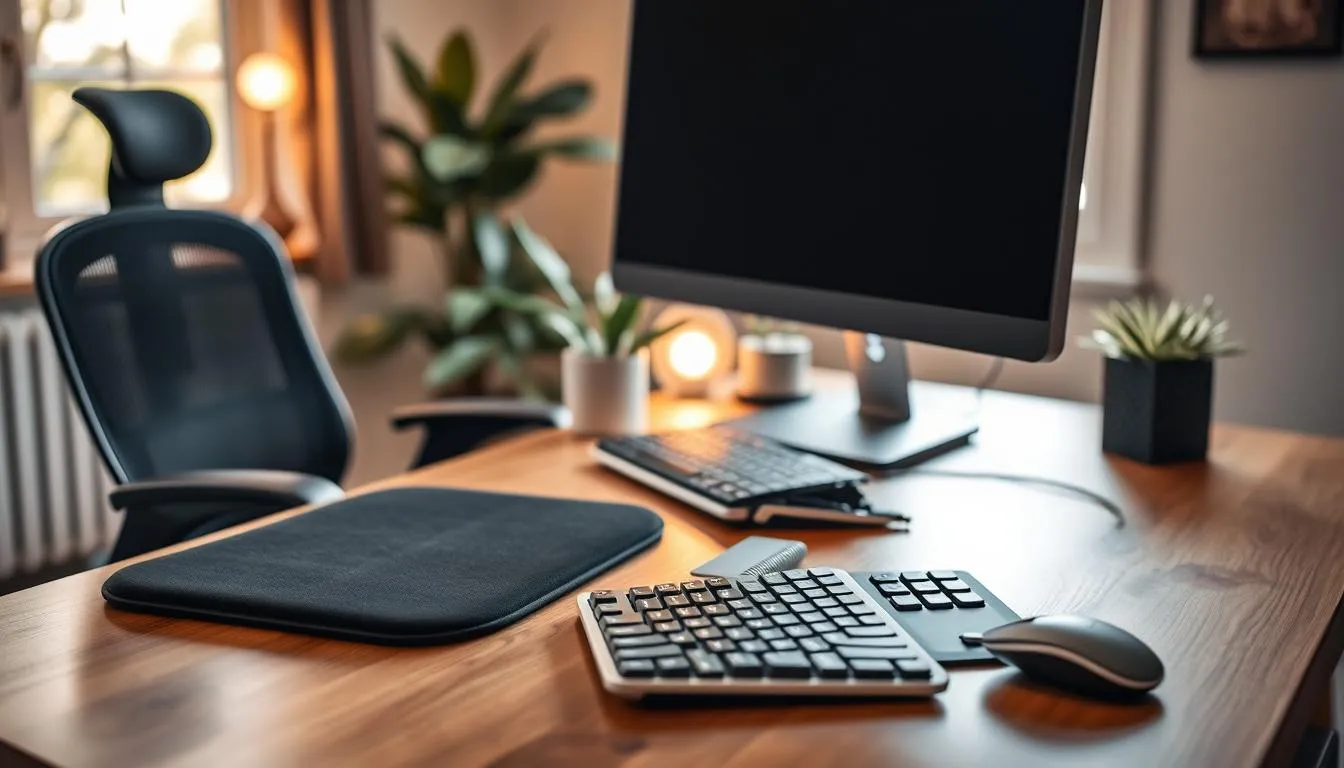
Start with a short inventory of home office must-haves that deliver the biggest daily gains. A quality ergonomic chair, a stable sitstand desk or converter, a reliable monitor arm, and a responsive keyboard and mouse form the core. Add task lighting, a laptop stand, a footrest, wrist supports, document holders, and smart cable management to complete the basic setup.
Overview of must-have accessories for a healthy home workstation
Choose items that address posture, reach, and visibility. Monitor arms free desk space and place screens at eye level. Keyboard trays and adjustable mice reduce wrist and shoulder strain. Task lamps such as the Soho Art Lighting and Lucet Art Lighting cut glare and fatigue for long sessions.
CPU carts, pegboards, and desktop shelves keep equipment safe and organized. Small additions like pullout trays and footstools offer measurable comfort. Review a curated ergonomic office accessories list for specific choices and prices to match your needs.
How to prioritize purchases for budget and future-proofing
Prioritize the items with the highest impact first. Invest in an ergonomic chair and proper monitor placement before picking decorative storage. Next buy the best ergonomic tools for typing and pointing, then lighting and small supports.
Set a budget by tiers: essential, supporting, and organizational. Essentials protect your health. Supporting pieces improve comfort and endurance. Organizational accessories help maintain focus and a tidy workspace.
For product examples and modular options, see a trusted vendor page such as workstation accessories to compare items and warranties.
Modular and universal standards to avoid disposable upgrades
Pick modular accessories that adapt as needs change. Monitor arms with VESA compatibility, keyboard trays with wide adjustment ranges, and CPU carts with adjustable height keep gear usable through upgrades. Look for higher weight ratings and generous tolerances when evaluating products.
Modular accessories reduce waste and lower lifetime cost. Future-proof gear with universal mounts and replaceable components to avoid full replacements. Apply simple planning steps, like the 1:2 cable rule, when laying out cable paths to keep systems tidy and serviceable.
Use percentile-based fit and clear warranty terms when choosing equipment. A small upfront focus on modular accessories and future-proof gear saves money and preserves comfort for years to come.
Ergonomic Keyboards and Keyboard Trays
Choosing the right keyboard setup can cut wrist and shoulder strain. Small changes in layout and angle help typing feel natural. Below are practical options and clear steps to set up an adjustable keyboard tray for neutral posture.
Types of ergonomic keyboards: split, curved, tented
Split keyboard layouts separate the halves so your hands rest under the shoulders. Popular models like the Microsoft Sculpt and Logitech Ergo K860 show how a split keyboard reduces ulnar deviation and forearm twist.
Curved designs follow the natural arc of your fingers to lower finger reach and tension. Tented keyboard options lift the center slightly to open the wrist angle. A tented keyboard with low angles gives similar benefits without a long adaptation period.
Setting up an adjustable keyboard tray to maintain neutral shoulders
Measure so the tray sits at elbow height when your arms hang relaxed at your sides. A keyboard tray at least 24 inches wide fits most split keyboards plus a mouse and keeps shoulders relaxed. ISO 9241-5 supports neutral shoulder alignment as a best practice.
Choose a tray that tilts and slides. Forward tilt and slight tenting help keep wrists straight while you type. Leave clearance for forearm support and adjust tray depth to avoid reaching. Use a compact mouse pad or a small palm rest if needed.
Adaptation timeline and tips for faster transition
Expect a 24 week adaptation period when you switch to a new layout. Start with short sessions and low tenting angles. Gradually add time each day while keeping posture checks and short breaks.
Practice floating wrists and light keystrokes. Use gentle hand stretches between typing sets. These adaptation tips speed comfort without sacrificing productivity.
As you upgrade, prioritize width and adjustability when picking the best ergonomic tools for long-term use. Thoughtful setup and steady transition make ergonomic keyboards and a good keyboard tray valuable parts of a healthy workspace.
Ergonomic Mice and Input Devices
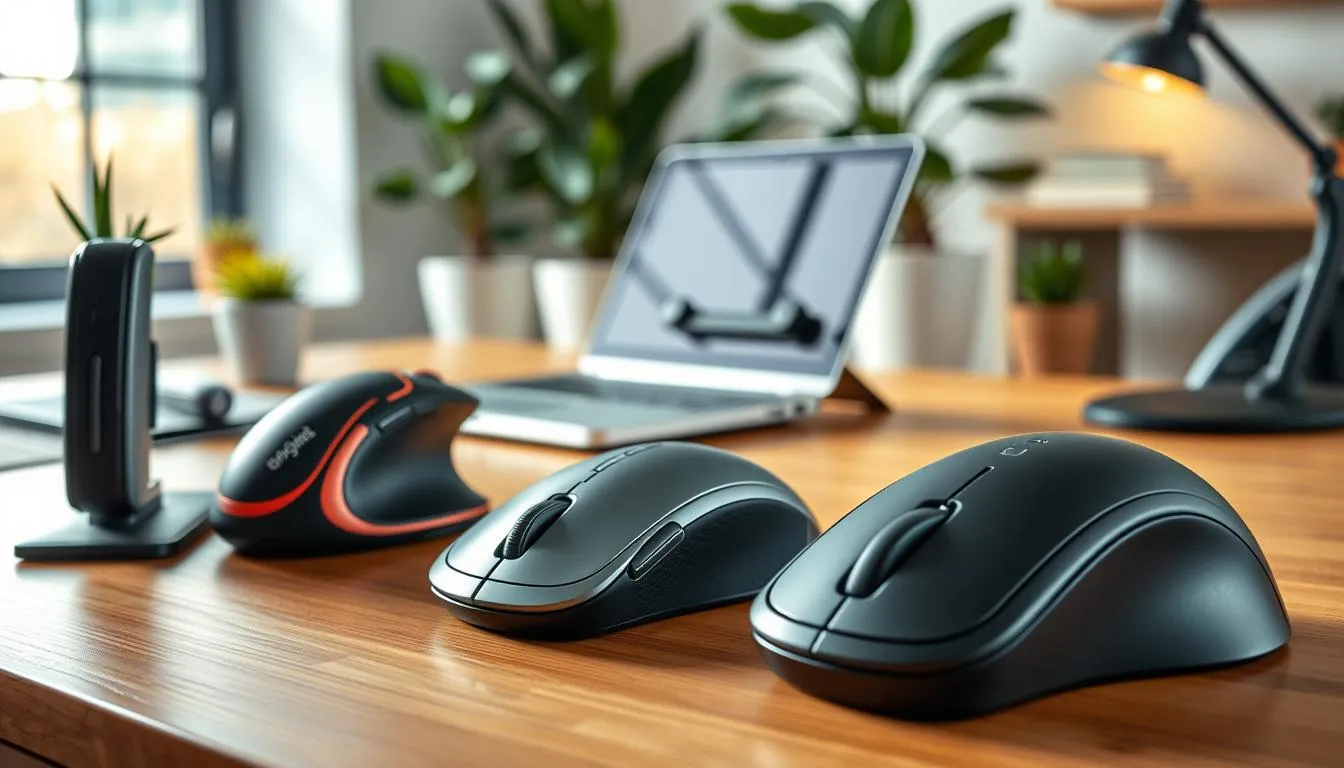
Choosing the right mouse changes how your wrist and forearm feel after a long day. Ergonomic mice come in vertical, trackball, and contoured forms. Each design aims to reduce wrist pronation and ease pressure on the median nerve while fitting different workflows.
Vertical mice, trackballs, and contoured designs: which to choose
Vertical mice like the Logitech MX Vertical and the Evoluent VerticalMouse rotate the hand into a handshake posture. This reduces wrist deviation and can ease pain for many office workers.
Trackball devices keep the hand still while the thumb or fingers move the ball. Trackballs work well for limited desk space and for users who need precise control without large arm movements.
Contoured designs suit people who prefer gradual shape support. These input devices fit common hand shapes and offer a middle ground between vertical and trackball styles.
Positioning and movement patterns to reduce RSI risk
Place the mouse at the same height as your elbow and next to the keyboard to avoid reaching. That alignment keeps shoulders relaxed and lowers strain on the upper arm.
Use larger arm movements for cursor travel and reserve fine finger movements for precision tasks. This pattern spreads load across the shoulder and elbow, reducing repeated stress on the wrist.
Switching strategies and alternating devices for load distribution
Transition slowly when trying a new device. Start with short sessions and add more time over days or weeks to let muscles adapt.
Rotate between a vertical mouse, a trackball, and a standard mouse to distribute strain. Many people find alternating devices combines comfort with productivity.
Pair your mouse with other accessories for comfort, such as a supportive wrist rest or an adjustable keyboard tray. Good input devices and these small comforts rank among the best ergonomic tools for a healthier home office.
| Device Type | Best For | Pros | Cons |
|---|---|---|---|
| --- | --- | --- | --- |
| Vertical mouse | Office work, reduced wrist deviation | Handshake grip, less pronation, models by Logitech and Evoluent | Short learning period, may feel bulky for small hands |
| Trackball | Limited desk space, precision tasks | Minimal arm movement, stable cursor control, good for CAD and dragging | Requires finger/thumb coordination, not for everyone |
| Contoured mouse | General office use, comfort seekers | Familiar shape, gentle support, easy to adopt | Less radical posture change, may not relieve severe symptoms |
A good monitor setup cuts neck strain and keeps focus. Monitor arms let you set height, distance, and tilt so screens sit at eye level. Proper screen placement improves posture without extra effort.
Guidelines for height, distance, and tilt
Place the top of the screen at or just below eye level. The recommended viewing distance is about 2026 inches, roughly arms length. Tilt screens 1020 degrees to reduce glare and lower eye fatigue.
Choosing arms with future-proofing
Pick monitor arms rated for at least 2530 lbs to handle larger displays and ultrawide models. Confirm VESA compatibility, typically 100x100mm, so new monitors mount easily. Look for wide articulation and dual-motor options for heavy or multi-monitor setups.
Benefits for multi-monitor setups and desk organization
Monitor arms free desk real estate and declutter surfaces. Arms with long extension let you pull screens closer for detailed work or push them back for sketching. This makes your workspace neater and supports a calm, productive sanctuary.
Including accessories for comfort like adjustable monitor arms and task lighting ranks high among home office must-haves. Small changes in screen placement yield big gains in comfort and focus.
Laptop Stands and External Peripherals for Laptop Users
Using a laptop as both screen and keyboard pushes most people into a forward head posture. Raising the display with a stand moves your top of screen toward eye level. Pair that raised screen with an external keyboard and mouse to keep wrists neutral and shoulders relaxed.
Choice of a stand matters for comfort and heat management. Rigid options like the Rain Design mStand offer stable, polished support and help with ventilation. Foldable models such as the Roost Stand give a portable laptop stand that tucks into a bag for hybrid work.
Why separating screen from keyboard improves posture
When the screen sits at eye height you stop bending the neck. That reduces strain on cervical muscles and lowers the risk of chronic pain. Using laptop stands to elevate the display makes it practical to adopt an ergonomic arm position with an external keyboard and mouse.
Recommended setup: external keyboard, mouse, and ventilation notes
Set the laptop screen top at or just below eye level and keep it about 2026 inches away. Use a compact external keyboard and mouse to maintain a near-90-degree elbow angle. Make sure vents are clear when the laptop is raised to avoid overheating.
For more model comparisons and design notes consult a practical roundup of options from tech reviews at best laptop stands.
Portable stand options for remote or hybrid workers
Remote workers should favor lightweight, foldable stands and compact peripherals that fit in a carry case. The Roost Stand is known for its travel-friendly profile. If you mostly work from a dedicated spot, the Rain Design mStand adds stability and a clean desk aesthetic.
Look for stands that act as universal mounts so you can keep a consistent laptop position across locations. That consistency helps preserve posture and makes other accessories for comfort easier to rely on.
| Feature | Portable laptop stand | Stable desktop stand | Recommended peripherals |
|---|---|---|---|
| --- | --- | --- | --- |
| Portability | High foldable and lightweight (e.g., Roost Stand) | Low heavier, non-folding (e.g., Rain Design mStand) | Compact wireless keyboard and mouse |
| Stability | Medium good for typing with external keyboard | High steady for long sessions | Ergonomic designs among best ergonomic tools |
| Ventilation | Open designs enhance airflow | Aluminum body helps dissipate heat | Choose laptop-friendly cooling pads if needed |
| Desk footprint | Small when packed | Requires dedicated desk space | Accessories for comfort like wrist rests and stands |
| Best use case | Travel and hybrid setups | Home office and fixed workstations | External keyboard and mouse for posture |
Small supports can make a big difference in daily comfort. Picking the right combination of footrests, wrist rests, and other accessories for comfort helps reduce strain and keeps focus steady during long work sessions.
Use a footrest if your chair cannot lower enough so your thighs sit parallel to the floor. A properly placed footrest keeps knees near 90 degrees and improves circulation. Many people choose adjustable models from 3M or Fellowes for reliable height and tilt options.
How to position it
Set the footrest so your feet sit flat and your hips stay level. Try a rocking footrest if you want gentle motion to promote active sitting. Angle-adjustable designs offer better lumbar relief and help distribute pressure away from the lower back.
Wrist support habits
Wrist rests work best as brief pause supports, not permanent typing surfaces. Rest your palms or the heels of your hands during short breaks. While typing, keep wrists floating and let the forearms do the movement to avoid pressure build-up.
Matching height and material
Choose a wrist rest that matches the front edge of the keyboard. Materials such as firm memory foam or gel balance cushion and stability. Regular cleaning preserves hygiene and keeps ergonomic office accessories performing well.
Selecting small supports
- Prioritize adjustable, angle-friendly models for long-term fit.
- Look for compact options if desk space is limited.
- Pick durable materials to avoid frequent replacements.
These items rank high among home office must-haves and accessories for comfort. Treat footrests, wrist rests, and small supports as essential ergonomic office accessories to protect posture and sustain productivity.
Document Holders, Keyboard Trays, and Task Organization
Small adjustments make big differences in daily comfort. Positioning, surface space, and tidy cables keep your focus where it belongs. This brief guide covers practical choices and layout tips that pair with the best ergonomic tools for a calmer, healthier home workspace.
Reducing neck and eye strain with in-line reference placement
Place documents at monitor height to avoid constant neck flexion. Inline holders or attachable side holders let your eyes shift smoothly between screen and paper. Brands such as Fellowes and Kensington offer sturdy stands that mount near the display and improve reading posture.
Width, clearance, and setup tips for keyboard trays
Choose keyboard trays with at least 24 inches of usable width to fit split ergonomic keyboards and a mouse on the same plane. Retractable trays give you extra desk space when not typing. Ensure under-desk clearance for knees and forearms to prevent shoulder elevation and cramped wrists.
Organizational accessories that preserve ergonomics
Smart storage keeps letter and legal folders within reach without crowding your work surface. Use CPU holders and hidden channels to lift bulky gear off the floor. Apply cable management strategies like magnetic ties and growth-ready bundling to limit visual clutter and accidental tugs.
Simple rules for task organization and gear selection
Group frequently used items closest to your dominant hand. Reserve drawers or trays for paper tasks and separate zones for digital work. Treat document holders, keyboard trays, and cable management as home office must-haves when building a focused layout.
Maintenance and small upgrades
Inspect mounts, fasteners, and tray runners every few months. Swap to larger trays or angled holders if you adopt new devices. Minor upgrades often rank among the best ergonomic tools for extending comfort without replacing major furniture.
- Align reference material with the screen to reduce eye travel.
- Pick a 24-inch minimum tray wide enough for keyboard and mouse.
- Use cable management and concealed storage to protect your workspace sanctuary.
Task Lighting, Ambience, and Workspace Sanctuary Elements
Create a calm, efficient area that supports focus and wellbeing. Start with targeted task lighting for reading and keyboard work, add layered lighting to reduce eye strain, then finish with subtle ambient touches that lift mood. Small, deliberate changes turn a desk into a workspace sanctuary.
Task lighting should sit to the side of your dominant hand to avoid casting shadows on documents. Use a focused lamp with a diffuser and aim for glare-free coverage of the keyboard and work surface. Monitor-mounted options like the BenQ ScreenBar cut screen glare while giving clear illumination for close work.
Match color temperature to the time of day. Cooler tones near 5000K promote alertness in the morning and midday. Warmer tones around 3000K help winding down in the evening. Combining these approaches keeps eyes comfortable and supports circadian rhythm.
Apply layered lighting by combining three elements: ambient overhead light, targeted task lighting, and accent lights for depth. Layered lighting softens contrast between a bright screen and surrounding space. This reduces fatigue and makes long sessions easier on the eyes.
Bring calming elements that support mental ergonomics into the room. A Snake Plant or a pothos adds visual calm and requires little care. Keep surfaces decluttered and limit tactile objects to a journal and a small cup of tea to signal breaks and transitions.
Choose accessories for comfort that align with the sanctuary aesthetic. A soft LED strip behind a monitor, a fabric-covered lamp, and a compact diffuser can make the room inviting without visual noise. Good cable management and quality storage keep the scene tidy and stress-free.
Design zones to support different work modes. Stand to execute quick tasks and follow the 20-8-2 rhythm for movement. Sit for deep analysis with warm task lighting and a comfortable chair. Clear visual cues, like a dedicated notepad or a small plant, help the brain switch between modes.
Prioritize home office must-haves that deliver the biggest ergonomic payoff. A directional task lamp, a supportive wrist rest, and one or two tactile comforts improve daily comfort. Thoughtful selection of these items helps sustain focus and fosters a true workspace sanctuary.
How to Choose and Future-Proof Ergonomic Home Office Must-Haves
Pick gear with upgrade paths and wide compatibility to avoid tossing items after a few years. Prioritize items built to last, like dual-motor sit-stand frames and VESA-ready monitor arms. These choices keep your setup adaptable and reduce long-term cost.
Use modular accessories so you can swap parts instead of replacing whole units. Look for modular accessories that fit common standards and offer add-on trays, cable channels, and clamp mounts. This approach stretches value from each purchase.
Apply anthropometrics when choosing sizes and ranges. Aim for equipment that serves the 5th95th percentile of users, following BIFMA and ANSI guidance. Adjustable height ranges, wide tilt, and broad seat depth help a single product fit many body types.
Best ergonomic tools deliver measurable benefits early. Invest first in a quality chair and a good monitor arm for correct screen placement. These two often yield the largest reduction in discomfort and improve focus.
Plan budget priorities around impact. After chair and monitor placement, add an ergonomic keyboard and mouse, then a standing option and small supports. Accessories for comfort like wrist rests and footrests are last but still useful for fine-tuning.
Check motor ratings and safety margins on powered desks. Choose systems with motor capacity under 80% utilization at expected loads. For heavier setups, dual-motor designs give smoother performance and longer life for power users.
Think long term when picking materials and warranties. Metal frames, serviceable motors, and replacement parts availability matter more than lowest price. These traits make future-proof ergonomic gear truly economical.
Use a simple checklist while shopping:
- Adjustability range that covers 5th95th percentile
- Standards-based fittings (VESA, clamp sizes)
- High weight ratings and serviceable parts
- Clear warranty and replacement part policy
When you follow these rules, you build a home office that fits many bodies and adapts to changing needs. That strategy keeps home office must-haves current without frequent full replacements.
Conclusion
Small, targeted investments in ergonomic office accessories conclusion can turn daily discomfort into steady productivity and better long-term well-being. A well-adjusted chair, proper monitor placement, and the right keyboard and mouse unlock the core benefits of posture support and reduced fatigue. These accessories for comfort are the foundation of a reliable home workspace.
Choose modular, durable, and standards-compliant gear so your setup adapts as needs change. Apply simple engineering controls and movement rhythms like the 20-8-2 pattern to keep the body moving and reduce risk. For guidance on specific product features and health advantages, see this overview from Studio Forma: ergonomic office accessories guide.
Practical next steps: pick a quiet, well-lit spot, prioritize a high-quality chair and correct monitor height, then add an ergonomic keyboard, mouse, footrest, and task lighting. These home office must-haves form a Workspace Sanctuary that supports focus and resilience. For pre-existing pain or complex needs, consult an occupational therapist or ergonomic professional to tailor solutions.
In sum, the best ergonomic tools summary is simple: invest thoughtfully, favor adjustability, and build a setup that encourages regular movement. The right accessories for comfort pay off in fewer sick days, higher morale, and clearer workdays.
FAQ
What are the highest-impact ergonomic purchases for a home office?
Prioritize a high-quality ergonomic chair and correct monitor placement (monitor arm or stand). Next, add an ergonomic keyboard and mouse, then a sitstand solution (converter or motorized desk). Finish with task lighting, a footrest, wrist rests, document holder, and cable-management/storage solutions to create a tidy, comfortable workspace sanctuary.
How do I adjust my chair for proper posture?
Set seat height so your knees form roughly 90 degrees and feet rest flat or on a footrest. Position lumbar support to match the lower spine curve. Adjust seat depth so theres a 23 inch gap behind knees. Set armrests so shoulders are relaxed and elbows sit near 90 degrees. Ensure a neutral head and neck alignment with the top of the screen at or just below eye level.
Should I buy a standing desk converter or a full sitstand desk?
Converters are costeffective and let you keep an existing desk while adding posture variation. Full sitstand desks offer integrated height adjustment, greater stability, and higher weight capacitybetter for heavy monitors or multimonitor setups. Consider budget, load requirements, and future expansion when choosing. For heavy or poweruser needs, choose dualmotor desks or arms rated above expected loads.
How do I transition safely to standing work?
Start with short standing intervals (1530 minutes) and build up gradually over 24 weeks. Use an antifatigue mat and follow movement guidance like the 2082 rhythm (20 minutes sitting, 8 standing, 2 moving). Alternate tasks to avoid static standing and take microbreaks to walk or stretch.
What features should I look for in an ergonomic keyboard and tray?
Choose keyboards that support neutral wrist posturesplit, curved, or tented designs like the Microsoft Sculpt or Logitech Ergo K860. Ensure the keyboard tray is at least 24 inches wide to accommodate split layouts and a mouse on the same plane. Look for adjustable height, tilt, and generous clearance so shoulders remain relaxed.
Which type of ergonomic mouse is best for reducing wrist strain?
Theres no one best modelvertical mice (Logitech MX Vertical), trackballs, and contoured mice all reduce pronation and median nerve pressure. Match the device to your workflow: vertical or contoured for general office work, trackballs if desk space is limited or for precision tasks. Alternate devices to distribute load and reduce overuse.
How should I position my monitor for minimal neck and eye strain?
Place the monitor about 2026 inches (an arms length) away. Top of the screen should be at or just below eye level, with a 1020 degree tilt to reduce glare. For multimonitor setups, use arms with sufficient reach and articulation so screens can be centered and angled to minimize head rotation.
What specs make a monitor arm futureproof?
Look for VESA 100x100 compatibility, a weight rating of at least 2530 pounds per arm (higher for ultrawide or heavy displays), generous extension/retraction range, and robust articulation. Dualmotor or highercapacity models are recommended for heavy, multimonitor systems to keep motors running below 80% capacity for longevity.
How can laptop users create an ergonomic setup without replacing the laptop?
Elevate the laptop screen with a stable stand so the top of the screen is at or just below eye level and position it 2026 inches away. Use an external keyboard and mouse to maintain neutral wrists. For remote work, choose portable stands (Roost, Rain Design mStand alternatives) and compact peripherals that travel easily. Ensure ventilation when raising laptops to avoid overheating.
When do I need a footrest and how should it be used?
Use a footrest if your chair height cant be lowered so feet rest flat on the floor while keeping knees at ~90 degrees. Position it so thighs remain parallel to the floor and feet rest comfortably. Adjustable or rocking footrests can promote micromovement and improve circulation.
How should wrist rests be used correctly?
Wrist rests are for brief pauses, not for supporting wrists while actively typing. While typing, keep wrists floating and neutral. When pausing, rest the palms or heels of hands on a wrist rest that matches the keyboard front height to avoid elevation or pressure on the wrists.
What small accessories can make the biggest difference in daily comfort?
Document holders placed at monitor height, antifatigue mats, footrests, wrist rests, monitor arms, cable management solutions, and proper task lighting each produce outsized daily benefits. These small investments reduce neck and eye strain, improve circulation, and keep the desk visually calm for deeper focus.
What lighting should I use for a home office?
Use layered lightingambient, task, and accent. Task lights should be glarefree and placed to the side of your dominant hand. Aim for cooler light (~5000K) during daytime work for alertness and warmer light (~3000K) in the evening. Monitormounted lights like BenQ ScreenBar reduce screen glare and free up desk space.
How do I futureproof my ergonomic purchases?
Choose modular, universalstandard gear: VESAcompatible monitor arms, trays with generous widths, converters/desks with higher weight ratings, and accessories with adjustable ranges. Apply percentilebased sizing (5th95th) and engineering safety factors to ensure broad fit and longevity. Prioritize durable brands and materials to avoid disposable upgrade cycles.
How long does it take to adapt to new ergonomic devices?
Adaptation varies by device. Most people adjust to keyboards and mice over 24 weeks; chair and monitor position changes may feel immediate but finetuning takes days. Start with short sessions on new devices, increase gradually, and practice recommended movement patterns and microbreaks to ease transition.
When should I consult an ergonomic professional?
Consult an occupational therapist or certified ergonomist if you have persistent pain, a preexisting musculoskeletal condition, unusual body proportions, or complex multimonitor/poweruser setups. Professionals can tailor chair selection, desk height, and accessory combinations to your specific needs for longterm wellbeing.
What standards and guidance should I reference when designing a home office?
Use BIFMA G12013, ISO 92415:2024 for workstation layout and posture, OSHA eTools for computer workstations, and WHO 2020 guidance on physical activity and sedentary behavior. These standards support engineering controls and anthropometric selection to reduce ergonomic hazards effectively.
How can I keep cables and storage from ruining my workspace sanctuary?
Apply cablemanagement strategies like hidden channels, magnetic ties, and leave growth capacity using the 1:2 cable rule when planning runs. Use underdesk trays, CPU holders, and storage sized for letter/legal folders to keep surfaces clear. A decluttered workspace reduces visual stress and supports focused work.
What are recommended brand examples for chairs, keyboards, mice, and monitor arms?
For chairs, wellknown highquality models include Herman Miller Aeron and Steelcase Leap. Ergonomic keyboards include Microsoft Sculpt and Logitech Ergo K860. Notable ergonomic mice include Logitech MX Vertical and Evoluent VerticalMouse. Trusted monitorarm brands offer VESAcompatible, highcapacity armschoose models rated above your display weight for future growth.