
The Ultimate Guide to Home Office Ergonomics & Setup Optimization
Maximize comfort and efficiency with our expert tips on home office ergonomics. Discover the best setups for a healthier and more productive workspace.
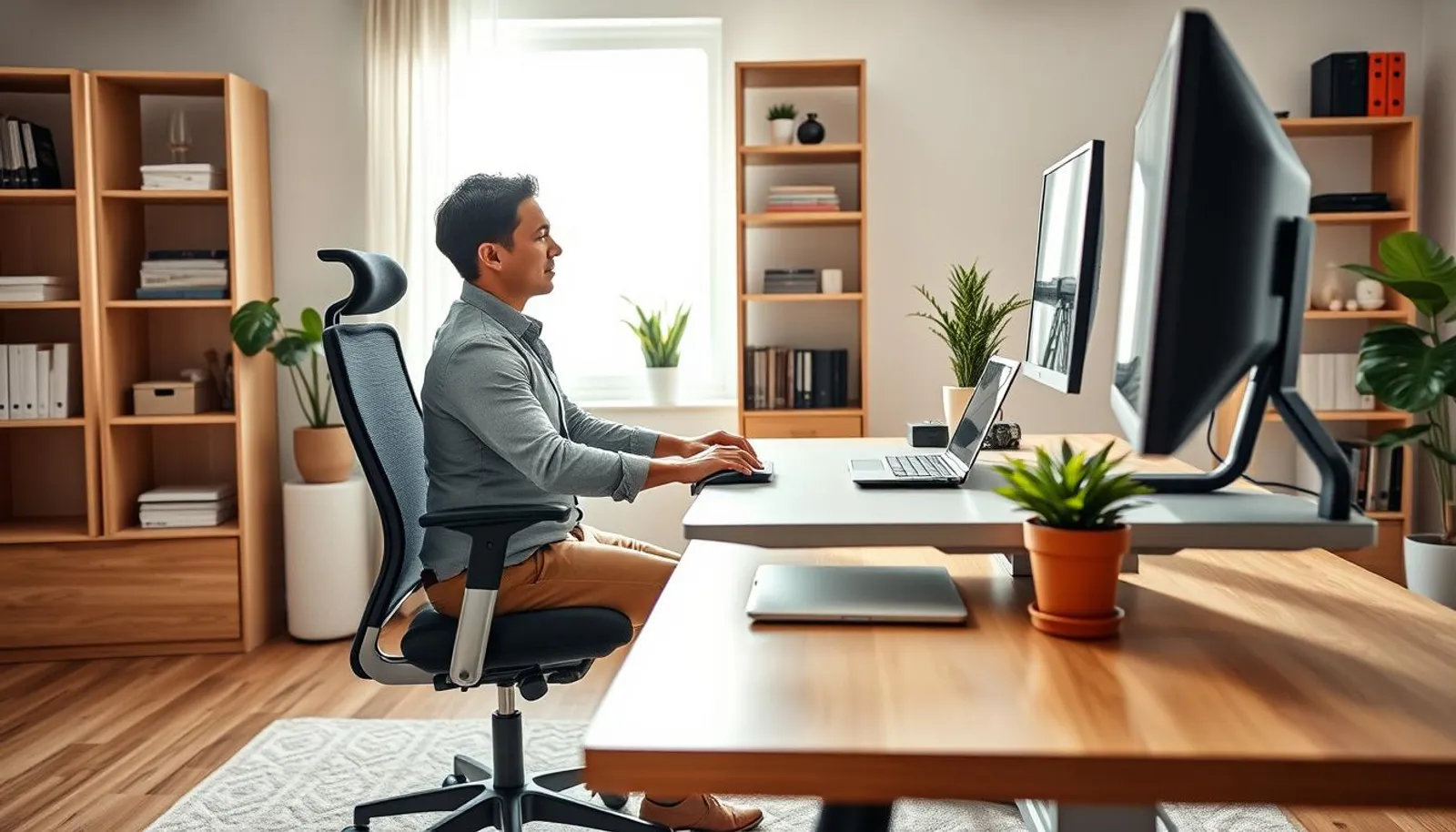

34 min read
The Ultimate Guide to Home Office Ergonomics & Setup Optimization
Did you know that simple adjustments to your chair and monitor can prevent discomfort for more than 80% of people who develop work-related aches? That one fact alone makes home office ergonomics worth learning today.
Good ergonomics affects comfort, focus, and long-term health. Guidance from Mayo Clinic and OSHA shows that chair height, monitor position, and keyboard placement cut neck, back, and wrist strain. This setup optimization guide gives practical steps you can apply now, whether you use a dedicated desk or a kitchen table.
Practical choices — from a Herman Miller Aeron or AmazonBasics Mesh chair to a laptop stand paired with an external keyboard — can transform your best home office setup without breaking the bank. Small fixes like a rolled towel for lumbar support or a stack of books to elevate a monitor make a big difference.
For a compact checklist and budget ideas, see this concise resource on ergonomic workspace tips at home office ergonomics. The rest of this setup optimization guide will walk through chairs, desks, screens, peripherals, lighting, and movement so you can build a comfortable, productive space that fits your routine.
Key Takeaways
- Adjust chair height so feet are flat and thighs are parallel to the floor.
- Place the monitor about an arm’s length away with the top of the screen at eye level.
- Keep keyboard and mouse close to maintain neutral wrists and relaxed shoulders.
- Use small, low-cost aids (books, towels, footrests) when budget limits larger purchases.
- Move frequently: micro-breaks every 20–30 minutes and a 5-minute break each hour.
- Declutter and manage cables to avoid reaching and awkward postures.
- Combine ergonomic furniture with behavior changes for the best long-term results.
Understanding home office ergonomics and why it matters
Ergonomics for desk work means setting chair, desk, monitor, keyboard, and mouse so the body stays supported and joints stay protected. The goal is to ease stress, protect joints, and keep comfort through the workday. This setup optimization guide helps you arrange equipment and behavior to reduce strain and boost focus.
Definition of ergonomics in a home workspace
Workplace ergonomics definition centers on fitting the workspace to the person. A proper home workstation places feet flat or on a footrest, the chair supporting the spine, and the keyboard and mouse aligned so wrists stay straight. Good positioning keeps hands at or slightly below elbow level and shoulders relaxed.
Health and productivity impacts of poor ergonomics
Poor posture and bad equipment choices lead to musculoskeletal disorders and repetitive strain injuries. Pain in the neck, shoulders, and lower back is common. These issues lower concentration and slow task completion.
Small changes following ergonomic workspace tips can reduce discomfort. A tidy, dedicated workstation with proper lighting and monitor placement helps maintain focus and clear boundaries between work and life. Behavioral changes like regular microbreaks support long-term health.
Key statistics and costs related to musculoskeletal problems
Work-related musculoskeletal problems cause millions of lost workdays across industries. Data from safety and health agencies show these injuries are a top reason for workplace absence and for high compensation costs. Investing in ergonomics lowers absenteeism and raises employee satisfaction.
Use this setup optimization guide to prioritize fixes that yield the biggest benefit. Simple investments in chair adjustments, monitor arms, and organized desks often pay back through fewer sick days and better productivity.
| Issue | Typical impact | Actionable ergonomic workspace tips |
|---|---|---|
| Neck strain | Reduced focus, headaches | Raise monitor to eye level, use monitor arm |
| Lower back pain | Frequent breaks, lower productivity | Use lumbar support, adjust seat depth and height |
| Wrist and forearm pain | Slower typing, errors | Align keyboard, use neutral wrist position, try ergonomic keyboard |
| General fatigue | Decreased output, presenteeism | Improve lighting, declutter desk, schedule microbreaks |
An ergonomic office chair keeps your spine supported, reduces fatigue, and helps you maintain focus during long workdays. Picking the right model matters more than style when you aim for the best home office setup. Look for chairs that let you fine-tune position, offer reliable chair lumbar support, and match your typical work posture.
Seat height should let your feet rest flat on the floor and your knees form about a 90-degree angle. Use a footrest if the desk height forces your feet to dangle. Adjustable armrests keep elbows close to the body and shoulders relaxed. Seat depth and tilt controls prevent forward slouching and allow a small gap between the seat edge and the back of your knees.
Materials and build
Mesh seats breathe and hold their shape for long hours. Padded seats cushion pressure points and suit colder rooms or people who prefer softness. Prioritize durable frames, a stable base, and breathable upholstery. If you live in a warmer climate, mesh may improve comfort over padded fabric.
Top features and budget options
Look for adjustable lumbar support that you can move vertically or change in firmness. Tilt tension and lock let you lean without fighting the mechanism. Seat depth adjustment and a multi-function control add fine tuning for different tasks. For warranty and service, brands like Herman Miller offer long-term support, while budget-friendly mesh chairs from established retailers deliver decent function at lower cost.
Practical checklist from health guidance
- Height-adjustable seat to align hips and knees.
- Reliable chair lumbar support for lower-back curvature.
- Armrests that allow a 90-degree elbow angle and relaxed shoulders.
- Adjustable seat depth and tilt tension for posture variety.
- Try-before-you-buy options or clear return policies.
This part of your setup optimization guide stresses adjustability over looks. Prioritize features that prevent musculoskeletal strain and fit into your best home office setup strategy.
Desk selection and setup optimization guide
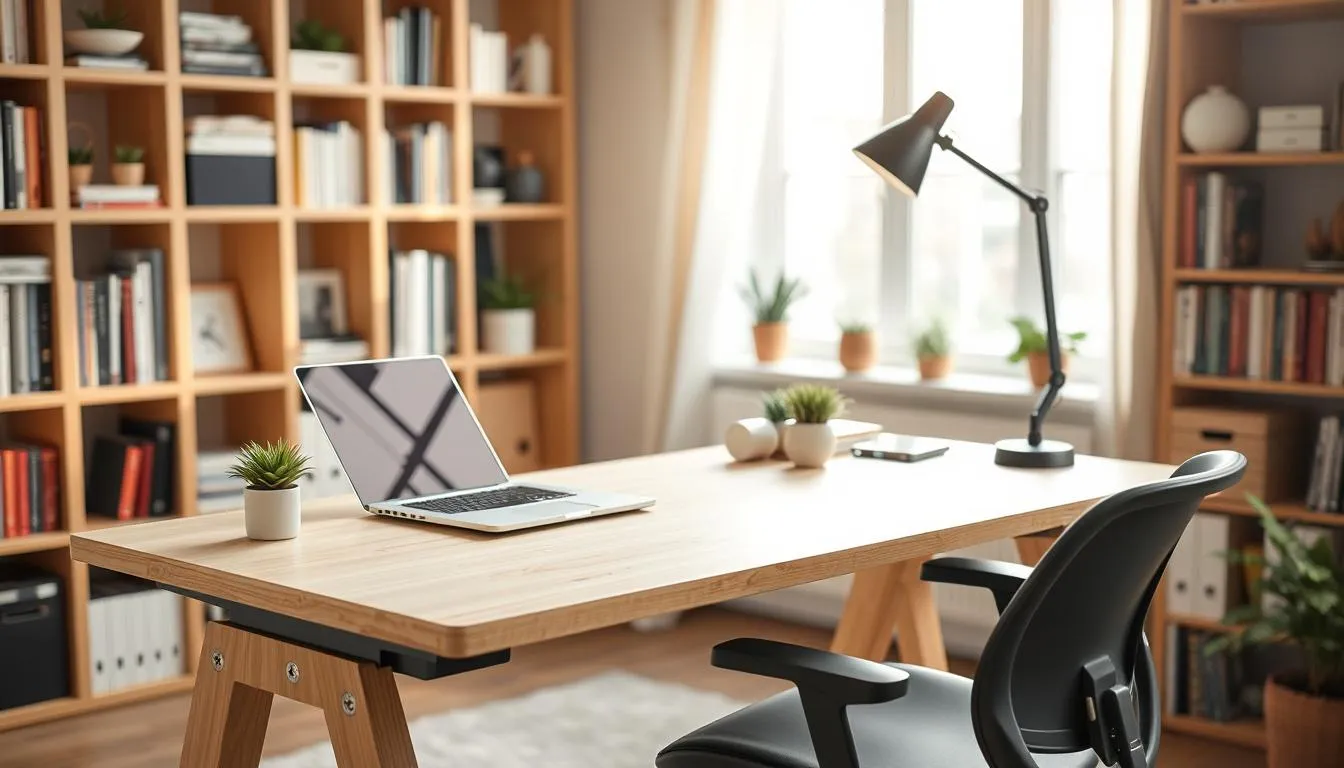
Picking the right desk affects comfort, focus, and long-term health. This setup optimization guide helps you weigh options and create a workspace that supports home office ergonomics without adding clutter.
Fixed vs. height-adjustable and standing desks
Fixed desks are stable and affordable. They suit compact rooms and simple setups. A standing desk adds flexibility. Electric standing desks let you change height quickly to alternate sitting and standing during the day.
IKEA offers starter desks at a budget price. Higher-end brands such as Fully and Uplift supply robust motorized frames for frequent transitions.
Proper desk height and legroom recommendations
Measure to keep your elbows at about a 90-degree angle when typing. For most people, the keyboard surface should sit at or slightly below elbow level. If the desk is too low, raise it with sturdy blocks or an adjustable base. If it is too high, raise your chair and use a footrest for support.
Leave clear knee and foot space under the desk. Avoid storing items below the surface. A rounded or padded desk edge reduces contact stress on wrists and forearms. OSHA guidance supports these clearances to help keep neutral postures and lower the risk of musculoskeletal disorders.
Cable management and decluttering to support ergonomic posture
Messy cables force awkward reaches and create distractions. Use USB hubs, docking stations, and cable trays to route cords away from working zones. Brands such as Dell and Anker make compact docks that cut desktop clutter and shorten reach to peripherals.
Place frequently used items within easy reach to reduce twisting and stretching. Desk pads and vertical storage systems from IKEA or Grovemade free surface space and keep essentials organized. A document holder at eye level limits neck rotation for reading and typing.
For practical guidance on office posture and workstation layout, review the Mayo Clinic advice on office ergonomics by visiting trusted ergonomics recommendations.
Monitor placement and visual ergonomics
Good monitor placement shapes comfort and focus in any home office. Small changes in distance and height cut neck strain and eye fatigue. Follow clear guidance to make your screen the right centerpiece of the best home office setup.
Optimal distance and eye level guidelines
Place the monitor directly in front of you, just behind the keyboard. Aim for roughly an arm’s length away, about 20–40 inches. Set the top of the screen at or slightly below eye level so your gaze falls downward a bit. If you wear bifocals, lower the screen 1–2 inches to avoid tilting your head back.
Keep wrists straight and hands slightly below elbow height while typing. These adjustments tie into visual ergonomics and the larger field of home office ergonomics by reducing neck and shoulder tension.
Using monitor arms and multiple displays
Monitor arms let you fine-tune height and reach. They work well for dual or ultrawide displays because they reduce the need to turn your head. For example, an ultrawide like the Samsung Odyssey G9 or a 34” Xiaomi model gives broad workspace without the seam of two monitors.
Adjust each screen so you pivot your eyes, not your neck. This practice improves visual ergonomics and helps sustain the best home office setup when you handle long stretches of work.
Laptop screens and external monitor tips
If you use a laptop, raise the screen with a stand and add an external keyboard and mouse. That keeps your screen at eye level while preserving neutral wrists. Docking stations make single-cable workflows easier when you switch between mobile and desktop modes.
For document-heavy tasks, place a document holder next to your monitor at eye height to avoid repeated neck flexion. A monitor light bar such as the BenQ ScreenBar or Beam-style LEDs cuts glare on the desk while maintaining screen contrast for clearer viewing.
Quick checklist
- Monitor straight ahead, 20–40 inches away.
- Top of screen at or slightly below eye level.
- Use monitor arms for dual or ultrawide setups.
- Raise laptops; use external keyboard and mouse.
- Use document holders and a light bar to reduce neck and eye strain.
Keyboard, mouse, and input device ergonomics
Small changes to input device placement make a big difference for comfort and long-term health. Position your keyboard directly in front of you so wrists and forearms align. Keep upper arms close to your body and hands at or slightly below elbow height. Place the mouse on the same surface and within easy reach to avoid reaching or twisting the shoulder.
Choose devices that support neutral posture. An ergonomic keyboard with a slight tent or split layout can reduce wrist deviation. Compact mechanical or tenkeyless layouts free desk space and let you keep the mouse nearer the keyboard. A vertical mouse cuts forearm pronation and lowers wrist strain for many users.
Adjust pointer sensitivity so light movements move the cursor. Higher DPI and fine pointer settings reduce large hand motions and hand tension during long sessions. Logitech MX Keys and MX Master 3S earn strong mentions for responsive typing and pointing in many reviews and user tests.
Use wrist rests and pad hard desk edges to prevent contact stress. OSHA guidance recommends neutral wrists and limiting repetitive reaches. Wrist supports work best for short pauses and comfort; avoid resting on a hard edge or keeping continuous pressure against the wrist. Consider a keyboard tray or small desk height tweak to reach an elbow angle near 90 degrees.
Quick checklist for setup optimization guide:
- Keyboard centered, forearms aligned with wrists.
- Mouse on same plane and within a short reach.
- Try an ergonomic keyboard or vertical mouse if you feel pronation or wrist pain.
- Set pointer sensitivity to reduce large movements.
- Pad sharp edges and use wrist rests for breaks, not constant support.
Lighting and visual comfort for a productive home office
Good lighting shapes comfort and focus in any workspace. Start by placing your desk to capture natural light without letting direct sun hit your screen. Mayo Clinic guidance on viewing distance and posture supports arranging windows, monitor height, and blinds to cut glare and reduce squinting.
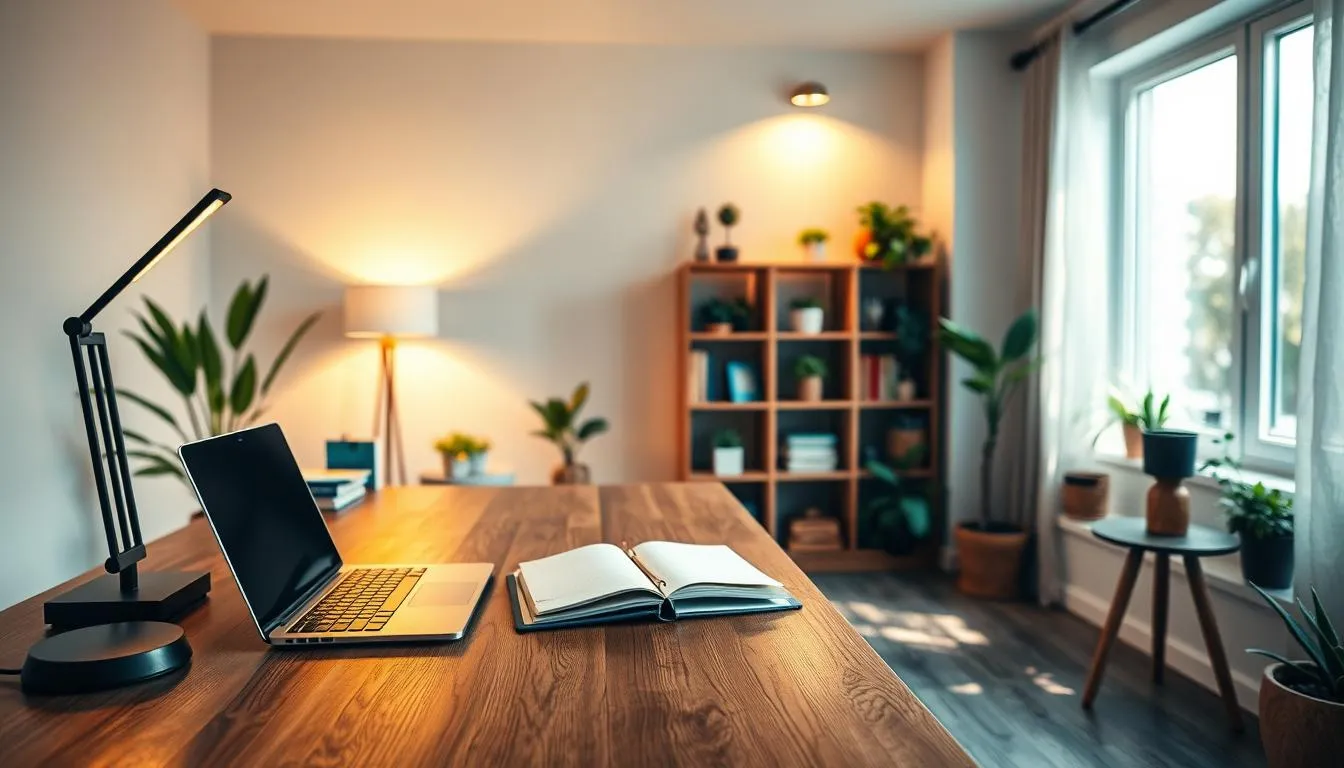
Prioritizing natural light and avoiding glare
Natural light boosts energy and cuts eye fatigue when balanced with interior lamps. Position monitors perpendicular to windows when possible. If a direct view is unavoidable, use adjustable blinds or sheer curtains to diffuse bright sunlight.
Benefits of monitor light bars and layered task lighting
Monitor light bars provide focused desk illumination without adding screen glare. Brands like BenQ and LIFX offer models that ease contrast between screen and surroundings. Layered lighting—ambient plus task—creates even light across the workspace and prevents harsh shadows.
Color temperature and contrast tips to reduce eye strain
Choose cooler 5000K tones for daytime work to support alertness. Switch to warmer 2700–3000K in the evening to cue winding down. Match screen brightness and contrast to room lighting so your eyes do not constantly adapt between extremes.
Simple ergonomic workspace tips include using an adjustable desk lamp, positioning light sources to the side of your dominant hand, and reducing reflections with matte finishes on large surfaces. OSHA recommends arranging lights to prevent awkward neck movements and to promote neutral posture during long tasks.
| Lighting Element | Best Practice | Impact on Visual Ergonomics |
|---|---|---|
| Natural Light | Desk perpendicular to window; diffusers for direct sun | Higher energy, fewer headaches, reduced screen glare |
| Monitor Light Bar | Top-mounted bar, neutral placement, no direct beam on screen | Even desk illumination, lower contrast between screen and desk |
| Ambient + Task Lighting | Layered lamps with dimming controls | Softer shadows, less eye strain, better posture |
| Color Temperature | 5000K for day; 2700–3000K for evening | Supports alertness, improves sleep cycle alignment |
| Screen Brightness & Contrast | Match to room light; avoid max brightness in dark rooms | Reduces glare, lowers visual fatigue |
Creating a clutter-free, minimal desk setup for focus
A tidy desk clears mental space and supports good posture. Aim for a minimal desk setup that keeps essentials within arm’s reach and leaves room for correct seating and leg clearance. The Mayo Clinic notes that frequently used items should sit close by to prevent excess reaching and slipping into awkward posture.
Designing a dedicated workstation and establishing boundaries
Set a specific spot for work, separate from leisure areas, to make it easier to switch on and off. Use a desk pad or a Grovemade desk shelf system to mark the work zone. This signals to your brain when it is time to focus and helps maintain a clutter-free workspace.
Using shelving, desk pads, and vertical storage to reduce clutter
Choose vertical solutions like IKEA Skadis or wall-mounted shelves to lift items off the surface. Desk pads help define tool placement and protect surfaces while keeping small items corralled. Place your keyboard, mouse, monitor, and documents so they follow OSHA guidance: all within a comfortable reach to avoid repetitive reaching.
Personalization without compromising ergonomics and productivity
Personal touches such as a small plant or framed photo can boost motivation when kept minimal. Avoid placing decor that blocks monitor sightlines or restricts movement. Follow ergonomic workspace tips by keeping personal items low and off the primary work surface so home office ergonomics remains the priority.
Quick movement and microbreak strategies for sustained comfort
Short, regular movement boosts comfort and focus in a home workspace. Good home office ergonomics pair with brief, frequent activity to cut tension and keep energy steady throughout the day.
Why sitting long is risky and how often to move
Sitting without shifts raises risk for back, neck, and shoulder strain. Health groups like the Mayo Clinic urge standing, walking, and simple stretches during the day. Ergonomics guidance from OSHA and HSE supports brief movement to lower musculoskeletal disorder risk.
Many specialists recommend microbreak strategies such as a short pause every 20–30 minutes. Alternating sit-stand every 30–60 minutes works well for people using standing desks. Individual needs vary, so adjust frequency to comfort and tasks.
Easy seated stretches and standing alternatives
Seated stretches relieve tightness with minimal disruption. Try wrist circles, neck tilts, shoulder rolls, and seated spinal twists between tasks. These moves support movement at work while you stay productive.
When possible, stand for phone calls, review documents at a counter, or do a brief walk through the house. Alternating posture helps circulation and mental clarity. Small changes in routine can fit any schedule.
Timers, apps, and cues to prompt breaks
Use timers or apps to remind you to change posture and take short walks. Set a repeating alarm, a Pomodoro app, or a wearable vibration to prompt movement. Visual cues like a standing mat or an open window can work as gentle nudges.
Pair reminders with microbreak strategies and your setup optimization guide to create sustainable habits. Consistent prompts make it easier to protect comfort and productivity over long workdays.
| Action | Duration | Benefit |
|---|---|---|
| Seated wrist and finger stretch | 30–60 seconds | Reduces hand fatigue and contact stress |
| Neck tilts and shoulder rolls | 30–45 seconds | Relieves neck tension and improves posture |
| Stand and walk to another room | 1–3 minutes | Boosts circulation and mental refresh |
| Alternate sit-stand work | Every 30–60 minutes | Distributes load and reduces prolonged sitting harms |
| Microbreak with deep breaths | 20–40 seconds | Calms stress and restores focus |
Small, well-chosen additions can transform a workstation into a healthy, productive area. Use ergonomic accessories to align screens, support limbs, and reduce strain during long workdays. Place frequently used items within reach and prioritize adjustments that match your body.
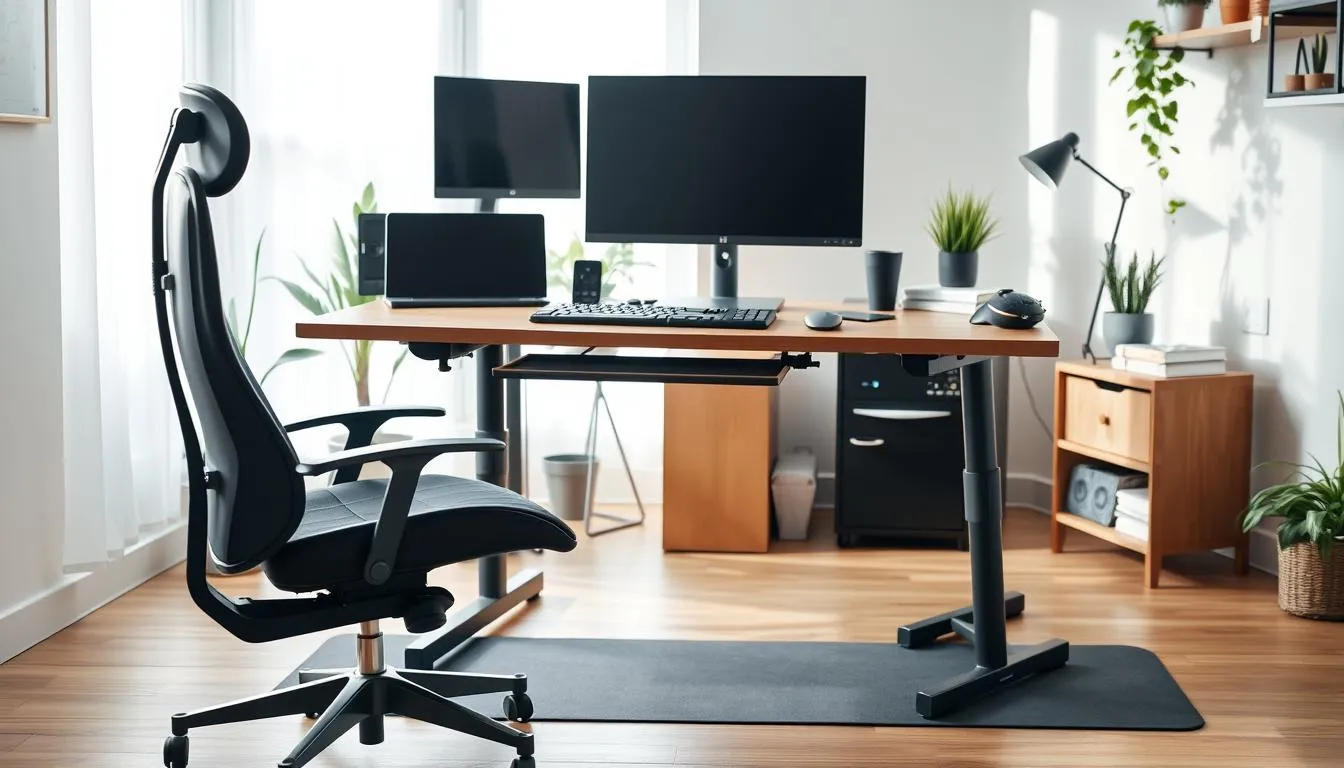
Monitor mounts and laptop stands lift displays to eye level. A monitor arm keeps the top of the screen at or just below eye height and sets distance to roughly an arm’s length. A laptop stand pairs with an external keyboard and mouse for better posture, which the Mayo Clinic recommends for laptop users. Docking stations simplify connections and enable a single-cable workflow for power, Ethernet, and multiple monitors.
Monitor mounts, laptop stands, and docking stations
- Monitor arm: adjust height, tilt, and distance to reduce neck strain.
- Laptop stand: use with an external keyboard to avoid “tech neck.”
- Docking stations: choose models like Dell D6000 or multiport docks to support dual displays and fast charging.
Footrests, document holders, and anti-fatigue mats
A footrest keeps thighs parallel and eases lower-back pressure when chair height must be higher. Document holders place papers at eye level to cut neck and shoulder strain. Anti-fatigue mats reduce leg fatigue during standing sessions at a converter or standing desk.
- Footrest: adjust height so knees sit near 90 degrees.
- Document holder: align with monitor height and use a line guide for dense pages.
- Anti-fatigue mat: use during hour-long standing blocks and rotate movement.
Recommended webcams, headsets, and keyboard/mouse combos
Choose peripherals built for comfort and long use. The Logitech C920 webcam and high-quality headsets improve call clarity and reduce strain from leaning forward. For keyboards and mice, try the Logitech MX Keys with the MX Master mouse for a balanced, ergonomic combo.
- Webcam: position at eye level to maintain neutral neck posture.
- Headset: pick lightweight models with good noise-canceling for long calls.
- Keyboard/mouse sets: prefer split or low-profile keyboards and a contoured or vertical mouse to lower forearm tension.
| Accessory | Main benefit | Quick setup tip |
|---|---|---|
| Monitor arm | Reduces neck strain, clears desk space | Top of screen at or slightly below eye level |
| Docking stations | Supports single-cable workflow, extra ports | Place dock near laptop and route cables under desk |
| Footrest | Improves leg circulation and lumbar comfort | Adjust height so thighs are parallel to floor |
| Document holder | Reduces neck rotation and eye strain | Set at same height/distance as monitor |
| Anti-fatigue mat | Lessens leg fatigue during standing | Use for 15–30 minute standing intervals |
| Keyboard & mouse combo | Reduces RSI risk and forearm tension | Keep mouse close and wrists neutral |
Apply these ergonomic workspace tips when assembling gear. Start with a chair and monitor position, then add docks, footrests, and lighting. Small upgrades yield measurable comfort gains and steady productivity throughout the day.
Ergonomic considerations for laptop-based home offices
Working from a laptop brings freedom and unique ergonomic challenges. Start by raising the screen to eye level and using external input devices whenever possible. Small changes can make hours at a laptop far more comfortable and productive.
External keyboard and mouse to mitigate low screen height
Low laptop screens force neck flexion and rounded shoulders. Use a full-size external keyboard and a mouse to keep wrists neutral and shoulders relaxed. Brands like Logitech and Microsoft offer compact wireless sets that pair quickly with MacBook Pro and Dell XPS models.
Best practices for docking stations and single-cable workflows
Docking stations simplify connections for power users and creators. Choose docks from Dell, Anker, or CalDigit to support external monitors, Ethernet, and fast charging. A single-cable docking setup reduces repetitive plugging, improves cable management, and preserves a consistent ergonomic arrangement.
Adjusting display settings and posture when mobility is necessary
When you must work on the go, prioritize posture. Prop the laptop on a lap desk or stand so the camera and top of the screen sit near eye level. Lower screen brightness and tweak color temperature to cut eye strain in varied lighting.
Use display scaling and resolution settings to keep text readable without leaning forward. Keep an external keyboard and mouse in your bag so you can restore a neutral wrist position quickly.
- Place the top of the screen at or just below eye level, arm’s length away.
- Set keyboard height so elbows rest at about 90 degrees with relaxed shoulders.
- Adopt docking station best practices: label ports, tuck cables, and secure power delivery for a single-cable return to a tidy desk.
Following these laptop ergonomics steps will support healthier posture and fewer interruptions. Treat this setup optimization guide as a living checklist you can tweak as devices or routines change.
Ergonomic workspace tips for different body types and needs
Everyone’s body reacts differently to a chair, desk, or monitor setup. This brief section gives practical steps for tailoring your home office ergonomics so work feels easier and causes less strain.
Adjust chair height so feet rest flat or use a footrest when needed. Knees should be at or slightly below hip level. Set desk height so wrists stay straight while typing and elbows sit near a 90-degree angle. For bifocal wearers, lower the monitor about one to two inches for a comfortable gaze.
Wide-range adjustments
Choose chairs with broad ranges for seat height, depth, and lumbar support. Desks with height adjustability help people of different statures switch between sitting and standing. A standing desk plus an anti-fatigue mat can improve circulation for those who alternate postures.
Support for injuries and chronic conditions
Specialized cushions, lumbar supports, and wedge pads reduce pressure for people with back or hip issues. Consult a physical therapist or occupational health clinician when symptoms persist. Simple household items can work too: a rolled towel for lumbar support or a small box as a footrest while you test options.
Assistive tools and inclusive options
Offer document holders, speech-to-text software, and large-print displays for visual or motor challenges. Adjustable peripherals like keyboards and mice with varied sizes help users with arthritis or limited grip strength. These ergonomic accommodations improve comfort and sustain productivity.
Practical routines
Keep frequently used items within reach to avoid repetitive stretching. Short stand-and-move breaks reduce tension when you notice slumping. Try shortening long meetings by five or ten minutes so people can change posture and reset.
Workplace support
Employers can provide resources such as monitors, ergonomic keyboards, headsets, or discounts for chairs. Talk with your manager or HR about specific needs. For a step-by-step approach and quick setup tips, consult this setup optimization guide from a trusted source: tips for an ergonomic home office.
Design for everyone
Use inclusive workspace design to reduce musculoskeletal risks across populations. Adjustable furniture, clear pathways, and assistive input devices create workplaces that fit more people. Small changes add up to meaningful gains in comfort and access.
Setting up a productive tech ecosystem with minimal clutter
Designing a clean tech ecosystem helps your work feel effortless. Start by placing daily tools within arm’s reach to cut repetitive reaching and reduce strain. Pick devices that make tasks smoother while keeping the desk clear.
Choosing peripherals that reduce repetitive strain
Select ergonomic peripherals that match your workflow. A vertical mouse or split keyboard eases wrist extension and lowers contact stress. Brands like Logitech offer models such as the MX Master and MX Keys that blend comfort with reliable performance.
Using hubs, docks, and wireless charging to minimize cables
Centralize ports with quality USB hubs and docking stations to tame cable clutter. Options like Dell D6000 simplify multi-monitor and peripheral connections while keeping cords off the surface. Add a wireless charging pad and Bluetooth devices to free more space.
How monitor choice and resolution affect viewing distance and ergonomics
Higher-resolution monitors let you sit farther back without losing clarity. Ultrawide displays reduce window switching and help maintain a neutral head position. Use a monitor arm to set correct height and angle, keeping the top of the screen near eye level and the recommended 20–40 inches distance.
Practical checklist
- Keep frequently used items close to lower repetitive motion.
- Use USB hubs or docking stations to centralize cables and connections.
- Choose ergonomic peripherals like vertical mice and split keyboards.
- Prefer higher-resolution or ultrawide monitors for flexible viewing distances.
- Mount displays on adjustable arms for precise alignment.
Maintaining posture and best home office setup behaviors
The way you sit, reach, and move shapes long-term comfort and productivity. Small, consistent choices support posture maintenance and create a healthier home office ergonomics routine.
How to sit correctly: back support, elbow angle, and feet position
Sit with your back supported by the chair so the spine keeps its natural curves. Keep hips level and pressed toward the backrest for lumbar support.
Keep elbows close to the body with forearms roughly parallel to the floor. Position keyboard and mouse at elbow height to avoid shoulder tension and wrist bending.
Place feet flat on the floor or on a footrest so knees stay at about a right angle. Set your monitor an arm’s length away with the top at or just below eye level to reduce neck strain.
Avoiding phone cradling and multitasking posture hazards
Never pinch a phone between shoulder and ear while typing. Use a headset or speakerphone to eliminate neck tilt and shoulder tightness that harm posture maintenance.
When handling documents, use a document holder beside your monitor so you don’t twist or lean repeatedly. Keep frequently used items within reach to limit awkward stretches.
Daily routines and end-of-day rituals to preserve work-life balance
Start with a brief morning posture check: adjust chair, monitor, and input devices before work. Dress as you would for an office to prime ergonomic behaviors and focus.
Schedule short movement breaks every 30 to 60 minutes to stand, stretch, and reset posture. End the day by powering down devices, tidying the workspace, and doing a two-minute stretch to mark the shift out of work mode.
For practical guidance on arranging your desk and supporting devices, consult this resource on ergonomic desk posture to refine your best home office setup: ergonomic desk posture tips.
home office ergonomics
Good home office ergonomics begins with simple, measurable steps you can apply today. Start by matching chair height and lumbar support to your body, keep feet flat or on a footrest, and position the keyboard so wrists stay straight. Use an external keyboard and mouse with laptops and raise the screen so the top is at or just below eye level.
Applying OSHA and Mayo Clinic guidance to your home setup
OSHA guidance and Mayo Clinic ergonomics give clear component-level advice for chairs, desks, monitors, keyboards, mice, and telephones. Adjust seat height so knees are near 90 degrees and remove obstacles under the desk. Place the monitor 20–40 inches away with the top of the screen at or slightly below eye level. Keep the mouse within easy reach and shoulders relaxed by setting armrests and desk height properly.
Checklist for an ergonomic workstation assessment at home
Use a short ergonomic workstation checklist to test your setup during real work tasks. Confirm a dedicated workstation, monitor arms or laptop docks to get proper screen height, and single-cable workflows for minimal clutter. Add desk pads and vertical storage to reduce contact stress and free legroom. Pick ergonomic peripherals like the Logitech MX Keys and a vertical mouse if needed.
- Chair: spine support, seat depth ~3–4” from knee edge, padded if required
- Feet: flat on floor or on a footrest made from sturdy boxes or books
- Monitor: 20–40” distance, top at/below eye level; laptop on a stand
- Keyboard/mouse: centered, wrists neutral, mouse close to keyboard
- Edges: pad hard desk edges and avoid long contact with elbows
- Alternation: mix standing tasks and seated work; use anti-fatigue mats
- Breaks: move every 30–60 minutes and do brief stretches
How to measure and adjust your workspace step-by-step
Begin by sitting with your back fully supported and feet flat. Raise or lower the seat so hips and knees are roughly at 90 degrees. Measure monitor distance with your arm extended to approximate 20–40 inches and set the top of the display at or slightly below eye level.
Next, position the keyboard and mouse so elbows stay close to your sides and wrists remain straight. Check seat depth so the chair edge sits about three to four inches from the back of the knee. Remove items under the desk that block legroom and pad sharp edges where forearms might rest.
Test the setup during normal tasks and tweak as needed. For laptop users, add an external keyboard, mouse, and a stand. Refer to the practical visual guide from occupational therapy for extra checks by visiting an ergonomic workstation checklist.
| Component | Measure or Position | Quick Fix Options |
|---|---|---|
| Chair | Seat height: feet flat, knees ~90°; lumbar support at lower back | Use towel roll for lumbar support; add seat cushion |
| Monitor | 20–40 inches distance; top at/below eye level | Use monitor arm or laptop stand to raise screen |
| Keyboard & Mouse | Centered, elbows near body, wrists neutral | External keyboard/mouse; wrist pad from washcloth |
| Desk Height | Elbows >90° when typing; avoid wrist extension | Sit taller, use seat cushion, or lower keyboard tray |
| Feet | Flat on floor or supported by footrest | Use sturdy books, boxes, or a footrest |
| Contact Stress | No prolonged pressure on forearms or wrists | Pad edges, use desk pad, rearrange mouse |
| Movement | Change posture every 30–60 minutes | Set timers, alternate standing tasks at counters |
Conclusion
Good home office ergonomics blends the right equipment with healthy habits. Use an adjustable chair, proper desk height, correctly placed monitors, and a well-positioned keyboard and mouse to reduce neck, back, and wrist strain. Small fixes like footrests, edge padding, and headsets replace phone cradling and add comfort.
This setup optimization guide also stresses behavior: decluttered work zones, natural light, standing breaks, and timed movement matter as much as gear. Invest in adjustable solutions—standing desks, monitor arms, and quality peripherals—and pair them with routines that support sustained focus and less discomfort.
Follow measurement-based steps from OSHA, HSE, and Mayo Clinic principles to make inclusive, evidence-based choices. These ergonomic workspace tips form the roadmap to the best home office setup: thoughtful equipment, regular movement, and simple adjustments for long-term health and productivity.
FAQ
What is home office ergonomics and why does it matter?
Home office ergonomics is the practice of arranging your chair, desk, monitor, keyboard, mouse, lighting, and accessories so your body is supported and joints remain neutral during work. Proper ergonomics reduces risk of neck, back, shoulder, and wrist pain, lowers the chance of repetitive strain injuries, and improves comfort, focus, and productivity. Agencies like the Mayo Clinic, OSHA, and the UK HSE link good ergonomic design to fewer lost workdays and better long‑term health.
How should I adjust my chair for long hours at my desk?
Set seat height so your feet are flat on the floor or on a footrest and your thighs are roughly parallel to the floor. Ensure lumbar support fits the curve of your lower back and adjust seat depth so you can sit against the backrest with about two to four fingers’ space behind your knees. Armrests should allow elbows close to your body with shoulders relaxed and elbows near a 90‑degree angle. Choose a chair with height, tilt, and lumbar adjustments for the most benefit.
Do I need a standing desk or is a fixed desk OK?
A fixed desk can be fine if it allows correct keyboard and monitor placement, but a height‑adjustable or electric standing desk adds versatility. Alternating between sitting and standing reduces static loading on muscles and helps circulation. If you use a fixed desk that’s too low or high, you can raise it on sturdy blocks or raise your chair and add a footrest; however, adjustable desks make posture changes easier and are recommended when budget permits.
How far and how high should my monitor be placed?
Place the monitor directly in front of you about an arm’s length away (roughly 20–40 inches / 50–100 cm). The top of the screen should sit at or slightly below eye level; bifocal wearers may lower it 1–2 inches. Use a monitor arm or stand to fine‑tune height and distance, and position dual or ultrawide screens to minimize neck rotation.
What’s the correct keyboard and mouse setup to avoid wrist pain?
Position the keyboard directly in front of you so wrists and forearms align and hands sit at or slightly below elbow level. Keep the mouse on the same surface and within easy reach. Adjust pointer sensitivity so only a light touch is required. Consider split or low‑profile keyboards and ergonomic or vertical mice to reduce pronation and repetitive strain; wrist rests can help during pauses but shouldn’t create constant pressure on the wrist edge.
How can I make a laptop workstation ergonomic?
Use a laptop stand to raise the screen to eye level and connect an external keyboard and mouse to maintain neutral wrist posture. If you frequently move, use a docking station or USB hub (examples include Dell D6000 or multiport hubs) to create a single‑cable workflow that quickly reconnects peripherals. When mobile, prop the laptop to eye level, avoid typing on the built‑in keyboard for long periods, and take frequent posture breaks.
What lighting setup reduces eye strain in a home office?
Maximize natural light while avoiding direct glare on your screen. Use layered lighting—ambient plus task lighting—with monitor light bars (e.g., Beam‑style lights) to illuminate the desk without causing screen reflections. Match screen brightness and contrast to room lighting. Cooler color temperatures (around 5000K) help alertness in daytime; warmer tones (2700–3000K) are better for evening.
How do I organize my desk to support ergonomic posture?
Keep frequently used items within arm’s reach to avoid repetitive reaching. Use vertical storage, shelves, desk pads, and pegboard systems (IKEA Skadis, desk shelves) to free surface area and maintain legroom under the desk. Manage cables with hubs and docks to reduce clutter and prevent awkward reaches. Avoid storing items under the desk that restrict leg movement.
Which accessories are most useful for an ergonomic setup?
High‑impact accessories include an adjustable monitor arm, external keyboard and mouse (Logitech MX Keys / MX Master are popular), a height‑adjustable chair with lumbar support (Herman Miller Aeron or budget mesh alternatives), a laptop stand, docking station or USB hub, footrest, document holder, and an anti‑fatigue mat for standing. Pick accessories that increase adjustability and reduce static strain.
How often should I move or take breaks during the workday?
Avoid staying in one position for hours. Stand or walk briefly every 20–30 minutes when possible, and alternate sit/stand every 30–60 minutes depending on comfort. Use microbreaks to stretch hands, fingers, shoulders, and neck. Regular movement reduces muscle tension and lowers risk of musculoskeletal disorders.
What chair features are worth paying extra for versus budget trade‑offs?
Prioritize adjustability—seat height, seat depth, tilt tension, and effective lumbar support—over aesthetics. Premium chairs like the Herman Miller Aeron offer extensive customization and durability. Budget mesh chairs (for example, AmazonBasics Mesh) can provide breathable support and basic adjustments. Test chairs when possible and check return policies and warranties.
How should I set up dual or ultrawide monitors to minimize neck strain?
Center your primary monitor directly in front of you and place any secondary display with minimal horizontal rotation. For dual equal screens, align them so the seam is centered with your midline or angle them in a shallow V. Use monitor arms for precise height and distance adjustments. Consider an ultrawide monitor if you want continuous horizontal space and less head turning than two separate screens.
Are wrist rests and desk edge padding necessary?
Padding hard desk edges and using a wrist rest can prevent contact stress that leads to discomfort. Wrist rests are best used for brief pauses rather than continuous pressure while typing. Rounded desk edges or edge pads help reduce pressure points on the forearms and wrists during seated work.
What steps should I take if I already have pain or a diagnosed condition?
Start with measurement‑based adjustments: set chair height for feet flat, monitor distance and eye level, and keyboard/mouse positions for neutral wrists. Add supportive accessories—lumbar cushions, adjustable footrests, specialized keyboards or mice—and consult a healthcare professional or occupational therapist for personalized guidance. Employers and insurers may recommend accommodations; follow HSE and OSHA guidance where applicable.
How do monitor resolution and screen choice affect viewing distance?
Higher resolution and larger screens allow comfortable viewing at slightly greater distances, reducing the need for close leaning. Match monitor distance to resolution and font scaling so text is readable without leaning forward. Use a monitor arm to fine‑tune distance and angle based on your workflow and vision needs.
What behavior changes help maintain an ergonomic routine?
Create a dedicated workstation, set clear start/stop times, dress for work to signal routine, schedule regular breaks, and use timers or apps to prompt posture checks. Avoid cradling the phone—use a headset or speaker—and incorporate short stretches and standing periods into your day to sustain comfort and productivity.