
Top 10 Essential Gadgets for Enhancing Home Office Comfort
Discover the top essential home office gadgets that elevate comfort and productivity in your workspace! Upgrade your work-from-home experience today.
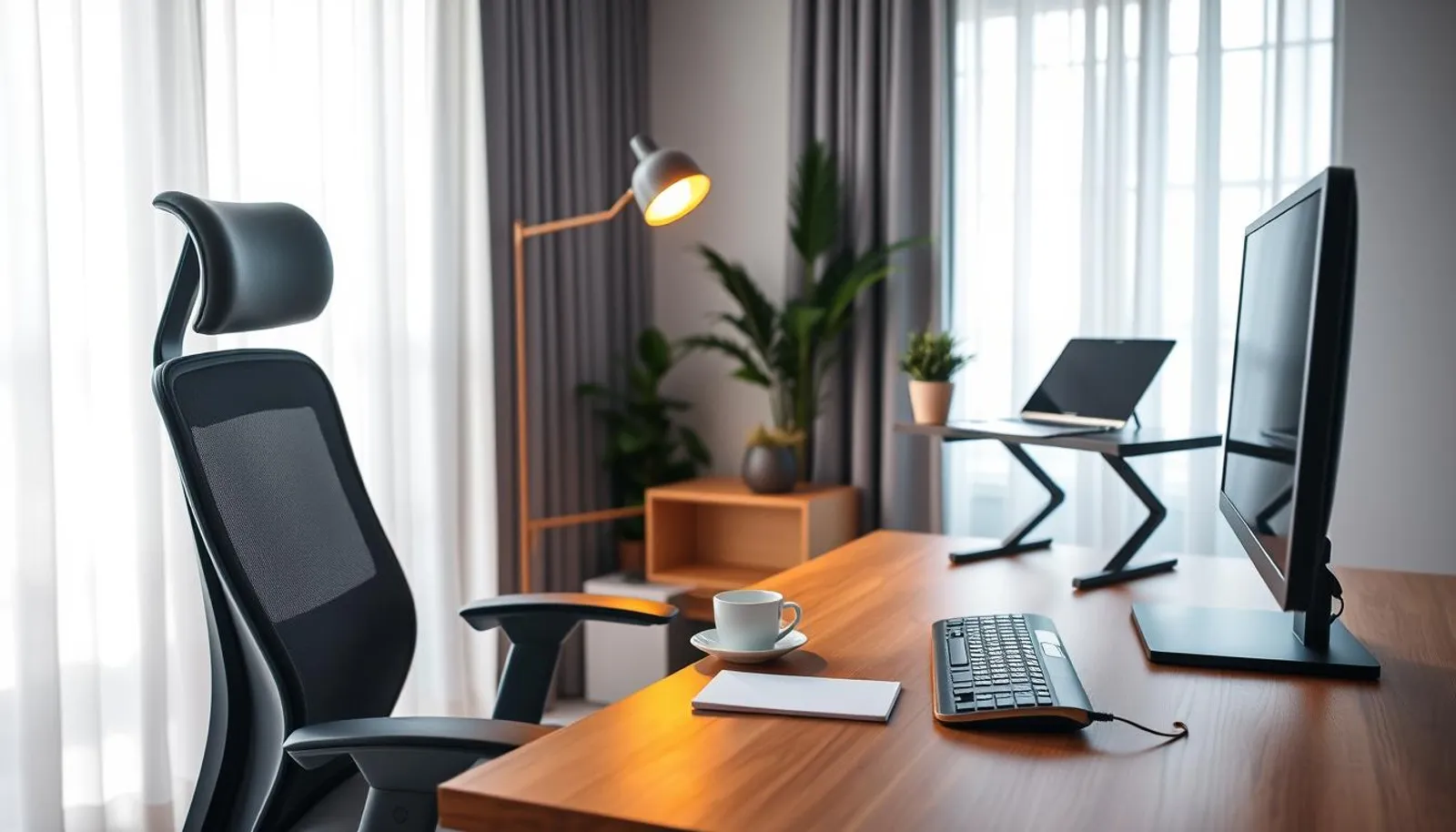

28 min read
Surprising as it sounds, studies show that remote workers who invest in just three key itemsan ergonomic chair, proper monitor height, and task lightingreport up to a 40% boost in comfort and focus. That jump proves small upgrades can make a big difference in the home office experience.
This short guide highlights essential home office gadgets that deliver real, everyday benefits. Drawing on retailer advice from Living Spaces, product lists like the one at Virtual Vocations, and tips from long-term users, we cover gadgets for comfort and the best office tech to improve posture, reduce strain, and keep you productive.
Expect practical picksfrom an ergonomic mid-back mesh chair and adjustable standing desk to noise-canceling headphones and under-desk walking pads. Each item is chosen for durability, affordability, and real-world impact on improving home office experience.
Key Takeaways
- Prioritize ergonomics: a supportive chair and correct monitor height trump flashy extras.
- Small gadgets like laptop risers and monitor stands deliver big posture benefits.
- Task lighting and noise control are essential home office staples for focus.
- Combine retailer recommendations with DIY tweaks for a tailored setup.
- Choose durable, easy-to-clean materials if pets or kids share the space.
essential home office gadgets for better posture and ergonomics
Good ergonomics starts with a few well-chosen tools. Small changes can make long days feel easier and keep pain at bay. Investing in essential home office gadgets pays off in comfort, focus, and fewer aches.
Why ergonomics matters for home workers
Remote work often means long, uninterrupted hours at a desk. Poor setup leads to neck pain, shoulder stiffness, and wrist strain. Choosing the right gear helps prevent those issues and supports blood flow and energy through the day.
Ergonomics is not one-size-fits-all. Adjustability and fit matter more than looks. Repeated minor tweaks to keyboard placement, monitor height, and chair settings produce lasting gains in comfort and productivity.
Ergonomic office chairs: what to look for
Start with lumbar support that you can move. Adjustable lumbar keeps the lower spine supported during long sessions and reduces pressure on discs.
Check seat height, seat depth, and armrest adjustability. A chair with a wide height range fits more body types. Breathable materials like mesh help with temperature control. Solid frames and durable upholstery resist wear from pets and family traffic.
Top models from Herman Miller and Steelcase set useful benchmarks. They show how engineered adjustments reduce back pain and raise comfort. Test tilt tension and seat cushioning for your weight and typical work rhythm.
Standing desks and desk converters: health benefits and recommended features
Alternating between sitting and standing cuts lower-back pressure and reduces sedentary risk. Standing desks and desk converters let you shift posture through the day, burning more calories and breaking static loads on the spine.
Look for stable frames and smooth height adjustment. Electric motors give consistent, effortless motion. Converters are a cost-effective option when you want sit-stand flexibility on an existing table.
Set up screens so the top of the monitor sits at eye level and the keyboard stays at neutral wrist height. Start with short standing intervals15 to 30 minutes each hourand use an anti-fatigue mat to ease pressure on feet and knees.
For practical guides on accessories that support these setups, see a focused overview at ergonomic office accessories.
Comfort-focused seating upgrades and accessories
Small changes to your seat and floor setup can transform daily comfort. Smart gadgets for comfort include targeted supports and floor pads that relieve pressure, boost posture, and keep you focused through long tasks.
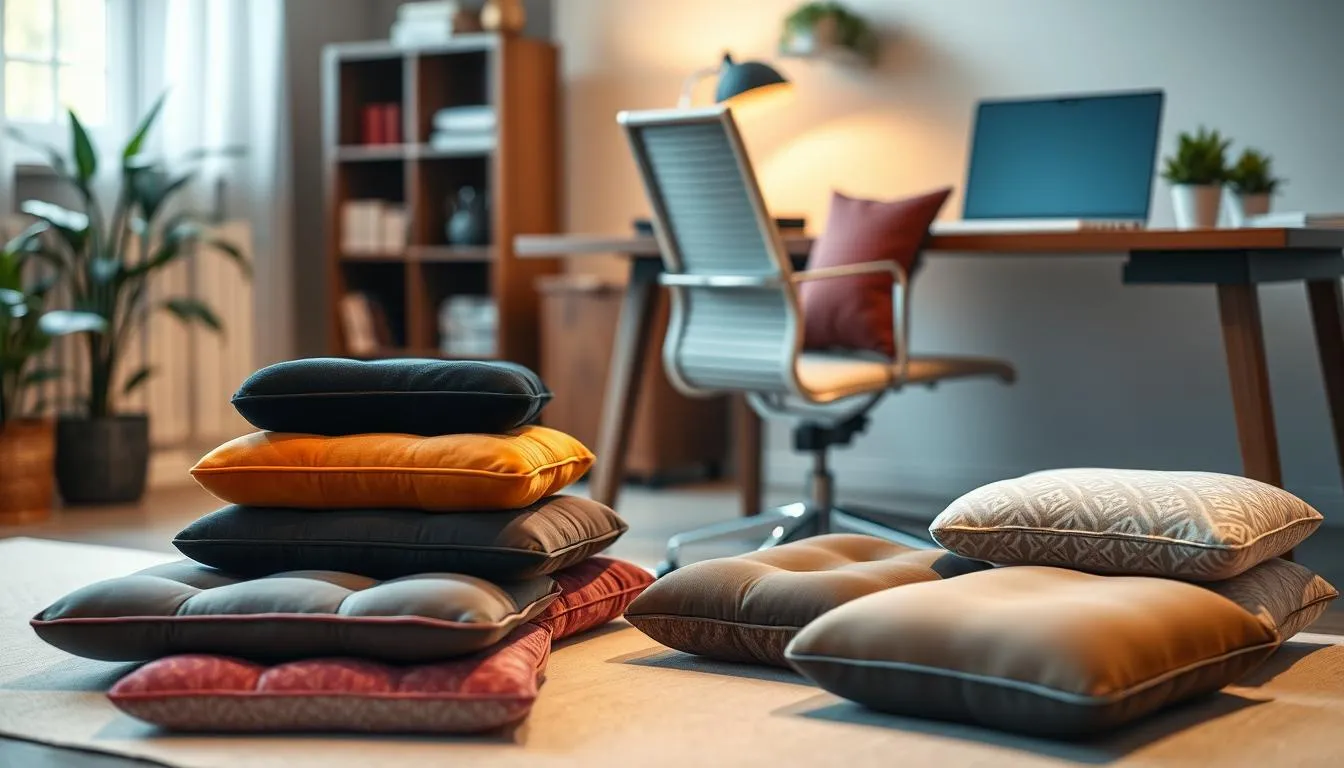
Seat cushions and lumbar pillows extend sitting comfort by supporting the natural curve of the spine. Choose breathable memory foam or gel that matches your weight. Firmer cushions suit heavier users while softer options fit lighter frames. Test products like a high-density memory foam pad for 1015 minutes before buying to confirm fit.
Placement matters. Set the cushion so hips sit slightly higher than knees and the lumbar pillow fills the small of your back. Add wrist rests and a lap keyboard for extended sessions. For design ideas and equipment examples, see this handy roundup from Mount-It! (ergonomic equipment guide).
Footrests reduce lower-back strain and improve circulation when your feet do not reach the floor. Look for models with tilt and height adjustment and a non-slip base. Rocking footrests encourage micro-movement and help reduce stiffness during seated work.
Anti-fatigue mats are essential when you switch to standing. Pick dense mats with ample thickness and a beveled edge to limit trip hazards. Mats with easy-clean surfaces work best in homes with pets. Use an anti-fatigue mat where you stand most; combine it with a footrest to shift weight and relieve pressure.
Long-term comfort ties back to the chair itself. A well-built ergonomic chair with lumbar support, adjustable height, and quality casters sets the baseline. Upgrades such as extra padding, performance fabrics from Living Spaces, or heavy-duty casters can extend a chairs lifespan and comfort for full workdays.
- Match cushion firmness to bodyweight.
- Use breathable materials for heat management.
- Choose footrests with tilt and secure grip.
- Select anti-fatigue mats sized for your standing zone.
Combining seat cushions, footrests, and anti-fatigue mats offers layered support that improves comfort and reduces fatigue. These practical gadgets for comfort are simple additions that pay off in longer, more productive work sessions and an overall improving home office experience.
Monitor solutions to reduce neck and eye strain
Good monitor setup ranks high among the best office tech choices for comfort and productivity. Small changes to screen height, distance, and lighting cut down on fatigue and make long workdays easier on your neck and eyes.
Monitor stands and risers to get screens to eye level
A solid monitor stand or riser raises the top of the display to eye level, which is key for reducing neck strain. Living Spaces recommends matching stands to desk height and chair setup so posture stays neutral. Affordable options start under $30 while premium wooden or metal risers blend with furniture for a clean look.
Dual-monitor and portable monitor setups to improve workflow
Adding dual monitors expands screen real estate and speeds multitasking. Virtual Vocations highlights budget-friendly picks such as popular HP 27h models and compact 15.6” portable monitors for mobile use. A portable monitor with USB-C or HDMI lets you add a second screen at home or on the go without complex wiring.
Monitor arms and mounting tips for stability and correct positioning
Monitor arms give flexible positioning and help achieve the recommended 2030 inch viewing distance for 2427” screens. Choose arms with the right VESA and weight ratings to avoid sag. If a monitor sags, a simple DIY fix is a rigid wooden plate drilled to VESA 200x200 specs to stabilize the mount. Use a spirit level and clamps during installation for perfect alignment.
Backlighting behind monitors reduces eye strain during video calls and lowers contrast between screen and room. Aim to place the top of the screen at or just below eye level. Keep cabling tidy so arms move freely. These steps make monitor solutions practical for anyone seeking ergonomic upgrades with the best office tech mindset.
Input devices that improve comfort and reduce repetitive strain
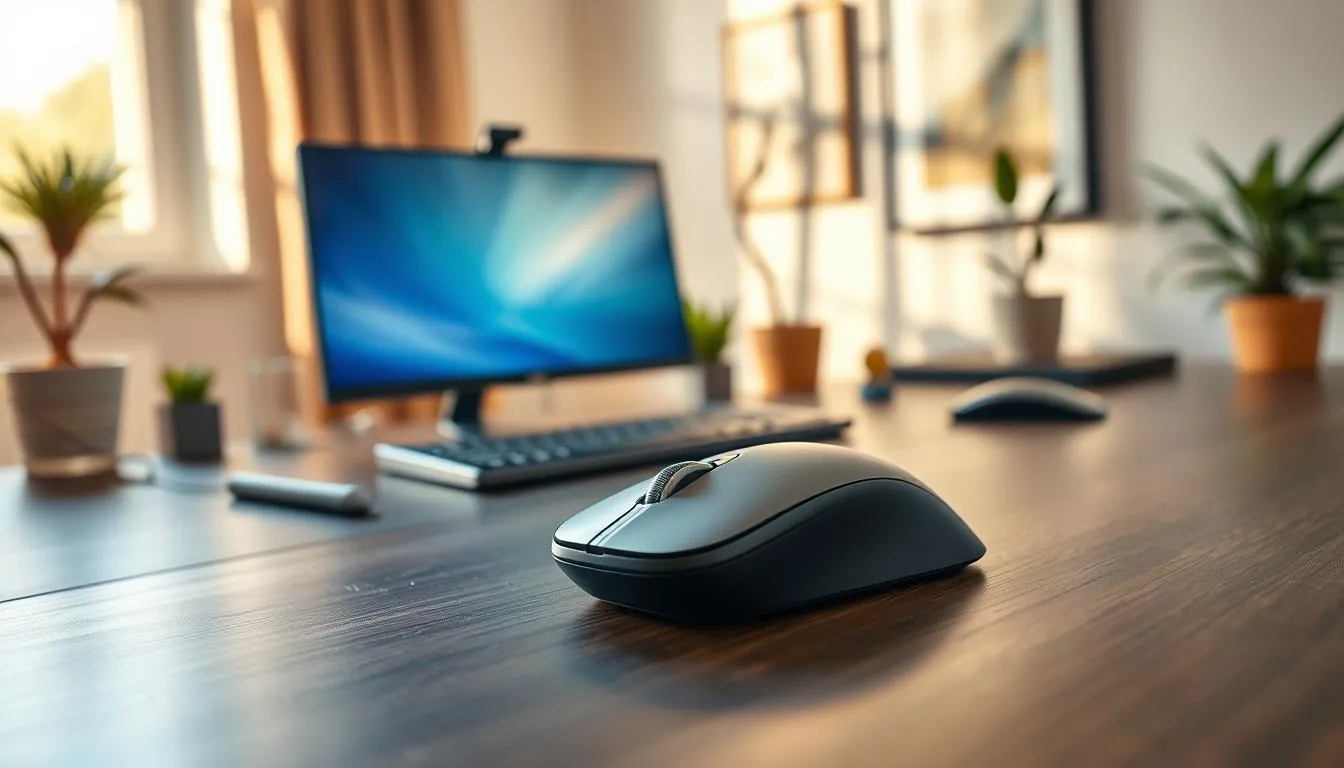
Choosing the right peripherals ranks high among essential home office gadgets. Small changes to your mouse and keyboard can make a big difference in reducing repetitive strain and keeping energy up through long workdays.
Vertical mice and ergonomic mouse shapes: benefits and trade-offs
Vertical mice like the Logitech MX Vertical move the hand into a handshake position to cut pronation-related pressure. Users often report less forearm ache after a short adaptation period.
Expect a learning curve with precise pointer tasks. Some people swap between a vertical mouse and an ultralight model for speed, which can be a smart strategy among the best office tech setups.
Split and ergonomic keyboards for natural hand positioning
Split keyboards and sculpted layouts reduce ulnar deviation by letting wrists sit neutral. Mechanical options from Keychron or Microsoft Sculpt offer tactile feedback and built-in wrist support.
Trying several layouts helps find one that lowers symptoms. An ergonomic keyboard can cut strain but may slow typing initially while your muscles adapt.
Keyboard trays and lap placement ideas from long-term users
Pull-out trays that allow negative tilt help maintain a relaxed wrist angle. Long-term users often place keyboards on the lap for a natural forearm line when desk height is fixed.
Consider wireless combos like Logitech MX Keys Mini paired with an Anywhere mouse when latency matters less. For tasks needing zero lag, a wired connection can be the safer pick.
Practical solutions include rotating among mice and using a macropad for repetitive actions. Real-world testing and small habit shifts will reveal which essential home office gadgets deliver the most comfort. Read further suggestions and product notes at a curated roundup of tools to reduce.
| Device | Main benefit | Trade-off |
|---|---|---|
| --- | --- | --- |
| Vertical mouse | Reduces pronation and forearm strain | Adaptation period, slight loss in pinpoint speed |
| Ergonomic keyboard (split or angled) | Promotes neutral wrist alignment | Learning curve for key placement |
| Keyboard tray or lap placement | Allows negative tilt and better forearm angle | Requires proper clearance and stable tray |
| Macropad or programmable pad | Reduces repetitive keystrokes | Setup time to program workflows |
| Rotating mouse selection | Varies muscle use to prevent overuse | Higher initial cost to own several devices |
Good lighting cuts eye strain and boosts focus. Use a mix of natural light and task lighting to shape a clear workspace that feels calm and productive. Small changes with the right lighting gadgets make a big difference for day-to-day comfort.
Adjustable desk lamps to minimize glare and eye strain
Pick a desk lamp with dimming and color-temperature controls. Lamps from OttLite and BenQ show how task lighting reduces glare while keeping colors true. Aim for 30005000K and an even, diffused beam to lower eye fatigue.
A flexible arm and swivel head let you angle light away from screens. Place the desk lamp slightly behind your dominant hand to avoid casting shadows on paperwork. Velcro clips or repositionable mounts work well in rented spaces.
Ring lights and backlighting for video calls and consistent illumination
A ring light gives even front lighting for video calls. Affordable models like UBeesize 10” brighten faces without harsh shadows. Use a dimmer or color adjustment to match ambient light and keep skin tones natural on camera.
Backlighting behind the monitor reduces contrast and improves webcam appearance. A small LED strip or a bias light cuts eye strain during long calls. These gadgets for comfort cost little and raise the quality of remote meetings.
Tips for combining natural light and task lighting in small spaces
Balance sunlight with a desk lamp to avoid glare at midday and dim rooms in the evening. Sheer curtains diffuse harsh rays. Blackout panels help when bright outdoor light causes screen reflections.
Map your workspace so light comes from the side or slightly behind the screen. Use a secondary task lamp for reading or sketching. This layered approach improves view clarity and supports improving home office experience.
| Gadget | Best for | Key features | Typical price |
|---|---|---|---|
| --- | --- | --- | --- |
| Adjustable LED desk lamp | Task work and reading | Dimming, 30005000K, adjustable arm | $30$150 |
| Ring light (10”) | Video calls and streaming | Even front light, phone mount, color modes | $20$80 |
| Bias/backlight strip | Monitor contrast reduction | Soft LEDs, adhesive backing, adjustable color | $10$40 |
| Portable clamp lamp | Small or flexible setups | Clamp mount, flexible neck, dimmer | $15$60 |
Creating a quiet, focused corner of the home starts with smart choices in audio gear and room layout. Small changes can make a big difference when you want to cut interruptions, run timed sessions, or improve call quality in a shared household.
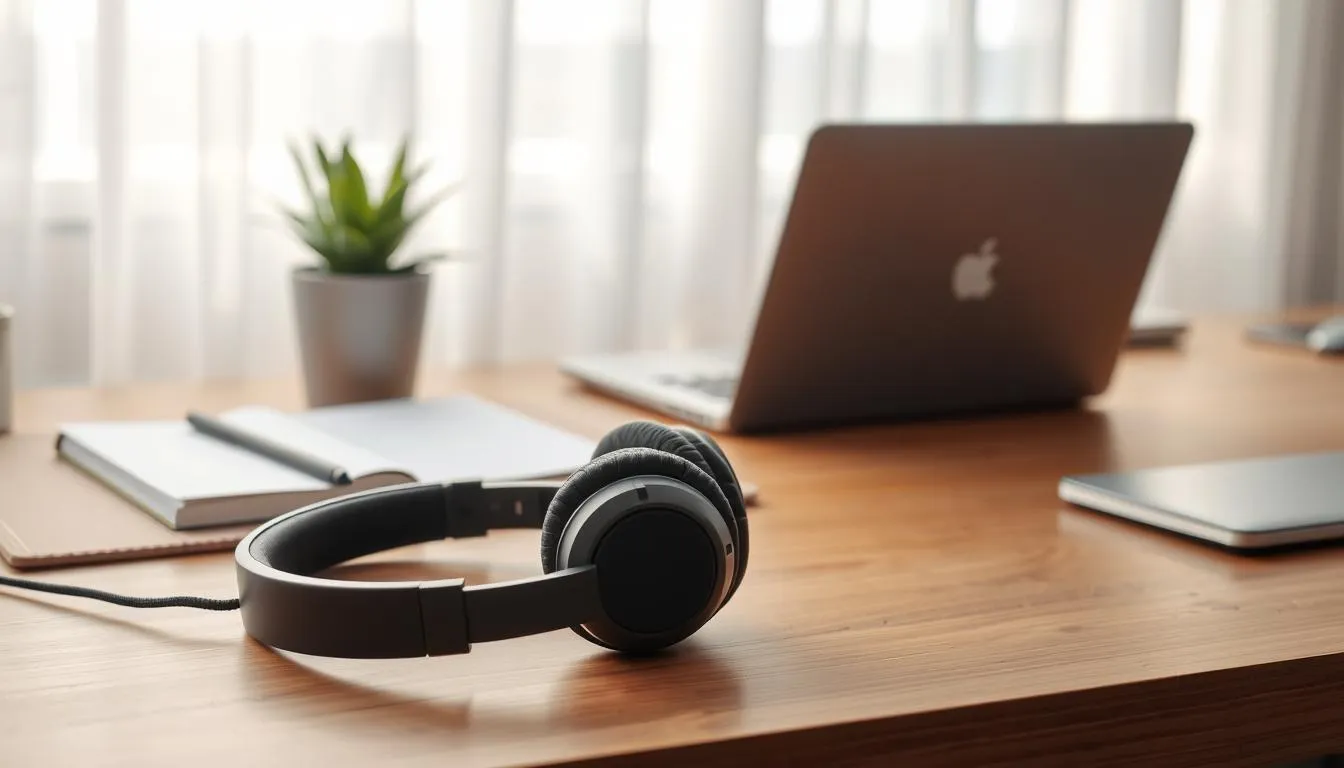
Noise-canceling headphones versus white-noise alternatives
Active noise-canceling (ANC) headphones such as Bose QuietComfort models block broad background sounds. They work best in busy homes or near traffic. Choose ANC when you need deep focus during long stretches of work.
White-noise options include apps, compact sound machines, or small indoor fountains. These alternatives mask distractions without isolating you. Use them for light blocking while still staying aware of household cues.
Smart speakers and voice assistants for hands-free timers and reminders
Smart speakers like Amazon Echo and Google Nest handle timers, reminders, and quick hands-free tasks. A compact Echo device works for short reminders and controlling ambient sounds during focus sessions.
Use voice commands to set Pomodoro intervals, start gentle background noise, or cue a call. These tools speed simple workflows and help with improving home office experience when your hands are busy.
Acoustic treatments and placement tips for shared homes
Soft furnishings absorb reflections and lower echo. Place rugs, curtains, and fabric wall hangings near your desk to tame mid- and high-frequency sound.
Bookcases filled with books act as practical diffusers. Position speakers and microphones off reflective surfaces and angle them away from hard walls to reduce feedback on calls.
| Focus Tool | Best Use | Pros | Cons |
|---|---|---|---|
| --- | --- | --- | --- |
| Noise-canceling headphones (ANC) | Busy households, long focus sessions | Strong isolation, clear call mic options, portable | Higher cost, may over-isolate |
| White-noise machines & apps | Light masking, shared spaces | Low cost, non-isolating, easy to customize | Less effective against sudden loud noises |
| Smart speakers | Hands-free timers, reminders, ambient sound | Affordable, voice control, multiroom options | Privacy concerns, limited sound isolation |
| Acoustic panels & rugs | Permanent sound dampening in shared rooms | Improves call clarity, reduces echo, discreet | Requires space, initial setup effort |
Temperature and sensory comfort devices
Small changes to the immediate workspace can make a big difference for comfort and focus. Using targeted gadgets for comfort helps avoid overheating the whole house while keeping hands, face, and air quality pleasant for long work sessions.
USB heated gloves and fingerless designs keep dexterity for typing and mouse work while delivering steady warmth. Look for USB heated gloves with overheat protection and simple USB-A or USB-C power so you can plug into a laptop or a powered hub. Many users find heated fingerless gloves more energy-efficient than cranking the thermostat.
Diffusers can anchor a calming routine in the same way lighting or sound does. Choose a reputable diffuser and pair it with light scents that don’t irritate coworkers or family members. For air-quality concerns, consider a HEPA air purifier or an air-quality booster alongside a diffuser to support perceived comfort and real indoor-air improvements.
Small fans and compact heaters provide microclimate control at the desk. A low-noise desktop fan helps circulate air without distraction. For winter, compact ceramic heaters with tip-over and thermal cutoffs are safer than older coil heaters. Verify safety certifications before buying.
Practical routines matter. Use smart plugs and timers to power heated accessories only when you are at the desk. Combine a diffuser with good ventilation and avoid strong fragrances if someone in the house has sensitivities. USB accessories reduce the need for extra outlets and make setup cleaner.
For inspiration and product ideas, check a focused roundup of sensory tech gadgets and safety-minded options at sensory tech gadgets. Small, well-chosen items for warmth, scent, and airflow go a long way toward improving home office experience and meeting personal comfort needs without overworking home systems.
Organization and cable-management gadgets
Clutter kills focus. A few targeted purchases can turn a cramped desk into an orderly workspace and do a lot for improving home office experience.
Under-desk cable trays and clips to reduce clutter and hazards
Mounting an under-desk cable tray keeps power strips and cords off the floor and reduces trip risks. Use adhesive or screwed cable clips to route individual cords along legs and edges. For more detailed tips on routes and hiding power strips, consult a practical guide on cable organization with hands-on solutions here: simple cable organization tips.
Desk organizers, rolling carts, and storage solutions for small spaces
Choose desk organizers that sort everyday items like pens, notebooks, and external drives. Mesh organizers and compact drawer units work on shallow desktops. Keep a 3-tier rolling cart nearby for printer paper, chargers, and supplies you need on rotation.
Rolling carts let you convert a spare room into an office in minutes. Pick one with lockable wheels to stabilize your setup when you work. Small carts pair well with under-monitor shelves to free desktop space.
Using vertical storage and multi-functional furniture to maximize space
Go vertical with wall shelves, pegboards, or tall bookcases to store binders and reference books without stealing floor area. Multi-functional furniture, such as a filing cabinet that doubles as a printer stand, stretches every inch of a small room.
Label cables and use color-coded ties for quick troubleshooting. Mount surge protectors underneath desks and select braided sleeving for neat runs that resist abrasion. These moves improve cable management and complement your essential home office gadgets.
Power and connectivity tools for a seamless setup
A stable power and connection layout keeps a home office running smoothly. Pick items that protect devices, expand ports and make swapping gear quick. These essentials help you avoid interruptions during calls and heavy work sessions.
USB hubs and docking stations make laptops behave like full desktops. Choose a USB 3.0 or USB-C hub for faster file transfers. A docking station from Dell, CalDigit, or Anker lets you plug monitors, Ethernet and power through one cable. That reduces daily fumbling and keeps desks tidy.
Surge protectors are vital for device safety. Look for models with a high joule rating and multiple grounded outlets. Brands such as Belkin and APC offer options with USB ports and built-in circuit protection. Using a quality surge protector prevents damage from spikes and gives peace of mind.
Right cables and adapters keep signals clean between laptops and portable monitors. Use USB-C with Power Delivery for single-cable setups when available. For HDMI displays, buy well-shielded HDMI cables. Label cords and secure routing to avoid strain on ports and to extend gear life.
Practical setup tips improve reliability. Place high-draw devices on a separate circuit if possible. Keep a dedicated surge-protected strip for monitors and docking stations. Pick hubs with external power for stable charging and to support multiple peripherals.
When shopping for the best office tech, balance price with durability. Prioritize tested brands, read specs for bandwidth and power, and choose products with good warranties. Small upgrades to power and connectivity make daily work smoother and more dependable.
Health and movement gadgets to keep you active
An active home office beats long stretches of sitting. Choosing a few essential home office gadgets makes it easier to move more and feel better during long workdays. Small changes can add up to big gains in comfort, posture, and stamina.
Under-desk walking pads and compact treadmills for low-impact movement
Under-desk walking pads fit neatly beneath many standing desks. Brands such as WalkingPad and Cubii offer compact models that slide under a desk when not in use. A modest investment in an under-desk walking pad helps cut sedentary time without interrupting calls or typing.
Compact treadmills with low profiles work well in smaller spaces. Start with short sessions of five to fifteen minutes each hour to build comfort. Check that the pad fits under your desk and leaves room for safe foot placement.
Desk stretches and simple routines to pair with movement devices
Pair walking sessions with desk stretches that target the neck, shoulders, hips, and hamstrings. Gentle neck tilts, shoulder rolls, and hip-openers restore mobility and reduce stiffness. Keep a short routine on a sticky note or set a timer with a smart speaker.
Try alternating walking and seated work in predictable blocks. Short, frequent breaks beat a single long walk at the end of the day. Over time, these habits become part of a sustainable daily rhythm.
How integrating movement reduces fatigue and boosts focus
Movement decreases fatigue and improves concentration by increasing circulation and clearing mental fog. Health gadgets that promote light activity are more effective when paired with stable monitor heights and secure trays. Users who adjusted setups gradually report far fewer aches during long sessions.
Think of movement devices as part of a complete toolkit for improving home office experience. Combine them with ergonomic chairs, proper monitor placements, and consistent routines to create lasting benefits for energy and productivity.
Tech for professional video and remote communication
Creating a sharp, professional presence on video calls starts with a few well-chosen tools. Pick essential home office gadgets that focus on clear sightlines, clean audio, and steady framing. Small investments can lift your on-camera confidence and make remote meetings feel more natural.
High-quality webcams and placement tips for flattering framing
Choose high-quality webcams like Logitech models for crisp 1080p or 4K image. Mount the camera at eye level to avoid unflattering angles. If your laptop sits too low, use a riser or a secure monitor mount to raise the screen and camera.
Keep the lens clean and face a soft light source. A subtle backlight placed behind the monitor reduces harsh shadows and adds depth to the frame.
Microphones, lighting, and background setup for polished calls
External microphones outperform built-in mics for clarity. USB mics from Blue or Shure reduce room noise and make voices sound professional. Test levels before important calls and mute when not speaking.
Good lighting matters. Use a ring light or adjustable desk lamps to create even illumination. Position lights slightly above and in front of you for flattering coverage. Neutral, non-distracting backgrounds work best; add a tidy bookshelf or plant for warmth.
Portable solutions for hybrid work and coworking spaces
When you move between home, cafs, and coworking hubs, lightweight gear makes setup quick. A compact portable monitor pairs with a USB-C dock to extend your screen without extra bulk. Foldable tripods and small condenser microphones let you capture stable video and clear audio on the go.
Carry a compact kit that includes a portable monitor, a reliable webcam, a small condenser mic, a ring light, and a USB-C hub. These items form the backbone of the best office tech for hybrid work and fit into a backpack for easy travel.
Personalization and comfort-enhancing accessories
Make your workspace feel like yours by adding small, high-impact touches. A few well-chosen items lift mood and focus while supporting long-term comfort. Mix practical pieces with personality so your desk is both useful and inviting.
Office plants that boost mood and air quality
Low-maintenance plants such as pothos, snake plant, and succulents fit tight schedules and still refresh the room. Costa Farms Dieffenbachia is an option for larger planters when you want a bold focal point. Plants absorb VOCs and add a calming visual layer that helps with concentration.
Custom-built items and DIY ergonomic tweaks
Long-term users often favor custom solutions. Building a monitor riser from an IKEA shelf or reinforcing a mount can improve sightlines and cut neck strain. A repurposed car seat makes a durable custom chair for some people. These DIY ergonomic tweaks can match your body and habits better than off-the-shelf gear.
Balancing style, durability, and pet-friendly materials
Choose stain-resistant fabrics and easy-clean surfaces when pets or kids share space. Solid mounting and secure cable management keep setups safe. When a solution works well, keep it in place to avoid repeated ergonomic backsliding.
Below is a quick comparison to help choose accessories that blend comfort and style.
| Accessory | Benefit | Best for |
|---|---|---|
| --- | --- | --- |
| Snake plant | Low water needs, air-purifying, small footprint | Busy workers, small desks |
| DIY monitor riser (IKEA shelf) | Custom height, low cost, stable platform | Users needing eye-level screens |
| Stain-resistant fabric chair cover | Durable, easy to clean, pet-proof | Homes with pets or kids |
| Diffuser with essential oils | Creates calm scent profile, improves ambience | Quiet-focus work, video call prep |
| Under-desk storage trays | Reduces clutter, protects cables, hides tools | Small rooms, multi-use desks |
Conclusion
The right combination of essential home office gadgets turns a good room into a productive workspace. Start with ergonomic fundamentals: a supportive chair, a height-adjustable desk, and correct monitor positioning. These core pieces, as Living Spaces notes, deliver long-term value when you prioritize quality and versatility.
Add focused gadgets for comfortvertical mice, monitor arms, task lighting, noise control, and cable managementto address common pain points. Virtual Vocations highlights that mixing affordable options with targeted upgrades can dramatically improve your home office experience without overspending.
Remember that ergonomics is ongoing. User experience shows that personal tweaks and occasional DIY fixes often yield the best results for reducing strain and boosting focus. Combine fundamentals with the best office tech for movement, climate control, and tidy storage to create a setup that fits your body, space, and schedule.
For more ideas on choosing gadgets for comfort and improving home office experience, see this guide from Spacet: essential desk accessories. Tailor your choices to your budget and habits, and youll build a comfortable, durable, and efficient home office that supports focused work.
FAQ
What core pieces should I invest in first to build a comfortable home office?
Start with an ergonomic chair, a stable desk (preferably with height adjustability), and sufficient storage like bookshelves or filing cabinets. These three establish posture support, a practical work surface, and an organized workflow. Choose durable, easy-to-clean materialslaminate, treated wood, or performance fabricsif you have kids or pets.
Which ergonomic features matter most when shopping for an office chair?
Look for adjustable lumbar support, seat height and depth adjustment, and armrest adjustability. Breathable materials (mesh), solid construction, and a height range that accommodates the 95th percentile of users are crucial. Tilt, seat firmness that matches your bodyweight, and durable casters are also high-value features.
Should I buy a standing desk or a desk converter?
Both help reduce prolonged sitting. Electric standing desks offer smooth height changes and wide adjustability, making them ideal for frequent transitions. Desk converters are more affordable and let you keep your existing desk while enabling sit-stand alternation. Choose converters with smooth actuation and adequate load capacity; for desks, prioritize a stable frame and motor quality.
Do seat cushions, lumbar pillows, and footrests actually help long workdays?
Yes. Seat cushions and lumbar pillows extend comfort by supporting posture and matching cushion firmness to bodyweight. Footrests reduce lower-back and leg strain, especially for shorter users. Anti-fatigue mats are recommended for standing workpick dense, supportive mats that resist wear and are easy to clean.
How do I position monitors to reduce neck and eye strain?
Aim the top of the screen at or slightly below eye level and keep about 2030 inches of distance for 2427” monitors. Use monitor stands or arms for correct height and flexibility. If using dual or portable monitors, match heights and tilt, and use VESA-compatible arms rated for your monitors weight.
Are monitor arms worth it, and any tips if a monitor sags on the arm?
Monitor arms are worth it for adjustability and desk space. If sagging occurs, reinforce the mount platelong-term users often add a wooden board drilled to the VESA pattern between the monitor and arm to stiffen the joint. Always check the arms weight/VESA rating and use a spirit level when aligning screens.
Will a vertical mouse or split keyboard reduce repetitive-strain issues?
They can. Vertical mice reduce forearm pronation and have helped many users lower repetitive-strain symptoms, though theres an adaptation period and slight loss in pinpoint speed for some tasks. Split keyboards promote neutral wrist positioning but require relearning. Consider wired options for low-latency needs or high-quality wireless combos for convenience.
Should I use a keyboard tray or keep the keyboard on the desk?
Keyboard trays that allow negative tilt and adequate knee clearance can improve wrist angle and comfort. Long-term users also find lap placement useful for a natural wrist position. Choose trays that provide stability and enough space for mouse movement; custom or DIY solutions can be effective if standard trays dont fit your posture needs.
What lighting setup reduces eye strain and looks good on video calls?
Use adjustable desk lamps with dimming and color-temperature control (30005000K recommended) to reduce glare. Combine even task lighting with natural light and use blackout/sheer curtains to manage brightness. Add ring lights or backlighting behind monitors for better video-call appearance and to reduce shadows.
Are noise-canceling headphones necessary if I work from home?
ANC headphones are very useful in busy households to block distractions and improve focus. If headphones arent desired, white-noise apps or small indoor water features can help. For meetings, pair ANC with a dedicated external microphone when possible for clearer audio.
How can I improve acoustics in a shared home office?
Add soft surfacesrugs, curtains, fabric wall hangings, or bookcasesto absorb reflections. Position microphones and speakers to reduce echo and use simple acoustic panels where needed. Proper placement of furniture and monitor arms can also reduce reflective surfaces around your workspace.
What small devices help with temperature or sensory comfort at the desk?
USB heated fingerless gloves, small USB fans, and compact heaters let you tailor a microclimate without heating the whole room. Diffusers and air-quality boosters add comfort, but use reputable devices and ventilationavoid scents that might trigger allergies. Always check safety certifications for heaters and choose USB-powered accessories for desk convenience.
Which cable-management and storage gadgets are most effective for small spaces?
Under-desk cable trays, clips, and labeled cables prevent tangles and tripping hazards. Desk organizers, rolling carts, and vertical shelving free surface area. Use multi-functional furniture and under-monitor storage to maximize square footage. Mount surge protectors under the desk to keep plugs off the floor.
What power and connectivity tools should I add to make devices seamless?
Invest in USB hubs (USB 3.0 or USB-C), docking stations for laptops, and surge protectors with a good joule rating. Choose quality cables and adaptersUSB-C with PD for power and display when possible, HDMI for many portable monitorsand label power strips to manage high-draw devices safely.
Are under-desk walking pads worth adding for health?
Yes, for many users they reduce prolonged sitting risks and boost activity. Start with short sessions (515 minutes each hour) and ensure the pad fits under your desk. Pair movement with desk stretches and secure monitor positions to maintain safe posture while walking.
How can I upgrade my webcam and lighting for more professional video calls?
Use a high-quality external webcam mounted at eye level and pair it with a ring light or soft task lighting. Position a light behind the monitor for even face illumination. For audio, consider an external microphone, and choose a neutral, uncluttered background or a well-lit virtual background for polished calls.
What plants and decor work well in a home office without high maintenance?
Low-maintenance plants like snake plants, pothos, and succulents add greenery and improve perceived air quality. Choose stain-resistant, easy-to-clean materials for textiles and pick decorative accents that support focussoft rugs, calming art, and performance fabrics for pet-friendly homes.
Can DIY or custom tweaks improve long-term comfort, and what are common examples?
Yes. Long-term users report success with custom keyboard trays, monitor-mount reinforcements, and chair modifications (extra padding or upgraded casters). DIY fixes like reinforcing monitor-arm plates with a wooden board or creating a custom tray can deliver tailored ergonomics that store-bought items sometimes dont provide.
How do I balance style, durability, and family/pet needs when choosing office furniture?
Prioritize durable, easy-to-clean surfaces and performance fabrics while selecting timeless designs for longevity. Multifunctional pieces and vertical storage free floor space and make the room adaptable. Consider washable rugs and secure mounts to keep the setup both attractive and resilient in busy homes.
Whats the single best approach to build a comfortable, productive home office?
Combine ergonomic fundamentalsan adjustable chair, a stable height-adjustable desk, and correct monitor positioningwith targeted gadgets: supportive peripherals (vertical mouse or ergonomic keyboard), monitor arms, quality lighting, ANC headphones, cable management, and movement tools. Iterate and personalize your setup over time for lasting comfort and productivity.